
The Planner app is the perfect tool for improving your team’s productivity and supporting your technicians in managing their workflow. As a key tool for Resource Planning Efficiency, it allows managers to account for team capacity and balance workloads.
A visual, flexible scheduling tool that bridges the gap between preventive maintenance plans and daily execution. Drag-and-drop simplicity, technician workload visibility, and last-minute rescheduling—especially in industries where maintenance windows are unpredictable.
Key Perception: It transforms abstract "plan jobs" into actionable, assignable work while respecting real-world constraints (technician availability, urgent breakdowns, client access).
1. Core Pain Points the Planner Solves:
1.1 "We don't know who's doing what, when"
- No more struggle with technician workload visibility. The Planner's weekly/daily view by technician is a relief after manual Excel planning or WhatsApp coordination.
1.2 "We over/under-load technicians"
- Avoid assigning "15 hours in one day." The cumulative workload feature prevents burnout and missed SLAs.
1.3 "The schedule changed, AGAIN."
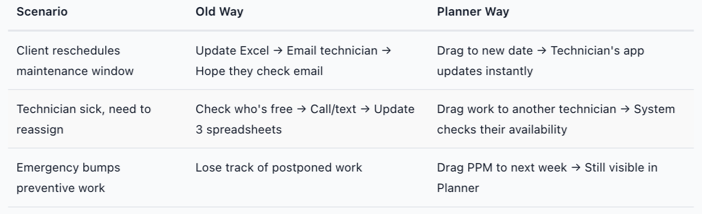
- The drag-and-drop UX allows for same-day rescheduling due to guest access or operational needs.
1.4 "Emergency! Drop the planned work!"
- Pause preventive work for urgent correctives without losing track of it. Planner will show conflicting schedules and reassign work.
2. Key features and How to use
Planner is designed to be seamless and intuitive, offering several tools to manage day-to-day operations:
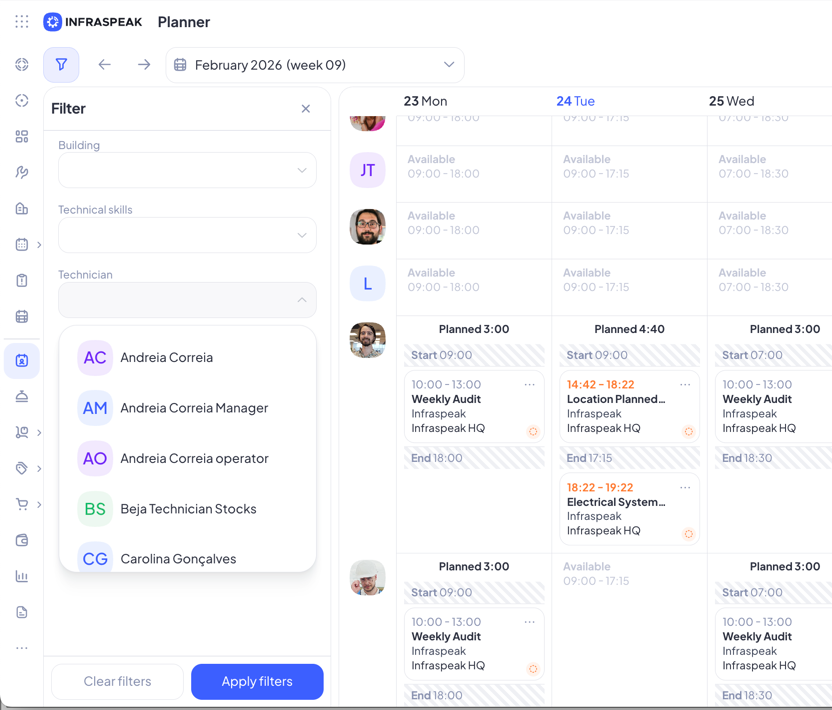
Filter to find the desired users/teams to allocate work to:
The filters on left allow you to select multiple fields in order to give you visibility on the users that you need to plan work to- these filters will define which users show up in the main board and remove the visual noise. With the new concept of TEAMS, you can create groups of users and filter the Planner by "user group" to make users filtering easier.
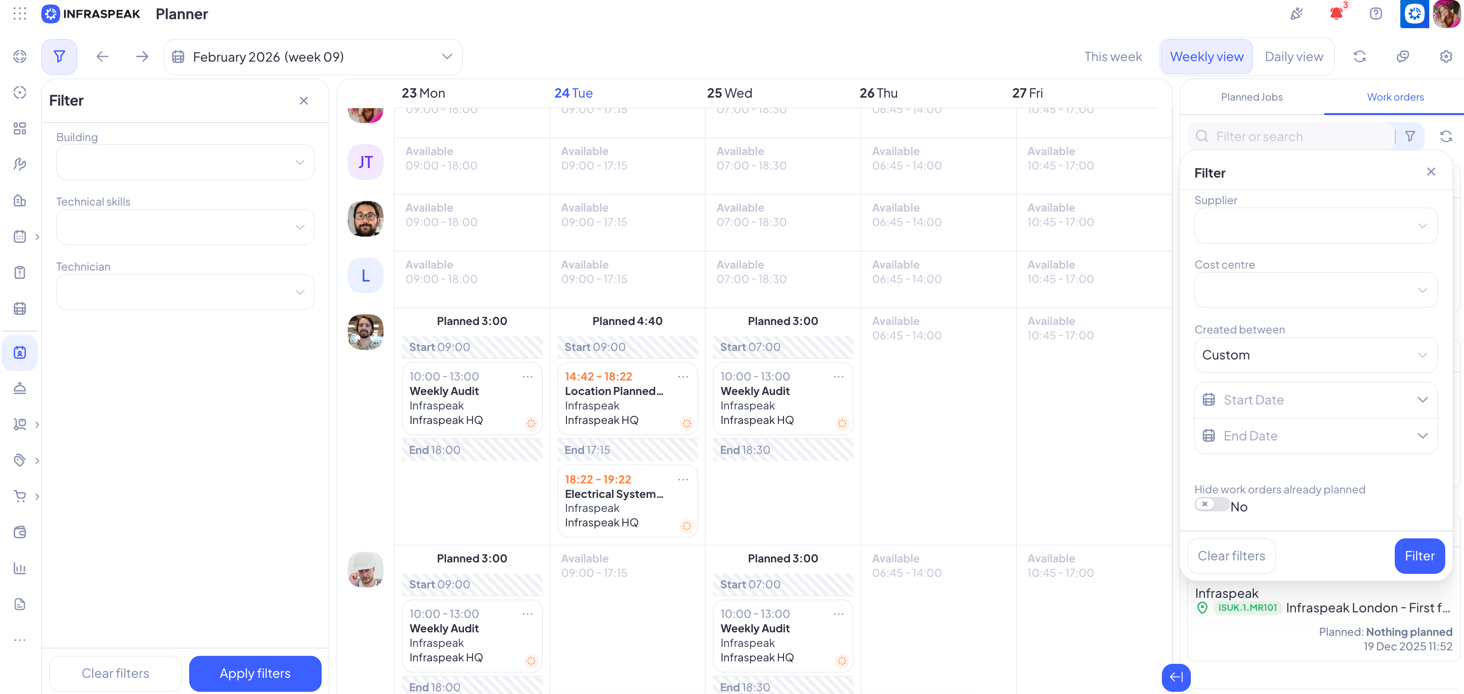
Filter to find the Reactive/Proactive work that needs to be scheduled:
The filters on the right allow you to filter by type of work: Work Orders/Planned job orders, and many other fields (buildings, clients, etc) so you can easily find the work you need to plan and remove the visual noise.
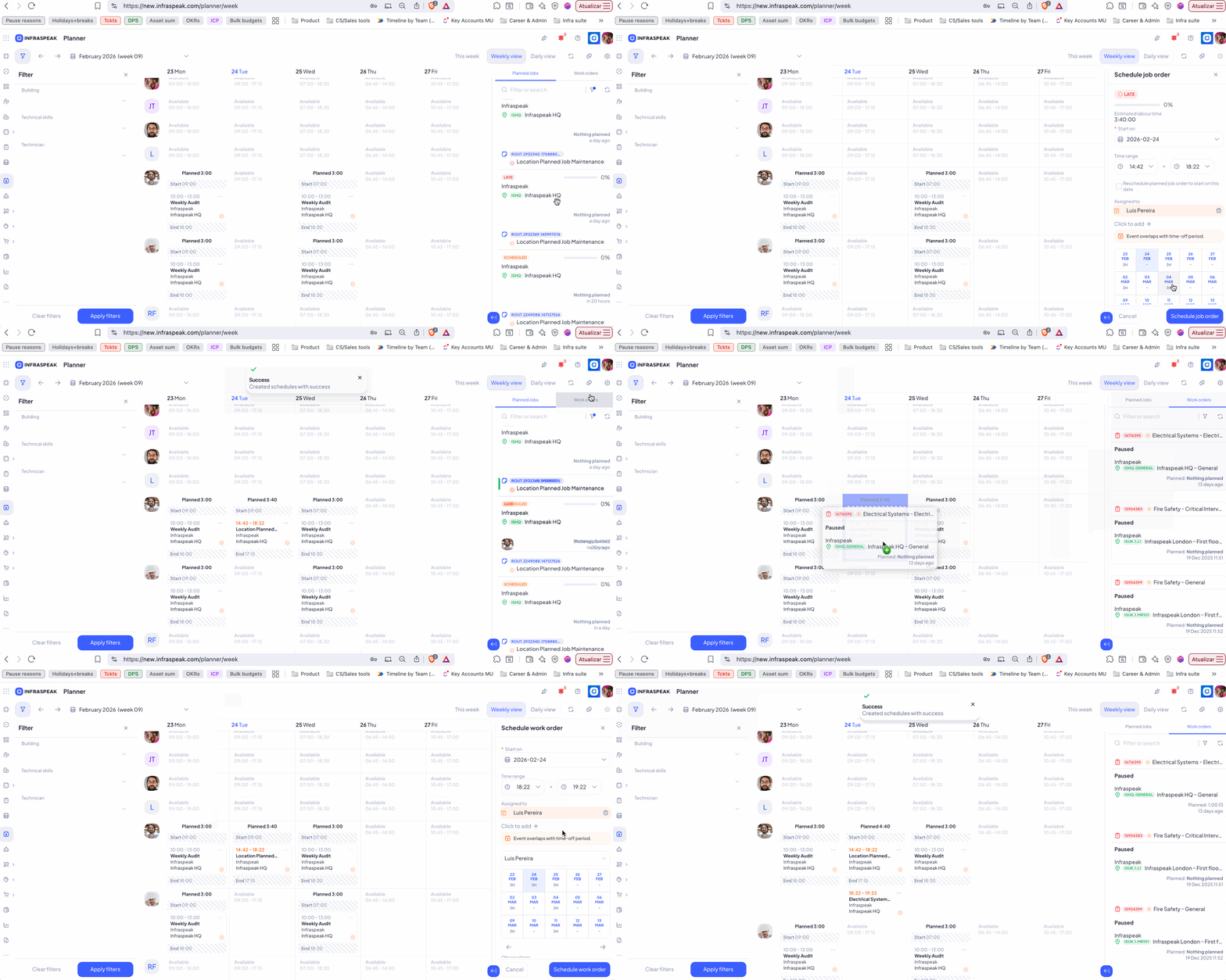
Drag-and-Drop Allocation:
You can speed up staff and team management using simple drag-and-drop actions to assign Work Orders and Planned Job Orders. Comparative views make it easy to see exactly who is doing what. As you drag jobs, you see the hours accumulating: 9, 10, 11, 13 hours - Red warning if exceeding capacity.
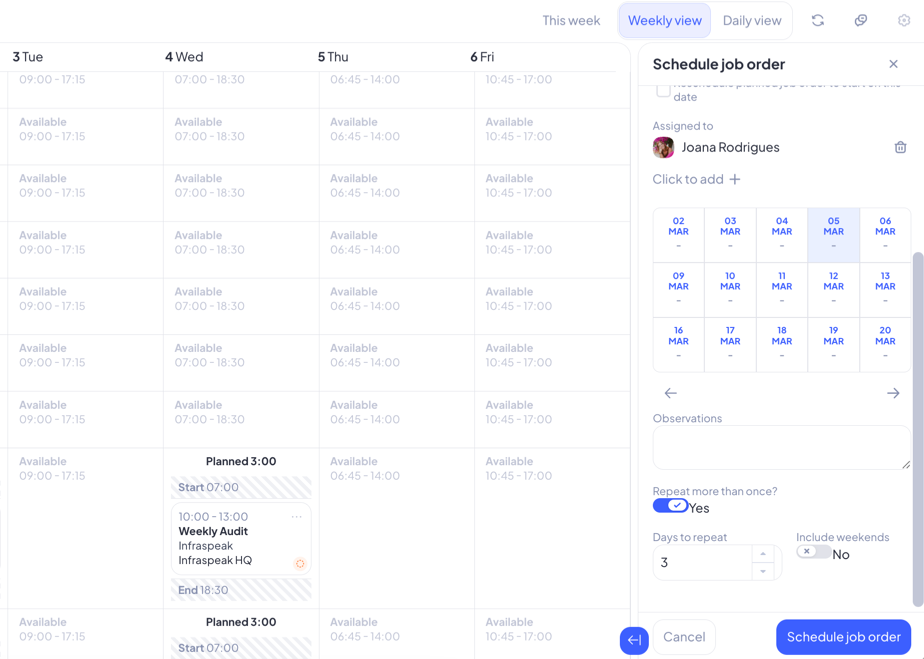
Schedule works for more than one day:
You can define that the PJO/WO will last more than one day, including if weekdays should be considered or not.
Schedule works for more than one technician:
Assign multiple technicians to the same job—they all see it on their mobile apps, coordinate in real-time, and close it together. Click "Add Assignees" button - Select additional technicians.
Synch date and time of scheduled works:
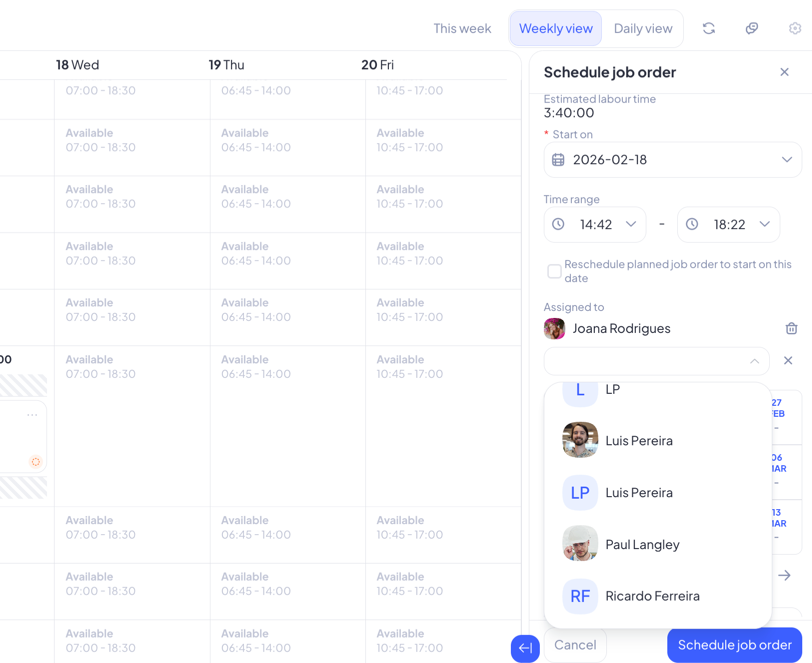
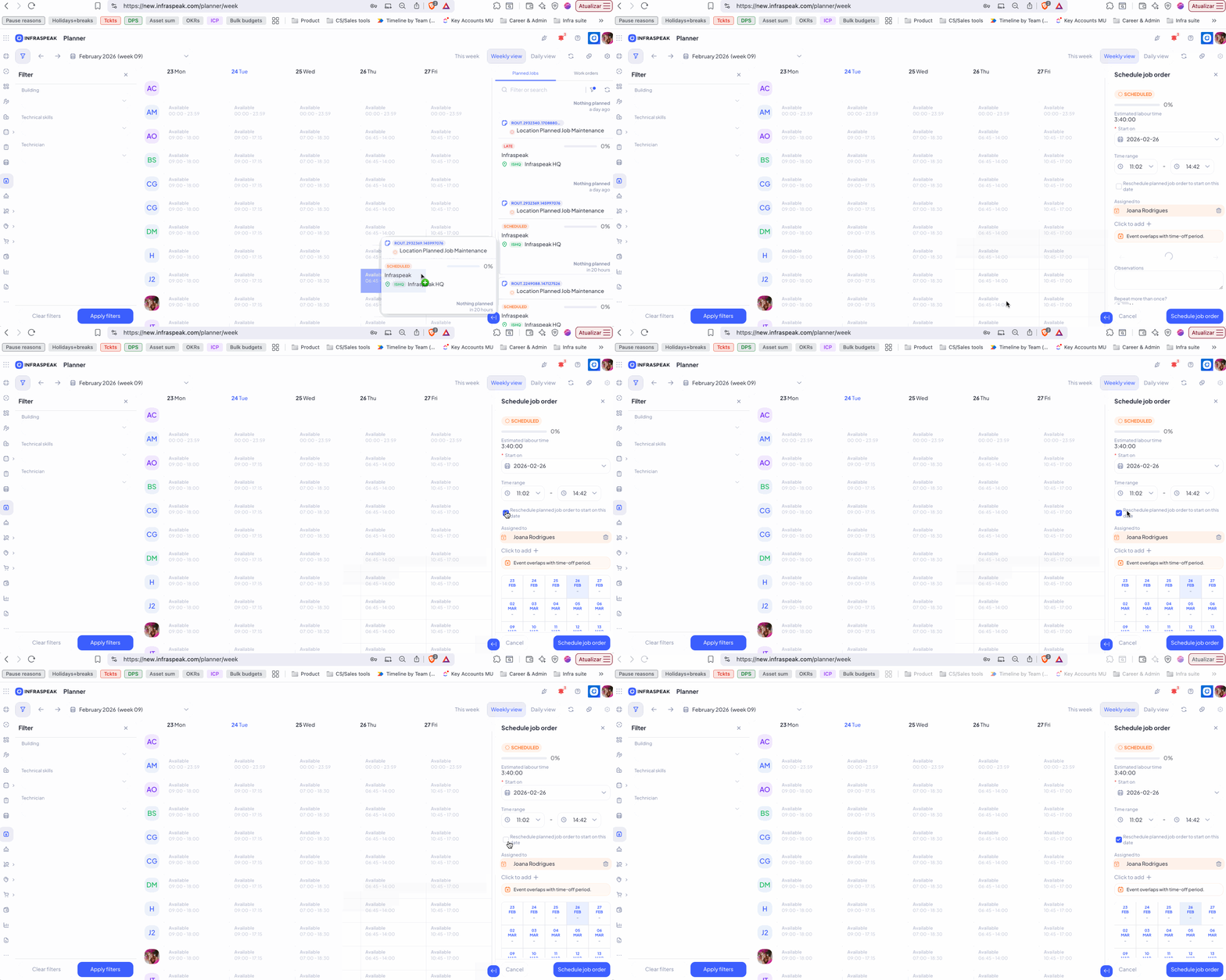
When planning, the user is able to sync the work’s scheduled date with theplanned date.
Technicians Work Schedules:
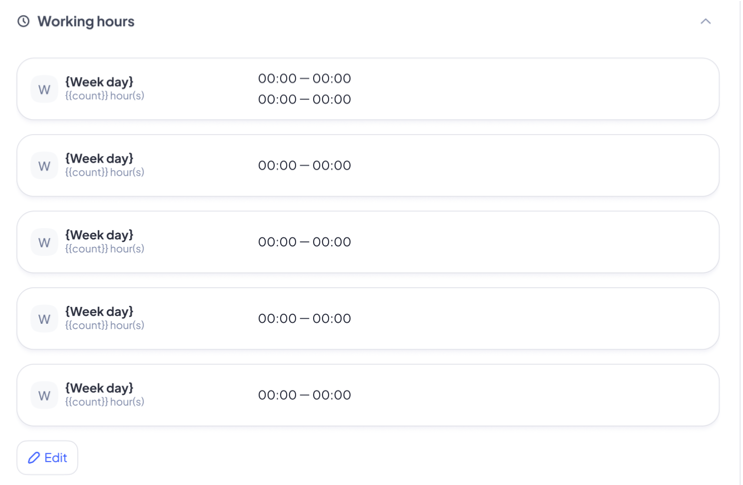
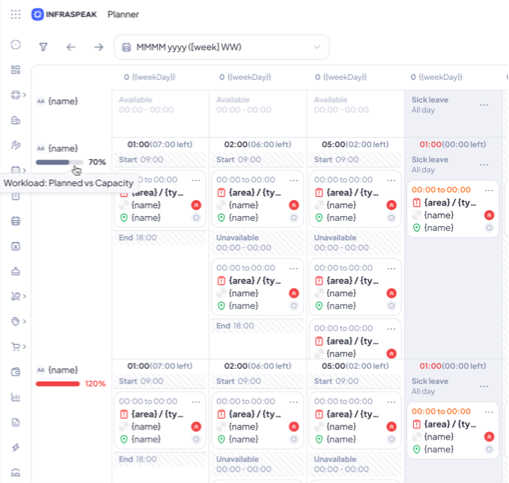
Admins can configure specific working calendars for users, allowing work to be allocated based on accurate availability. This includes the ability to configure multiple periods of working hours per day (Q2 2026) to account for mandatory breaks or fragmented shifts. The technicians’ availability will be displayed on Planner accordingly.
Leaves:
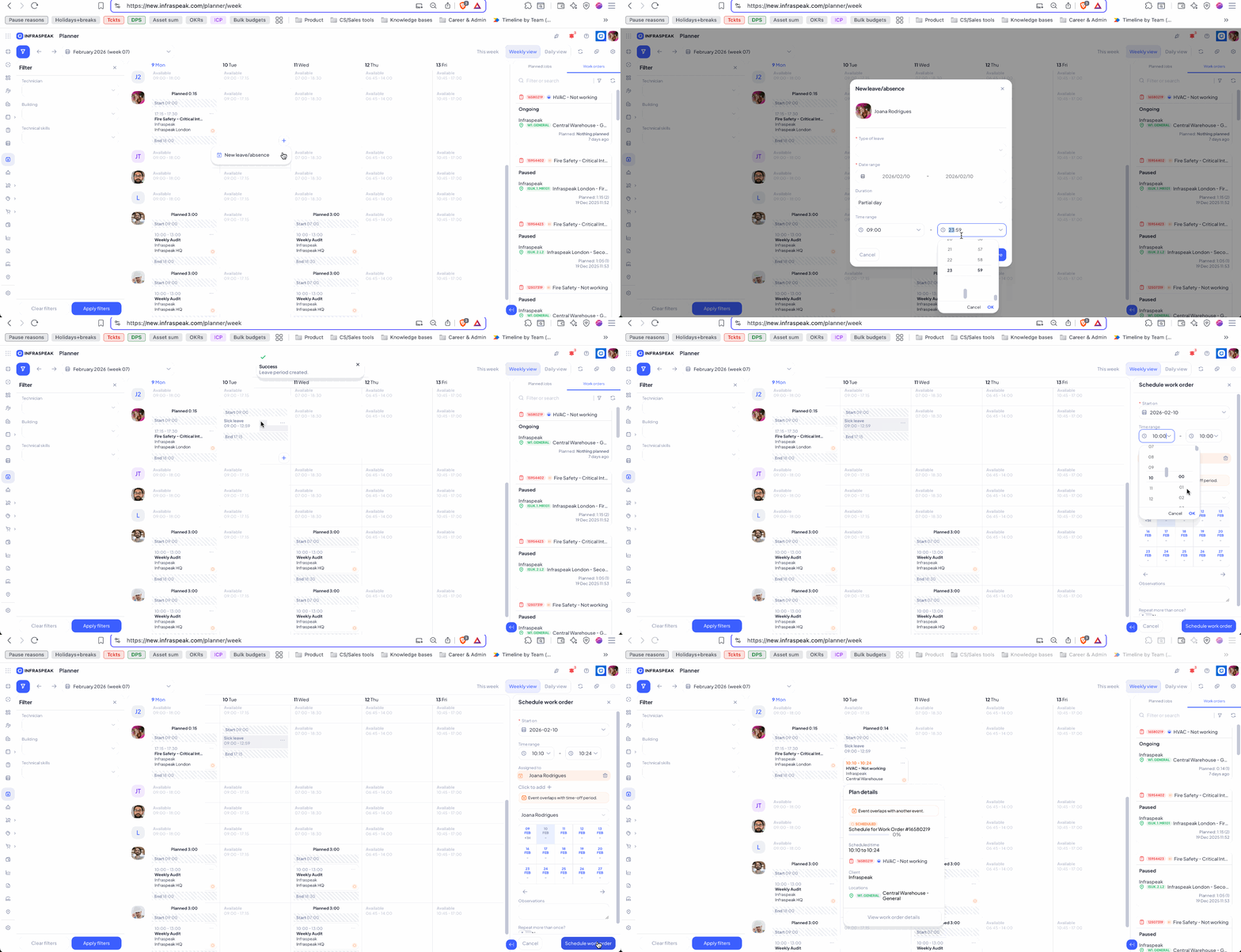
Managers can introduce full day or partial day absences with specific hour durations (e.g., a 9h-11h medical appointment or morning-only training) and see the exact time period of the leave when planning.
Workload visibility:
To empower managers in planning accuracy, the Planner displays "Total Available Hours" at the top of the column for each day and a "Weekly Utilization" progress bar below each user's avatar (Q2 2026).
Switch between daily/weekly time views:
By clicking on the toggle button at top of Planner, the user can see the weekly or daily breakdown - whether they need day-to-day execution planning or Strategic capacity planning.
Calendar Synchronization:
Events created, updated, or deleted in the Infraspeak Planner can be automatically synchronized with individual Google or Outlook calendars.
Mobile App Sync (Infraspeak Next):
Planner schedules push to technicians' mobile apps in real-time. Technicians receive push notification when assigned new work and see daily schedule in mobile app. Also, they can't accidentally pick up work assigned to others.
3. FAQ: Planner Module
Q: What's the difference between Planner and Calendar?
A: Calendar: Timeline-focused. Use it to see WHEN things happen across your organization. Planner: Assignment-focused. Use it to decide WHO does WHAT and balance workload.
Q: Can I assign one job to multiple technicians?
A. Yes! When assigning, click "Add Assignees" and select multiple people. All see the job on their mobile apps and can collaborate in real-time.
Q: What happens if I drag a job to a technician who's on vacation?
A. The system warns you instantly: "This person is absent (Vacation). Assign to someone else?" It won't let you proceed until you choose an alternative.