
This guide explains how to configure, trigger, and verify automatic approval flows for low-risk supplier quotes so qualifying orders are approved instantly upon arrival without manual review.
TABLE OF CONTENTS
- 1. Set up an automatic approval flow
- 2. Get a quote approved automatically
- 3. Get a quote approved automatically
1. Set up an automatic approval flow
Some quotes are too small to need a person. With an automatic approval flow, you decide once which quotes are low risk, like anything below €50 from a supplier you trust, and we approve them as soon as they arrive.
1. Open the Purchases settings, go to Approval flows and click Create approval flow.
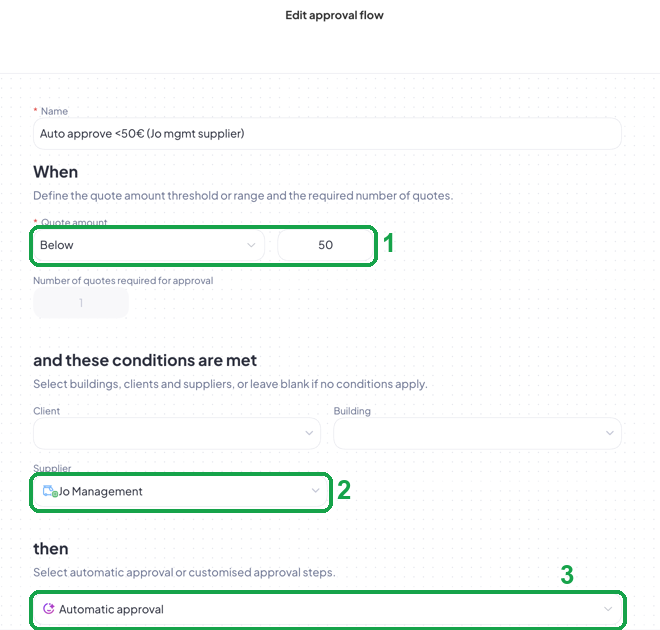
2. Give the flow a Name that says what it does, like Auto approve below 50€ (Jo Management).
3. In When, keep Quote amount on Below and enter the amount (1). Number of quotes required for approval stays at 1: automatic approval always works on a single quote.
4. In and these conditions are met, choose the Client, Building or Supplier the flow applies to (2). Leave a field blank to apply the flow to all of them.
5. In then, keep Automatic approval selected (3) and save.
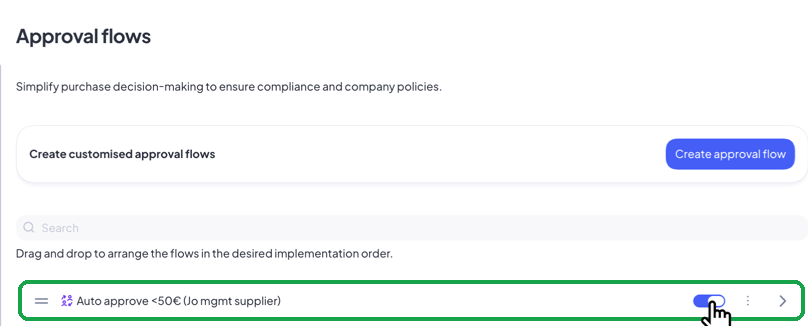
6. The flow appears at the top of the Approval flows list, switched on. Drag it to change its position, or use the toggle to switch it off.
Good to know
Flows are checked from the top of the list down, and only the first one that matches is applied. Put the most specific flows first.
The Supplier condition looks at the supplier who sent the quote. Client and Building look at the work order or planned job order the quote request is associated with.
If you delete a supplier used in a flow, the Supplier condition becomes empty and the flow then applies to every supplier. Review your flows after deleting a supplier.
To have a quote approved by specific people, or after several quotes, choose Approval steps instead.
2. Get a quote approved automatically
Once an automatic approval flow is in place, the quote process looks the same as always until the supplier replies. From there, nobody on the client side needs to act. This tutorial follows one example from start to finish: a work order that needs a lightbulb, a quote request to one supplier, and a €12 quote that is approved on arrival.
2.1 On the client side
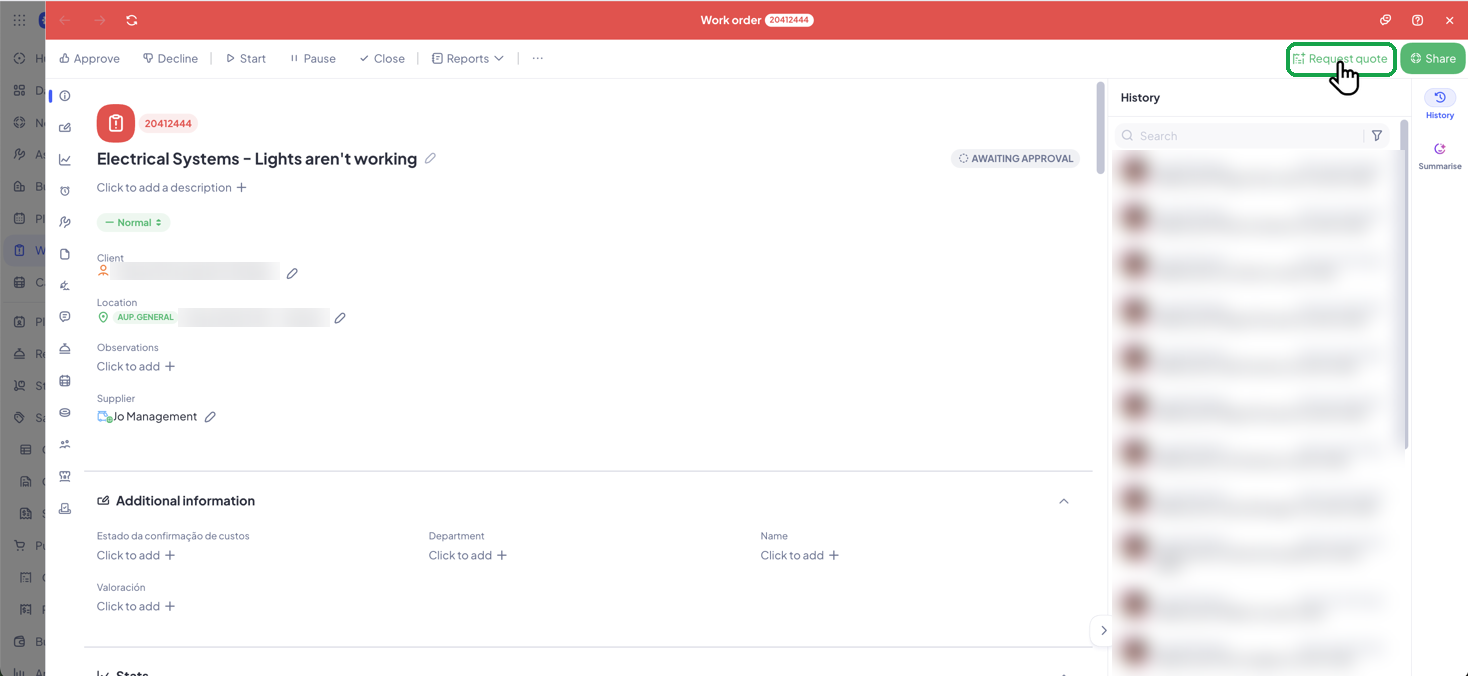
1. Open the work order and click Request quote.
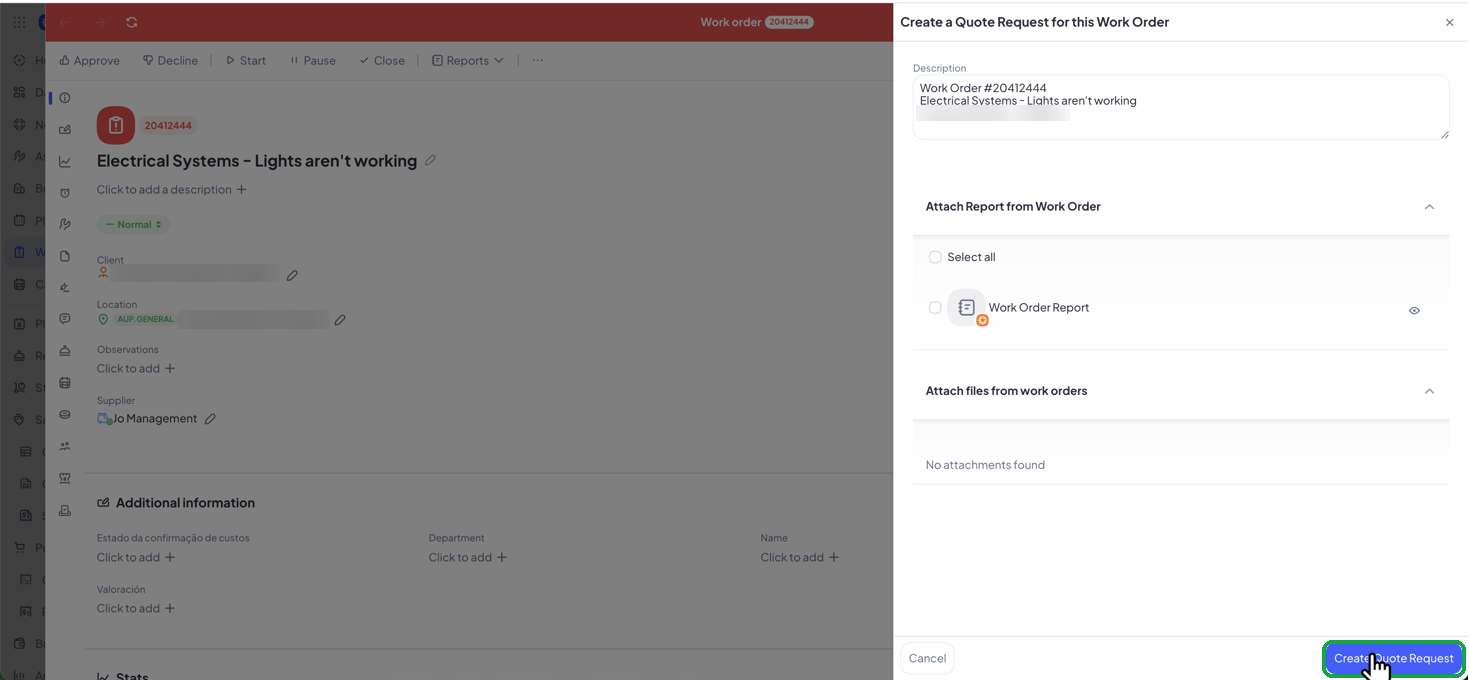
2. Check the description, attach the work order report if the supplier needs it, and click Create Quote Request.
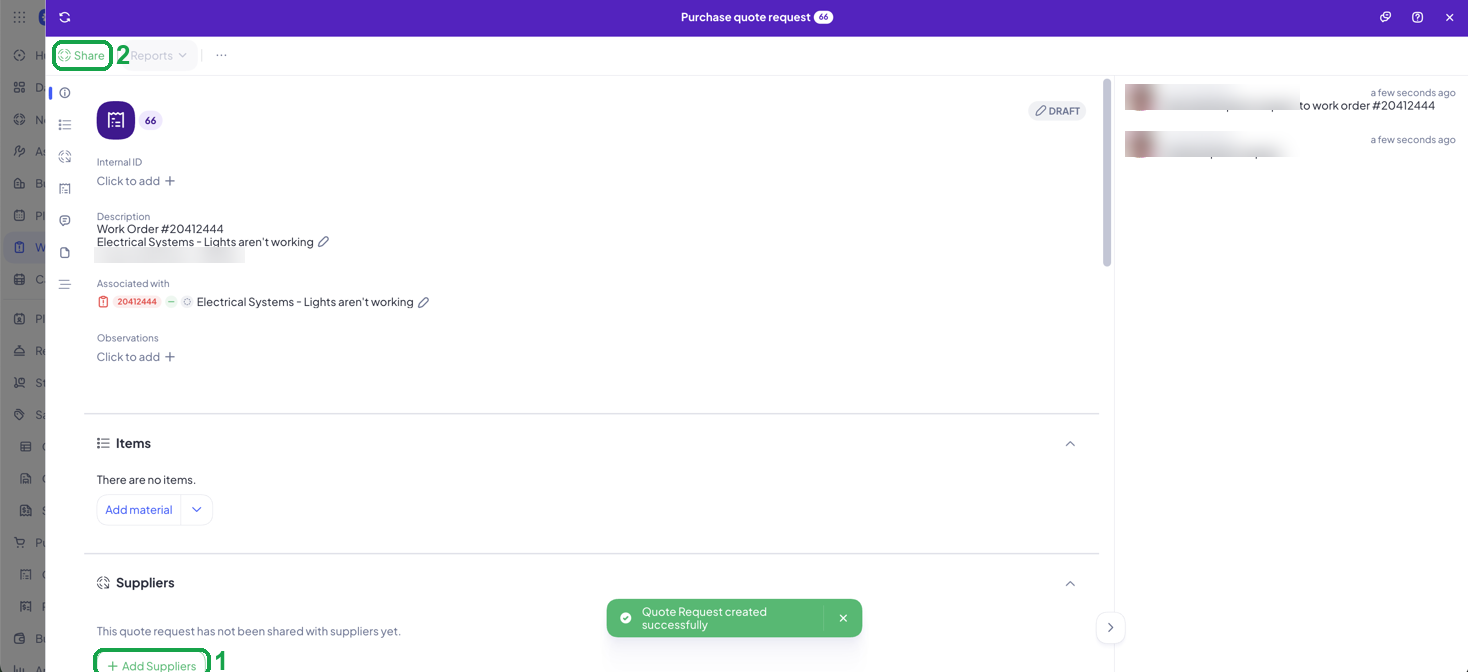
3. The quote request opens as a draft, already associated with the work order. Add items if you want to, add the supplier with Add Suppliers (1), and click Share (2).
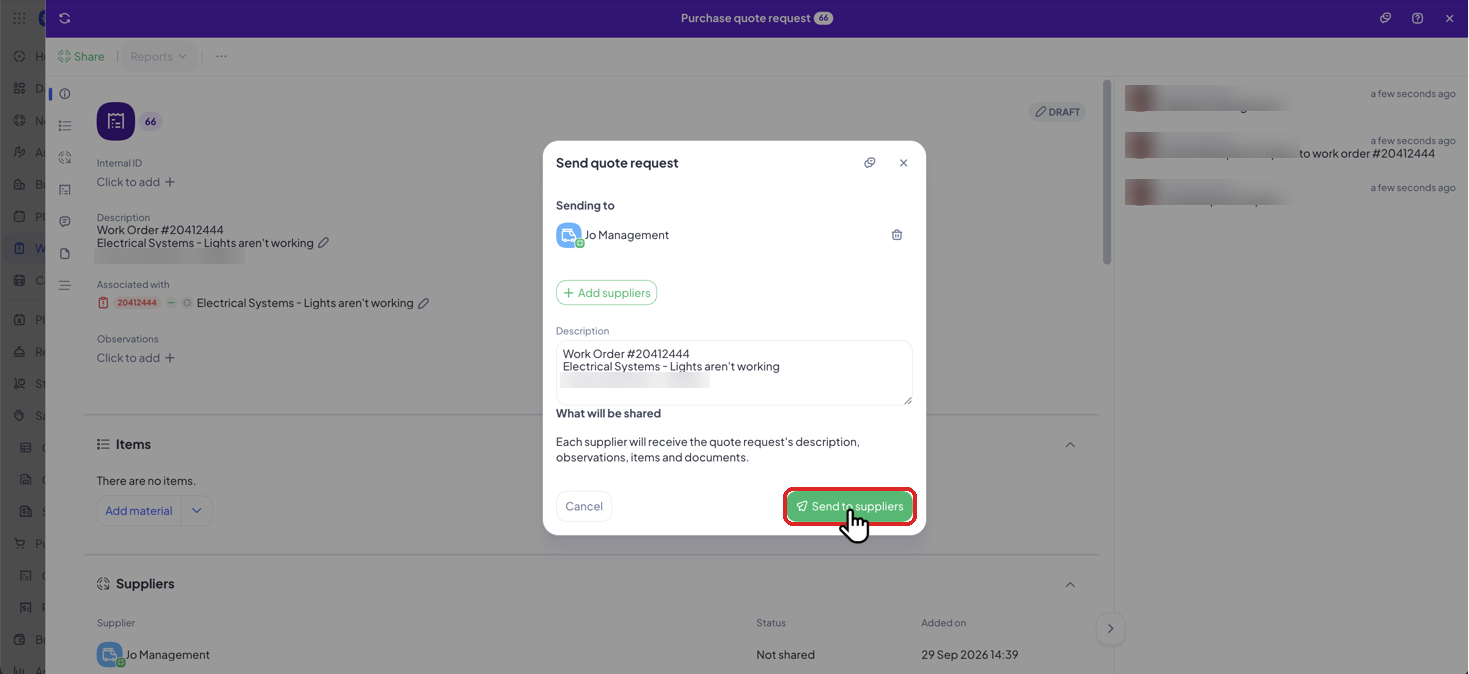
4. In Send quote request, check who you're sending it to and click Send to suppliers. A confirmation tells you the replies will show up on the quote request.
2.2 On the supplier side
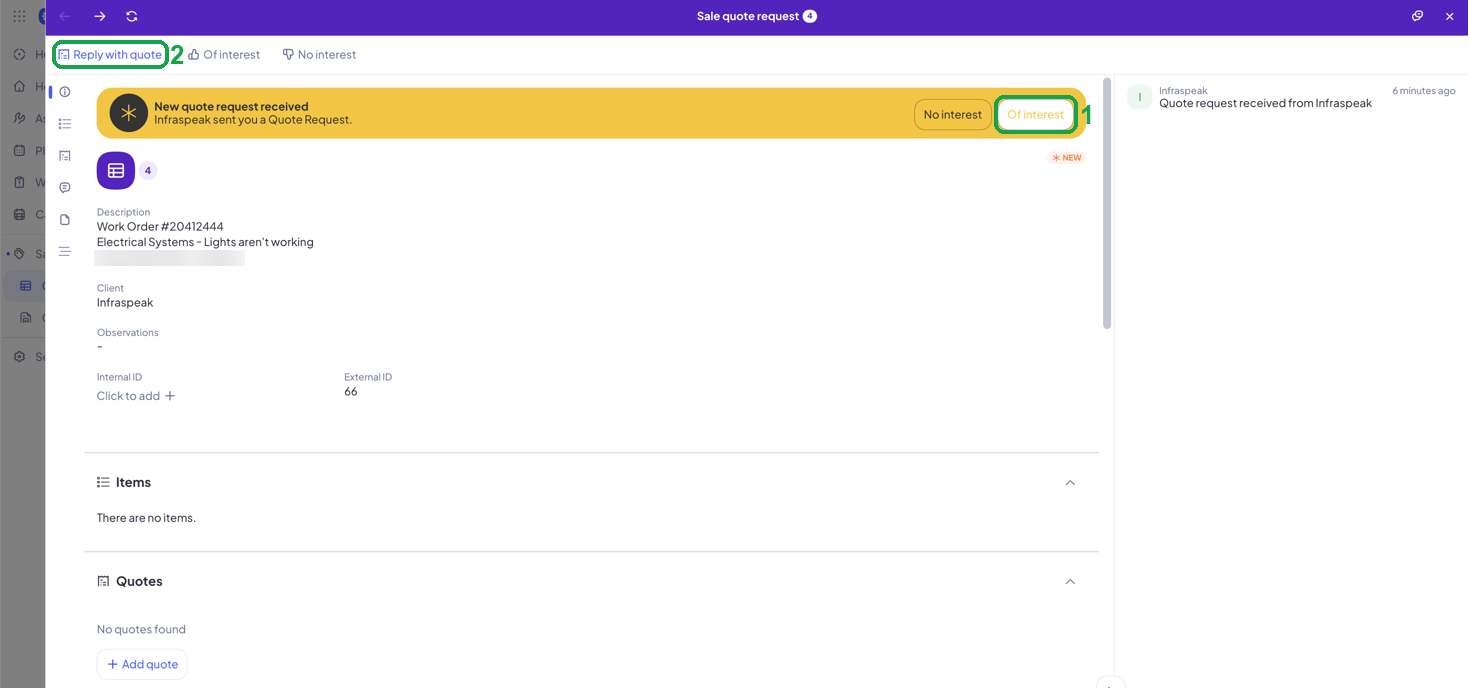
1. The supplier gets an email and finds the request in Sales > Quote requests. They click Of interest (1), so you can see they're working on a reply, and then Reply with quote (2).
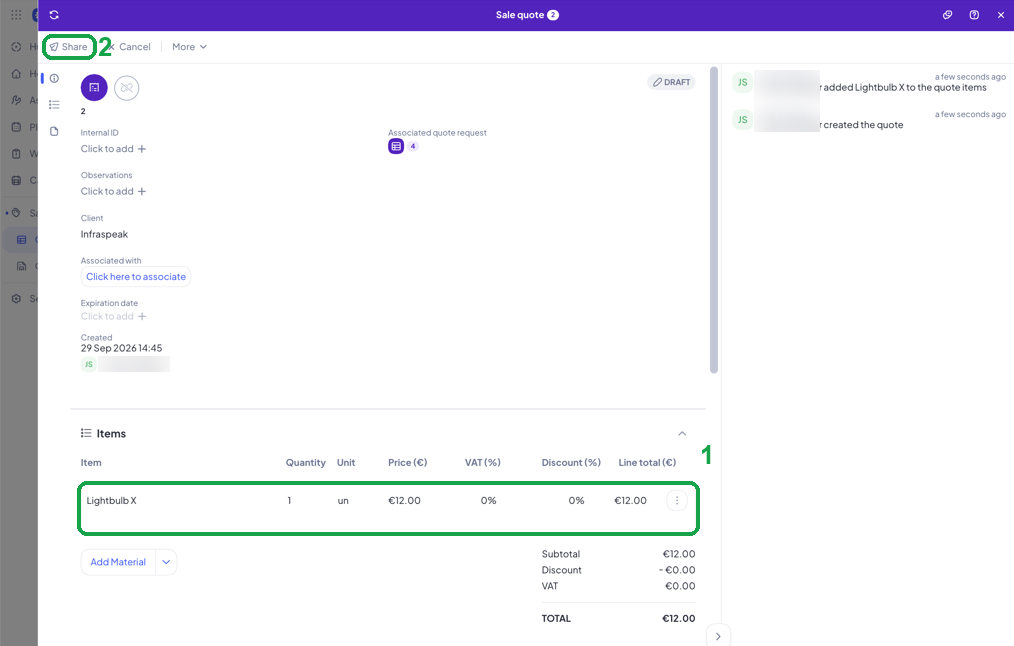
2. The supplier adds the lines and prices, in this example one Lightbulb X at €12.00 (1), and clicks Share (2).
3. In Share quote with client?, the supplier clicks Send quote.
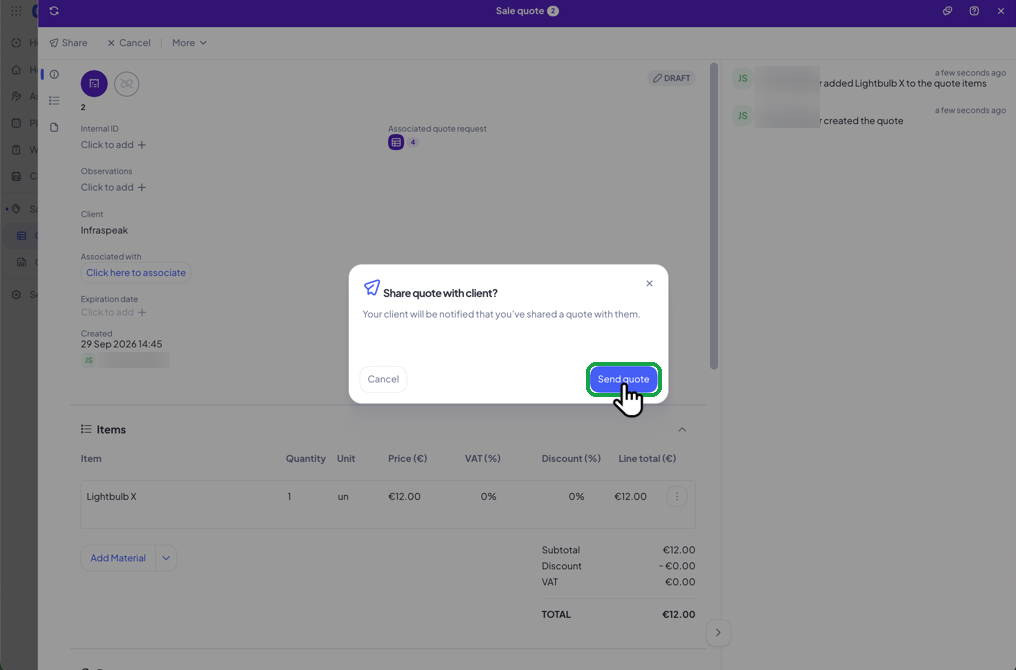
The quote is below the €50 set in the flow and comes from the right supplier, so we approve it as soon as it arrives.
Good to know
If a supplier replies outside Network, by phone or email, add the quote yourself and click Request approval. We check the flows at that moment.
When one quote is approved automatically, the other quotes in the same quote request are declined.
If two quotes match at the same moment, only the first one received is approved.
3. Get a quote approved automatically
When a quote is approved by an approval flow, nobody clicked Approve. Here's where you can see it happened, and which flow did it.
3.1 On the client side
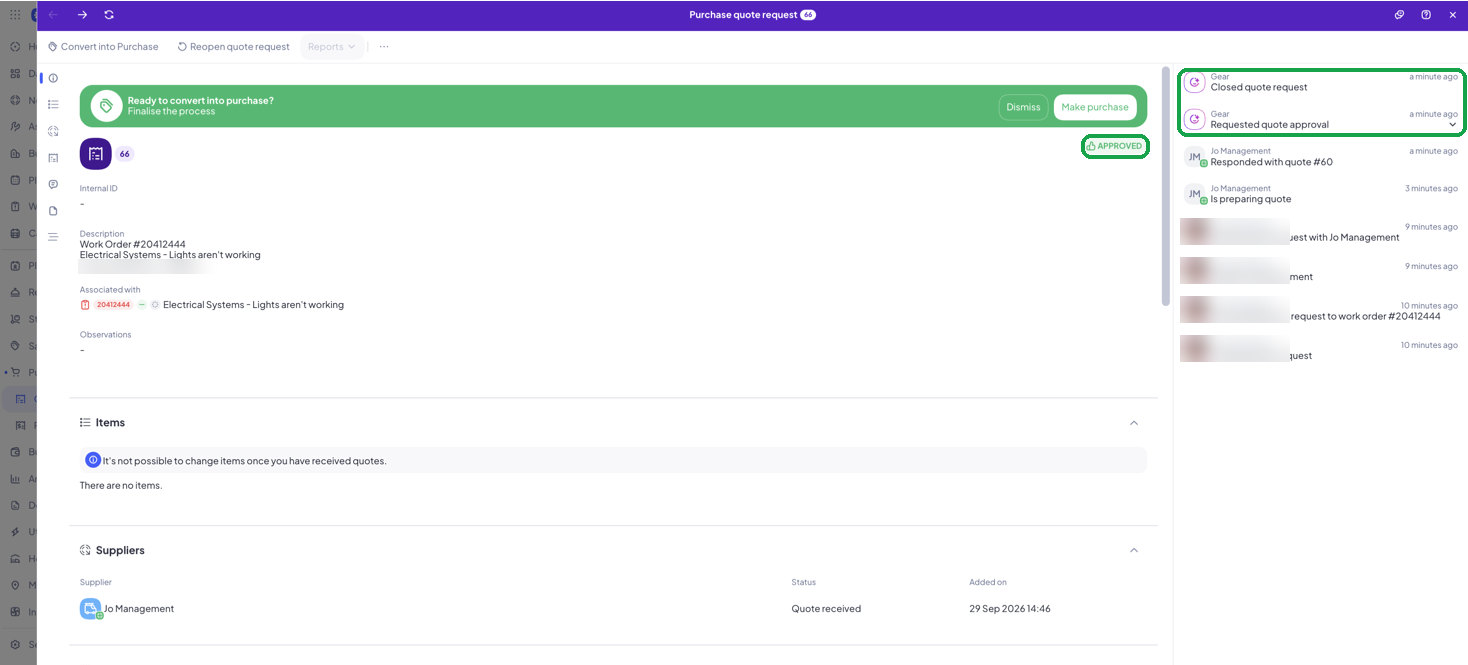
1. Open the quote request in Purchases > Quote requests. Its status is Approved, and the history shows two entries signed by Gear: Requested quote approval and Closed quote request.
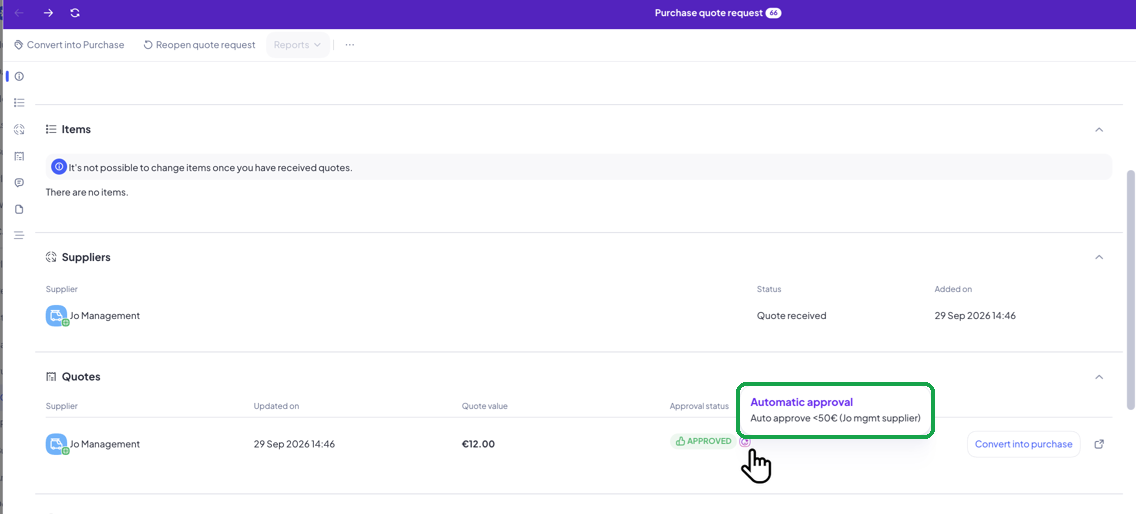
2. Scroll down to Quotes. Hover the icon next to Approved to see Automatic approval and the name of the flow that approved it.
3. When you're ready, click Make purchase or Convert into purchase. The automatic approval does not create the purchase for you.
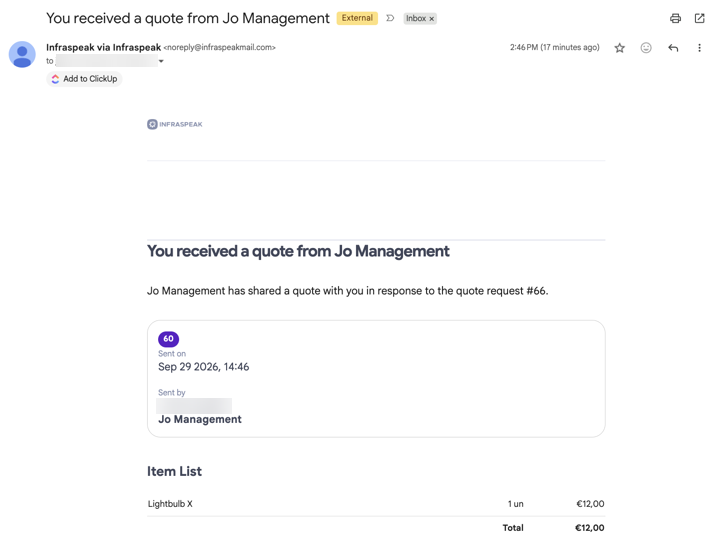
You also get the usual email when the supplier's quote arrives.
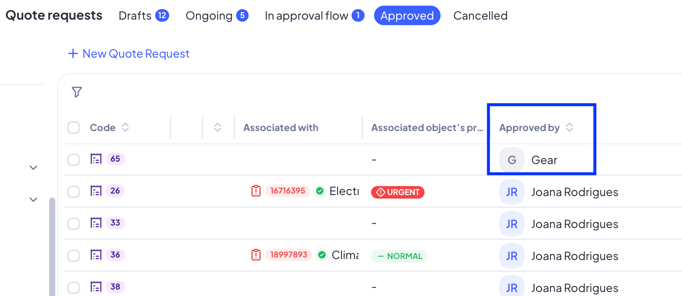
And the "Approved by" column will display "Gear":
3.2 On the supplier side
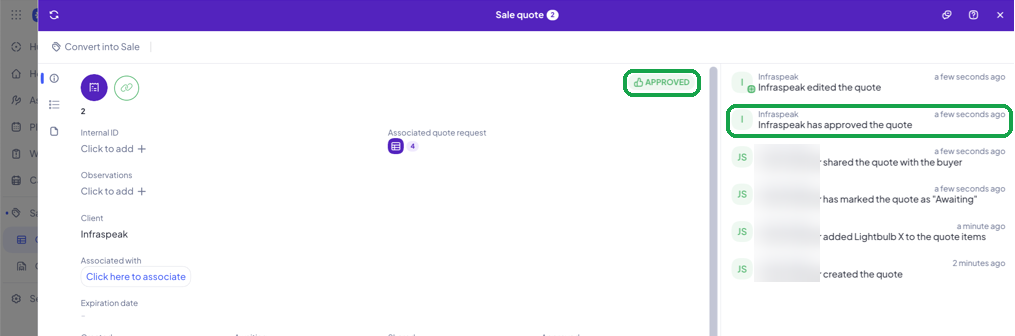
1. The supplier sees the sale quote as Approved, and the history says the client has approved the quote. The entry uses the client's company name, without naming a person or saying it was automatic.
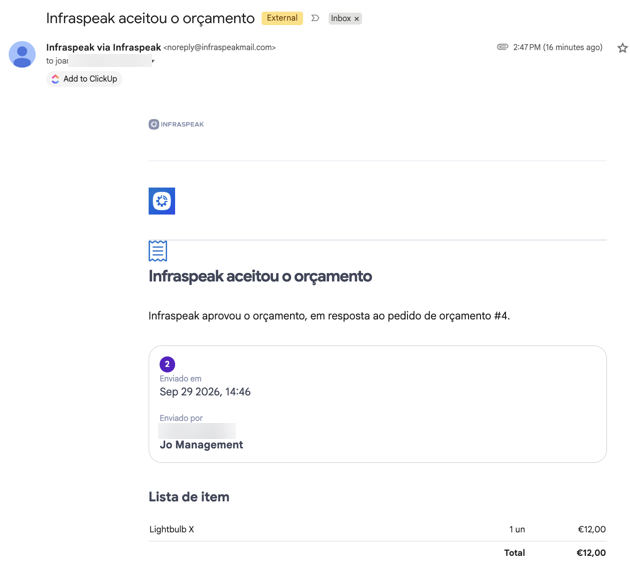
2. The supplier also receives an email saying their quote was accepted, with the list of items.
Good to know
The quote request is closed and the other quotes in it are declined as soon as one quote is approved automatically.
Nobody on the client side gets a separate notification when an automatic approval runs. The history and the quote emails are the record.