
With Assignees, you can now say exactly who is expected to execute a Work Order or a Planned Job Order, without having to book a time slot in the Planner. Assignees sit alongside "Associated people", who follow and monitor the work. In this article, you'll learn what Assignees are, how they benefit your team and how to set them up.
TABLE OF CONTENTS
- 1. What are Assignees?
- 2. Assignees vs Associated people
- 3. Benefits for your team
- 4. Who can manage Assignees
- 5. Assignees on Planned Job Orders
- 6. Assignees on Work Orders
- 7. What technicians see in the app
- 8. Assignees, Calendar, Planner : Which should I use?
- 9. Frequently asked questions
1. What are Assignees?
Assignees are the users expected to execute a job, whether it's a reactive Work Order (WO) or a preventive Planned Job Order (PJO).
a. You can add one or more Assignees to each WO or PJO.
b. Adding several Assignees doesn't mean all of them have to do the work. Any one of them can execute and close the job on behalf of the group. For example, if a PJO has 3 Assignees and one of them completes it, the PJO is closed.
c. When you add a user as an Assignee, they automatically get temporary access to that job and its building, even if their usual permissions don't cover it. Access is removed when the job is closed, or when the user is removed as an Assignee.
d. Users who have a Planner event for a WO or PJO are also shown as Assignees of that job.
Note: Assignees don't put work on anyone's calendar. They define who is responsible, not when the work happens. If you also need a date, add a schedule, or create a Planner event for that user (see section 8).
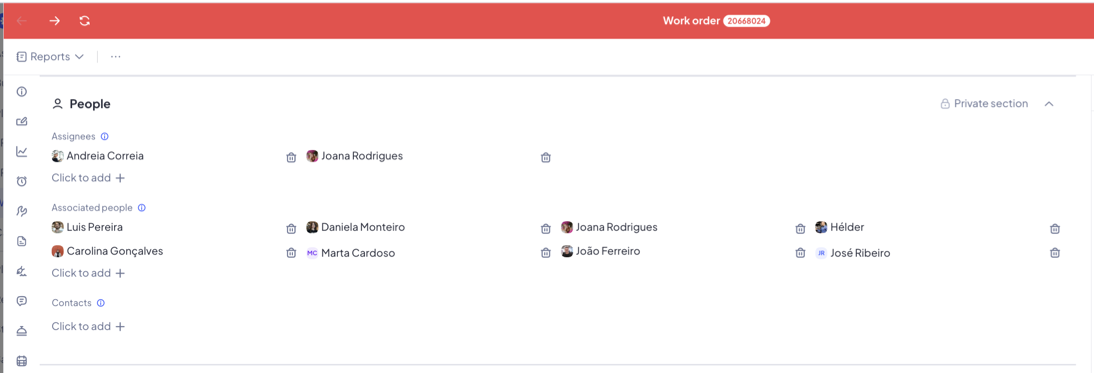
2. Assignees vs Associated people
Until now, Infraspeak used one concept, Associated people, both for the people doing the work and for the people who only needed to follow it. Assignees split these two roles.
3. Benefits for your team
Clear ownership, without the Planner. Say who will do a job without picking an exact date, start time and duration.
Different technicians for each PJO. Assign different people to different PJOs of the same Planned Job, instead of one set of users for the whole Planned Job.
Flexible execution. Assign 2 or 3 possible technicians and let them decide who does it. The first one to close the job closes it for everyone.
Borrow technicians without changing permissions. Send a technician to a building or client outside their usual scope. They get access only while the job is open, so you don't have to change their permissions and change them back.
Fast reallocation. If a technician is sick, select all their jobs for the day or week in bulk and reassign them in a few clicks.
A cleaner view for technicians. Technicians can filter the app to see only the work they must execute, separate from what they're just following.
Fewer accidental edits. Stakeholders who only need updates can stay as Associated people, making it clear who is responsible for the work.
4. Who can manage Assignees
Assignees are available on all Infraspeak plans, with no extra configuration needed.
a. Admins and Managers can add, edit and remove Assignees on WOs and PJOs. On a protected Planned Job, only Admins can edit them.
b. Technicians can't change Assignees on web or mobile. They can see the jobs they're assigned to.
c. Who can be an Assignee: Admins, Managers and Technicians.
d. If a user is deleted, or their account type changes to one that can't be an Assignee (e.g. Technician to Reporter), they're automatically removed as Assignee from all jobs.
e. Network: both clients and suppliers can set their own Assignees on a shared job. Assignees are private and aren't shared with the other side.
Tip: If a technician always works in the same building or for the same client, give them permanent access in their user settings. If you only "borrow" them now and then, use Assignees so access is granted only while the job is open.
5. Assignees on Planned Job Orders
On a PJO, Assignees are set in its schedule.
5.1 Adding Assignees to a single Planned Job Order
a. Go to Planned Jobs and open the Planned Job Order.
b. Click Edit assignees in the top toolbar, or edit the schedule in the Calendar section.
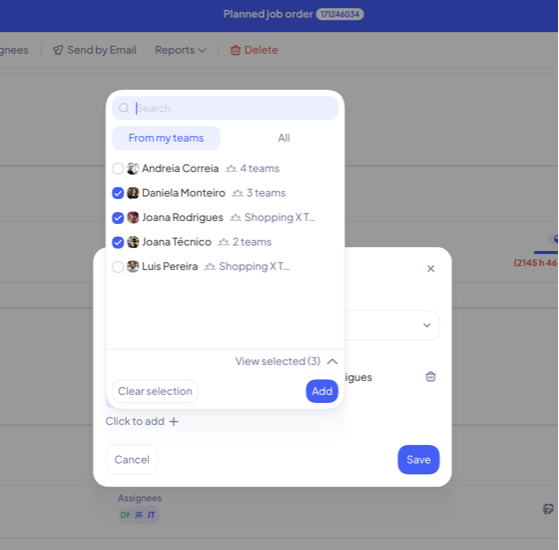
c. Search for the users you want. Use the From my teams or All tabs to narrow the list.
d. Select one or more users. Click View selected to check your choice.
e. Click Add, then Save. The Assignees now show in the PJO, separately from "Associated with".
5.2 Editing Assignees in bulk
Use this to reassign many jobs at once, for example when a technician is off sick.
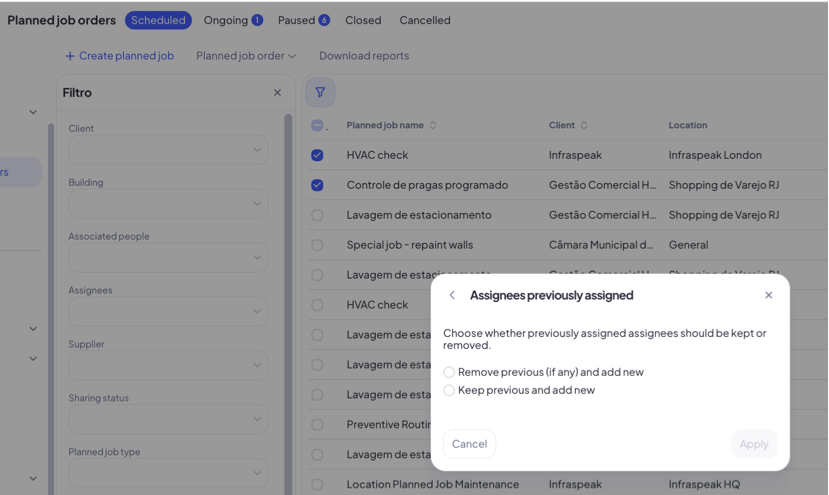
a. Go to the Planned Job Orders list and select the PJOs you want to change.
b. Click Edit in the top action bar and choose Assignees.
c. Select the new Assignees.
d. Choose what happens to the current Assignees:
Remove previous (if any) and add new: replaces the current Assignees.
Keep previous and add new: adds the new users to the current ones.
e. Click Apply. If you need to, you can edit the schedule dates of the selected PJOs in the same action.
5.3 Filtering and viewing Assignees in the list
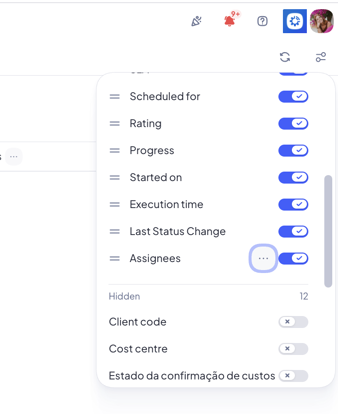
a. In the PJO list, add the Assignees column to see who's assigned to each job: open the column settings at the top right of the list and switch on Assignees.
b. Hover over an Assignee to see their name, email and what they're working on, or click Open user.
c. Use the Assignees filter to see the work assigned to one or more people.
Every change, single or in bulk, is recorded in the PJO's history (for example "Added 2 assignees" or "Removed all current assignees and added Ana Silva").
6. Assignees on Work Orders
On a WO, Assignees are set on the Work Order itself.
6.1 Adding Assignees to a single Work Order
a. Go to Work Orders and open the Work Order.
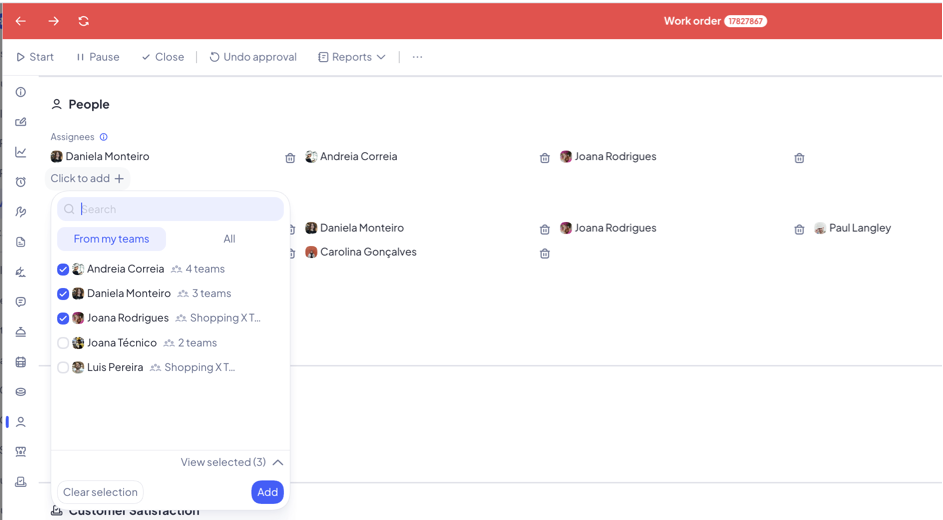
b. Scroll to the People section and find the Assignees subsection. You can also click the Assignee avatars at the top of the WO to jump straight there.
c. Add users from the From my teams or All tabs.
d. To remove someone, remove them from the list. A WO can also have no Assignees.
e. The Assignees, including users with a Planner event for this WO, appear at the top of the WO, so you can see them without scrolling.
When you schedule a WO as a work order, the schedule automatically uses the WO's Assignees. If you change the WO's Assignees later, all its schedules are updated too.
When you schedule a WO as a new planned job, that Planned Job Order has its own Assignees. Set them inside the PJO (see section 5).
Planner events keep their own Assignee: the technician you dragged the work to.
6.2 How Work Order schedules inherit Assignees
When you schedule a Work Order as a work order, the schedule automatically inherits the Assignees from the Work Order. If you later change the Assignees of the Work Order, all of its schedules are updated.
When you schedule a Work Order as a new planned job, this Planned Job Order has its own Assignees. Define them in the Planned Job Order (see section 5).
Planner events keep their own Assignee: the technician you dragged the work to.
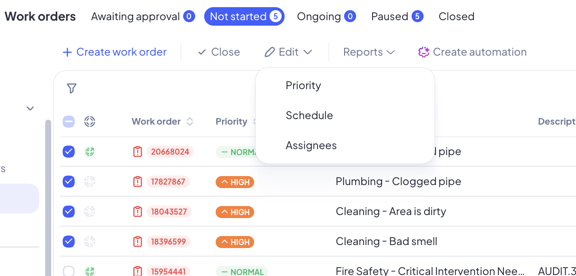
6.3 Editing Assignees in bulk
a. Go to the Work Orders list and select one or more WOs.
b. Click Edit in the top action bar and choose Assignees.
c. One WO selected: the dialog opens with its current Assignees. Add or remove users and save.
d. Several WOs selected:
Select the new Assignees and click Next.
Choose to remove the previous Assignees and add the new ones, or keep the previous Assignees and add the new ones.
Confirm. If any WO can't be updated, a summary lists it.
Note: Bulk edits only change the Assignees set on the WO. They never change Planner event Assignees and never delete schedules or Planner events.
You can also bulk-edit WO schedules from the same Edit menu, by choosing Schedule.
7. What technicians see in the app
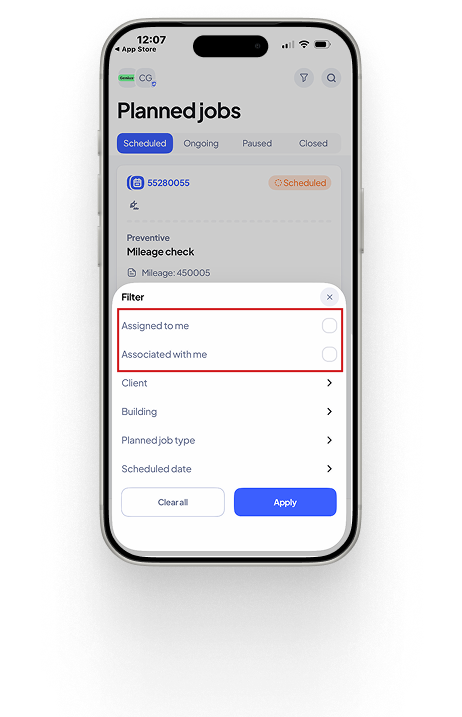
a. In the mobile app, open Filter and sort and tick Assigned to me, then tap Apply.
b. This shows only the WOs and PJOs where the technician is an Assignee or has a Planner event: the work they must execute.
c. To see the work they're only following, tick Associated with me instead.
d. When assigned to a job outside their usual permissions, technicians can open it and see its building while the job is open. They lose building access when the job is closed, and get it back if the job is reopened.
8. Assignees, Calendar, Planner...: which should I use?
A simple rule: big-picture planning → Calendar; detailed planning → Planner.
If you already use the Planner, nothing changes in your workflow. One difference to keep in mind: with Planner events, every technician with an event must complete it. With Assignees, one is enough.
9. Frequently asked questions
If I assign someone to a Work Order, does it appear on their calendar? No. Assignees define who is responsible, not when. To add a date, schedule the WO or PJO, individually or in bulk, or add a Planner event for a specific user.
Do all Assignees have to complete the job? No. Any one Assignee can execute and close the job for the whole group.
Can Associated people still execute the work? Yes, for now they can still start and execute jobs. We recommend using them only for people who follow the work, and Assignees for people who execute it.
Can a technician see other jobs in the building they were assigned to? Possibly, but it's unlikely, because several conditions would have to be met at the same time. Still, there is always some risk: while the job is open, they have access to its building, so they may see other jobs there that match their permissions, such as their technical skills. This already happens today with Planner events.
What if a PJO stays open for a long time? The temporary access lasts as long as the job is open. For long-running work, consider giving the technician permanent access to that building in their user settings instead.
Can I set the same Assignee on all PJOs of a Planned Job? Assignees are set per PJO. But with bulk actions you can set it: select all the PJOs of that Planned Job in the PJO list and edit their Assignees at once (section 5.2).
Will Assignees be notified? Not yet. Notifications for Assignees are still a work in progress. For now, notifications are sent to Associated people.
Is there an extra cost? No. Assignees are available on all Infraspeak plans.
Note: "Associated people" were previously labelled "Assignees" in Infraspeak.