
A supplier rate card is the list of prices you've already agreed with a supplier, like a callout fee, a visit price or the price of an air filter you use across all your sites. Store it once on the supplier, and Infraspeak uses it to:
- Fill in prices on purchases, so you no longer type agreed prices by hand;
- Check every quote the supplier sends, and flag any line priced higher than you expected.
- Automate quote requests to be sent to your suppliers, with specific items based on your criteria
In Infraspeak, a supplier's rate card lives in the Custom prices section of the supplier's details.
TABLE OF CONTENTS
- 1. When to use a rate card, and when to request a quote
- 2. Set up a Supplier Rate Card
- 3. Add other costs to a quote request
- 4. Spot quotes above the agreed price
- 5. Pre-fill items in an automated quote request
- 6. Good to know
1. When to use a rate card, and when to request a quote
- You know what the job needs and the price is agreed, and you do not need the supplier to confirm it: create a purchase. The rate card fills in the prices.
- You need the supplier to confirm the price, or you do not know it yet: send a quote request. When the quote comes back, we check it against the rate card for you.
Either way, the rate card saves you time and keeps your costs under control.
2. Set up a Supplier Rate Card
1. Open the supplier's details.
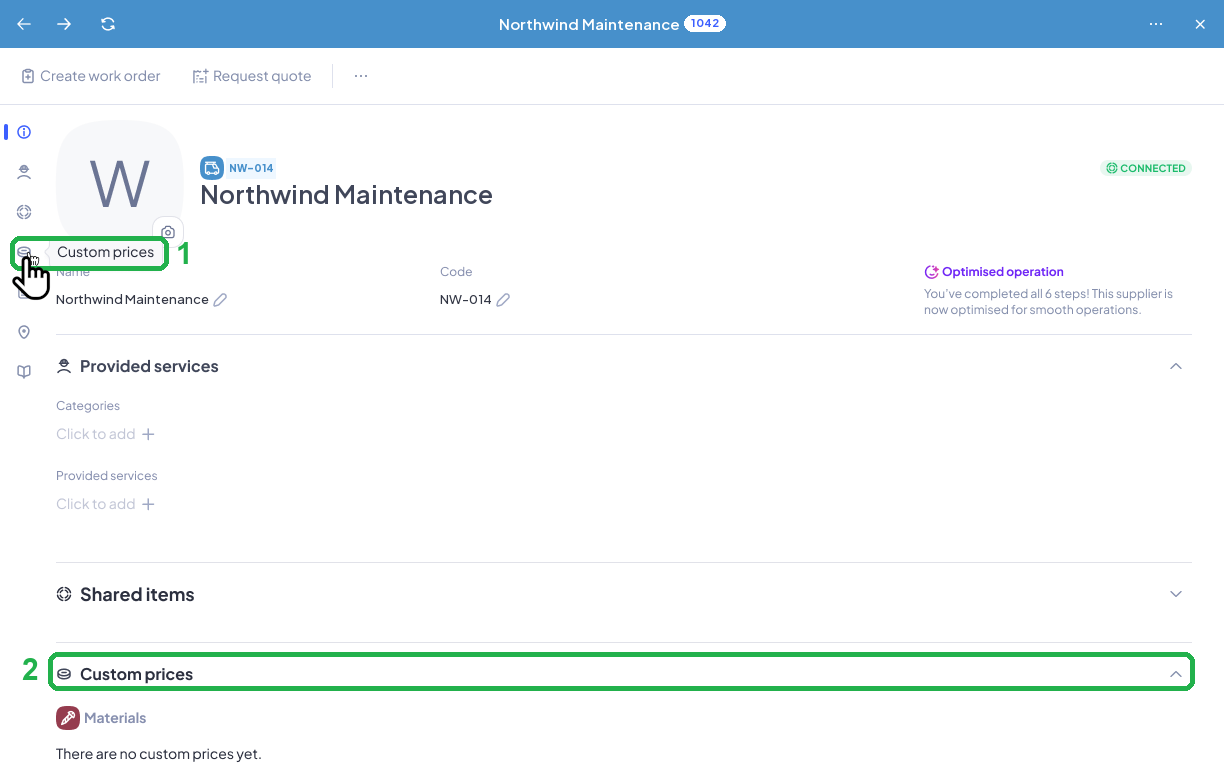
2. In the side menu, select Custom prices (1). The page jumps to the Custom prices section (2), split into Materials and Other costs.
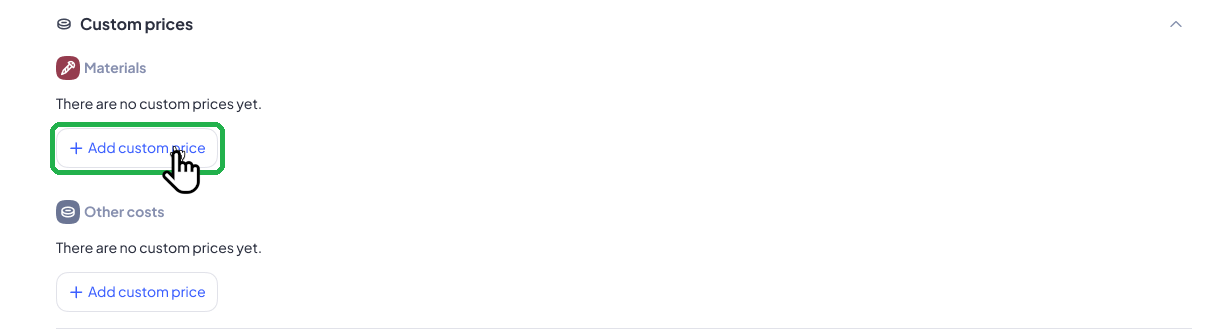
3. Under Materials, select Add custom price.
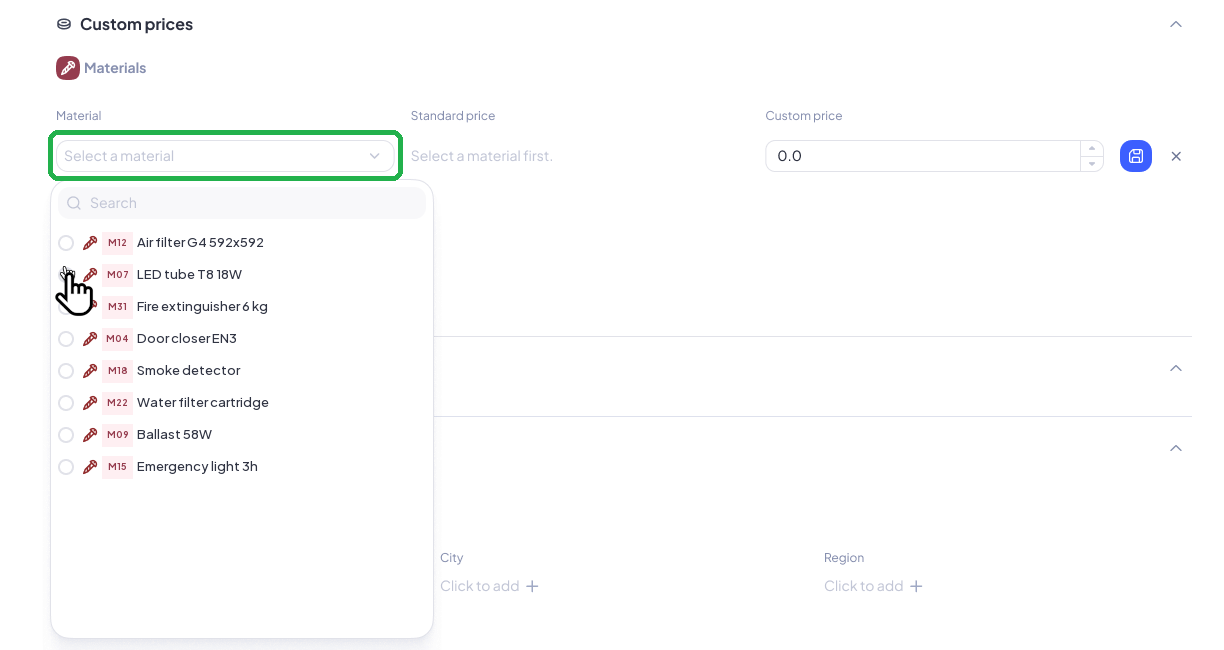
4. Open Material and pick the material. You can search the list. Once a material is selected, Standard price shows its current average cost price.
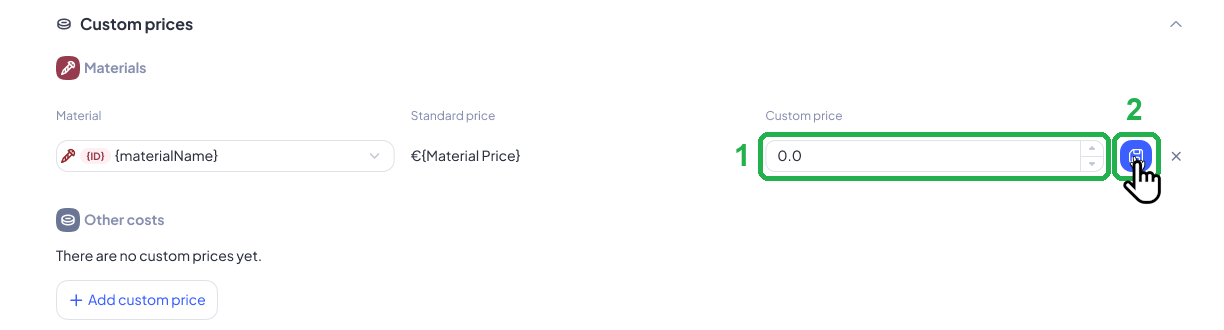
5. Enter the agreed price in Custom price (1) and select the save icon (2). To discard the row, select X.
6. Repeat for each material on the rate card.
2.1 When a material is in several warehouses
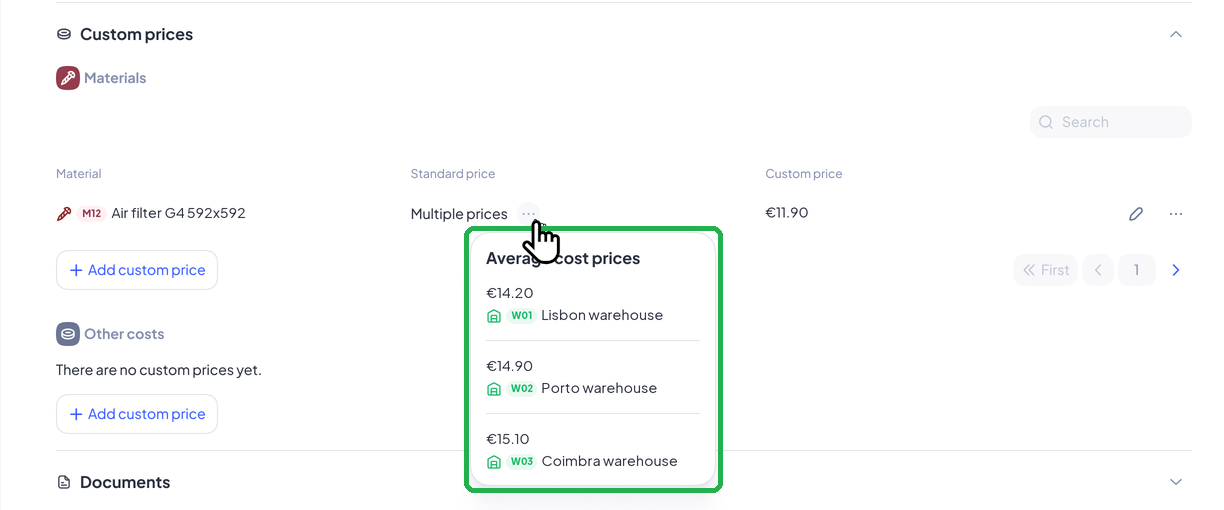
If the material has a different average cost price in each warehouse, Standard price shows Multiple prices. Hover the ... next to it to see each warehouse and its price. Your custom price applies whichever warehouse is used.
2.2 Add other costs
1. Under Other costs, select Add custom price.
2. Open Other cost and pick one, like Distance in kms.

3. Enter the Custom price and save.
2.3 Edit or delete a price
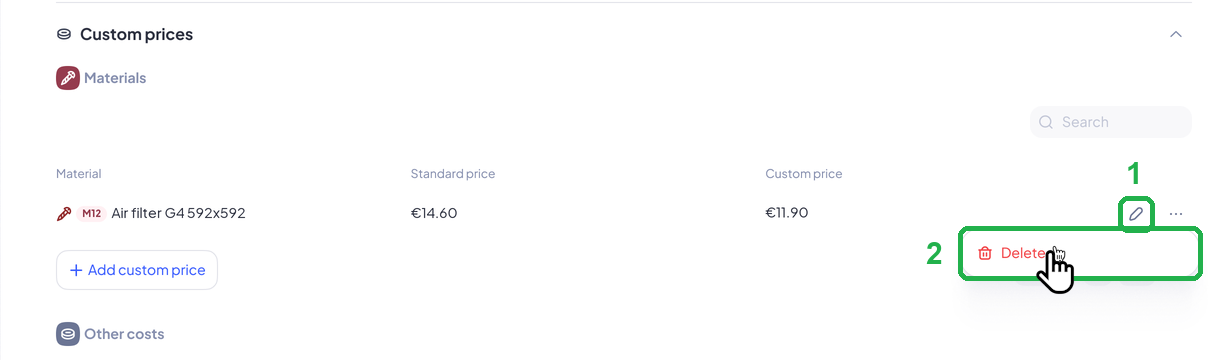
To change a price, select the pencil icon at the end of the row (1). To remove it, open ... and select Delete (2).
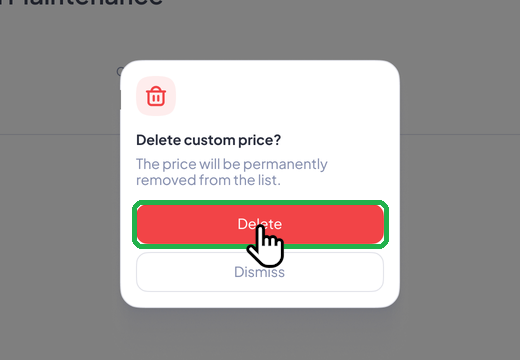
Confirm with Delete. The price is removed from the list.
2.4 Prices on purchases
When you add a material to a purchase for this supplier, its cost price fills in from the rate card, whatever the warehouse.
3. Add other costs to a quote request
Callout fees, visit prices and travel are other costs. You can now ask a supplier to quote them as their own lines, so they're checked against the rate card too.
1. Open the quote request you're building and go to Items.
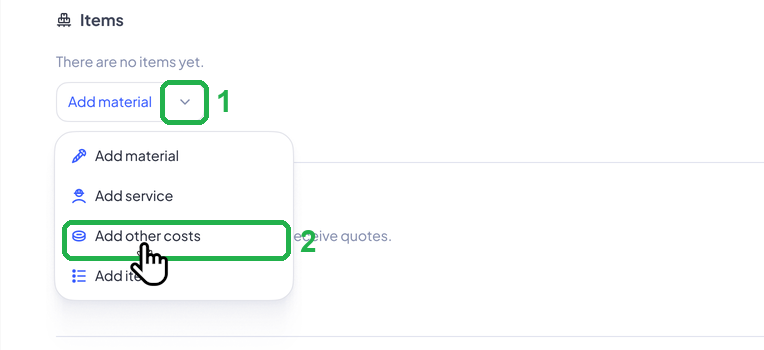
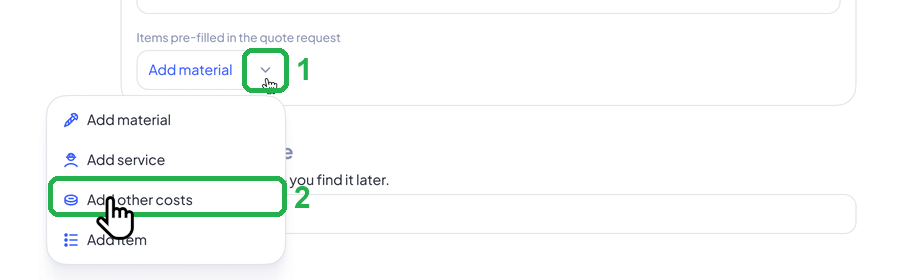
2. Open the arrow next to Add material (1) and select Add other costs (2).
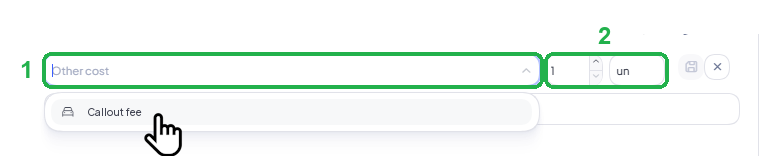
3. Pick the other cost (1). Check Quantity and Unit (2): if the other cost has a unit set, it fills in for you. Then save the line.
4. The other cost is now in the item list, like any other line.
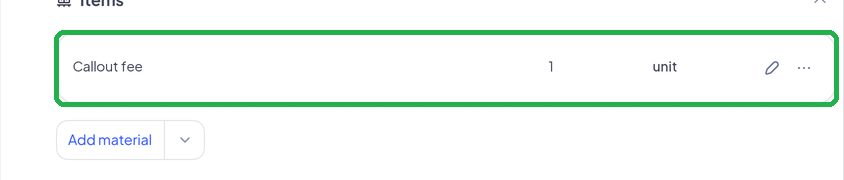
To change it, select the pencil icon on the line. To remove it, open ... and select Delete.

4. Spot quotes above the agreed price
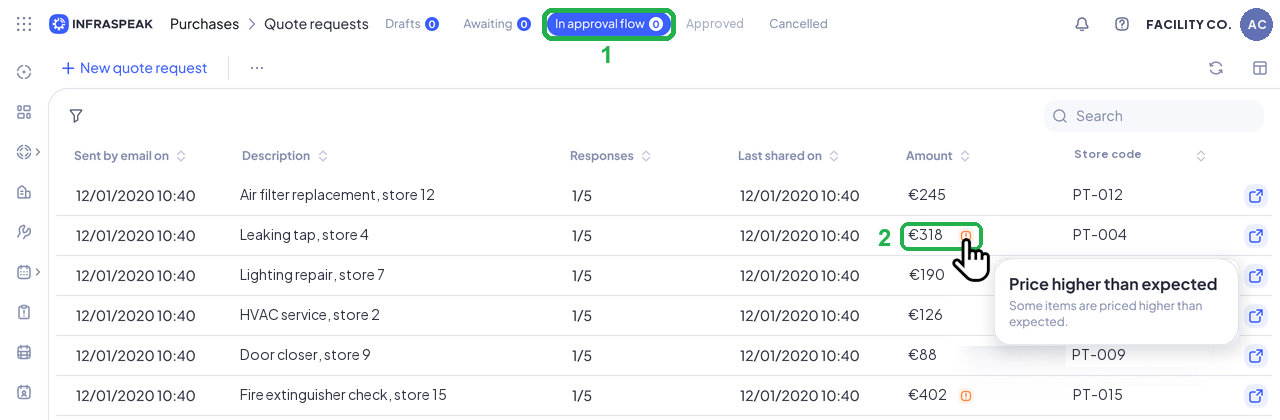
When a supplier replies to a quote request, Infraspeak compares their prices with what you expected to pay and flags anything higher with an orange ! icon. You'll see it in three places.
4.1 In the quote request list
In Purchases > Quote requests, open the In approval flow tab (1). The icon next to the Amount (2) means that request has at least one quote above what you expected. Hover it to see Price higher than expected.
4.2 In the quote request details
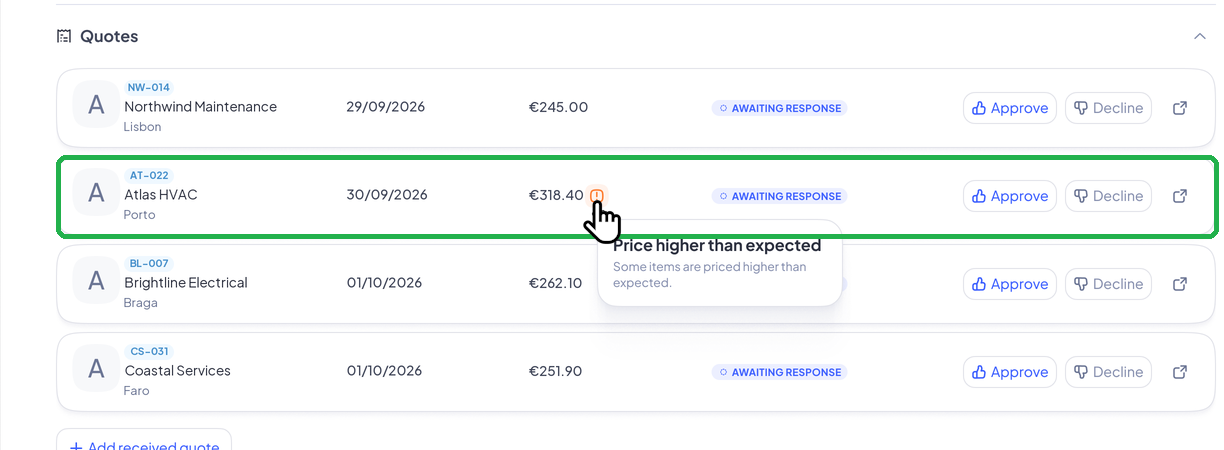
Open the quote request and go to Quotes. The icon shows next to each quote with at least one line above its expected price.
4.3 Inside a quote
Open the quote. The icon shows at the end of each line priced higher than expected. Hover it to see the price you expected.
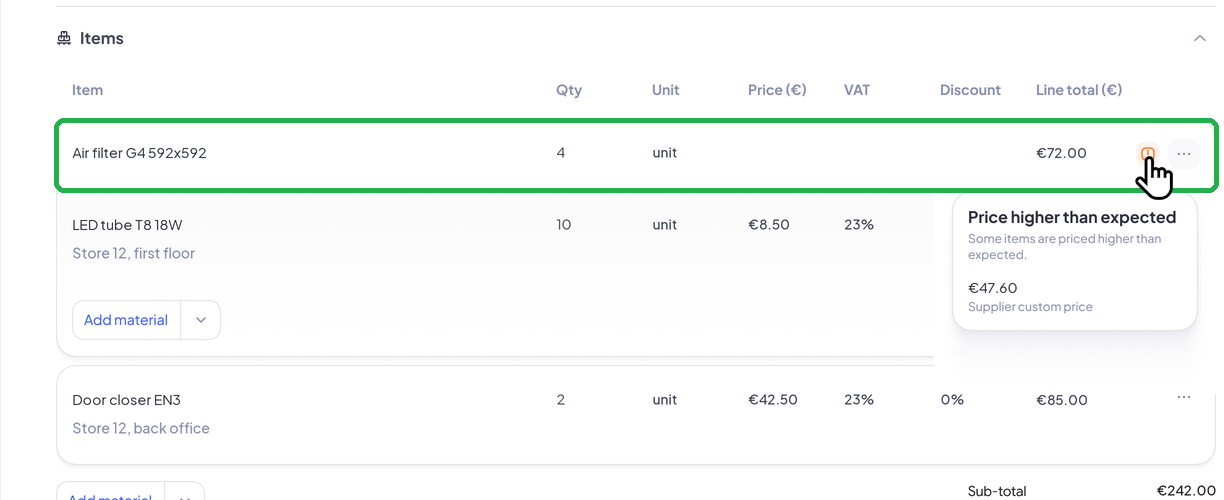
The label under the price tells you where the expected price comes from:
- Supplier custom price: the price on this supplier's rate card.
- Average cost price: the material's average cost price, used when it's not on the rate card.
- Cost price: the other cost's default cost price, used when it's not on the rate card.

The check helps you decide, and it's up to you to Approve or Decline. Once a quote is approved or declined, the icon no longer shows.
5. Pre-fill items in an automated quote request
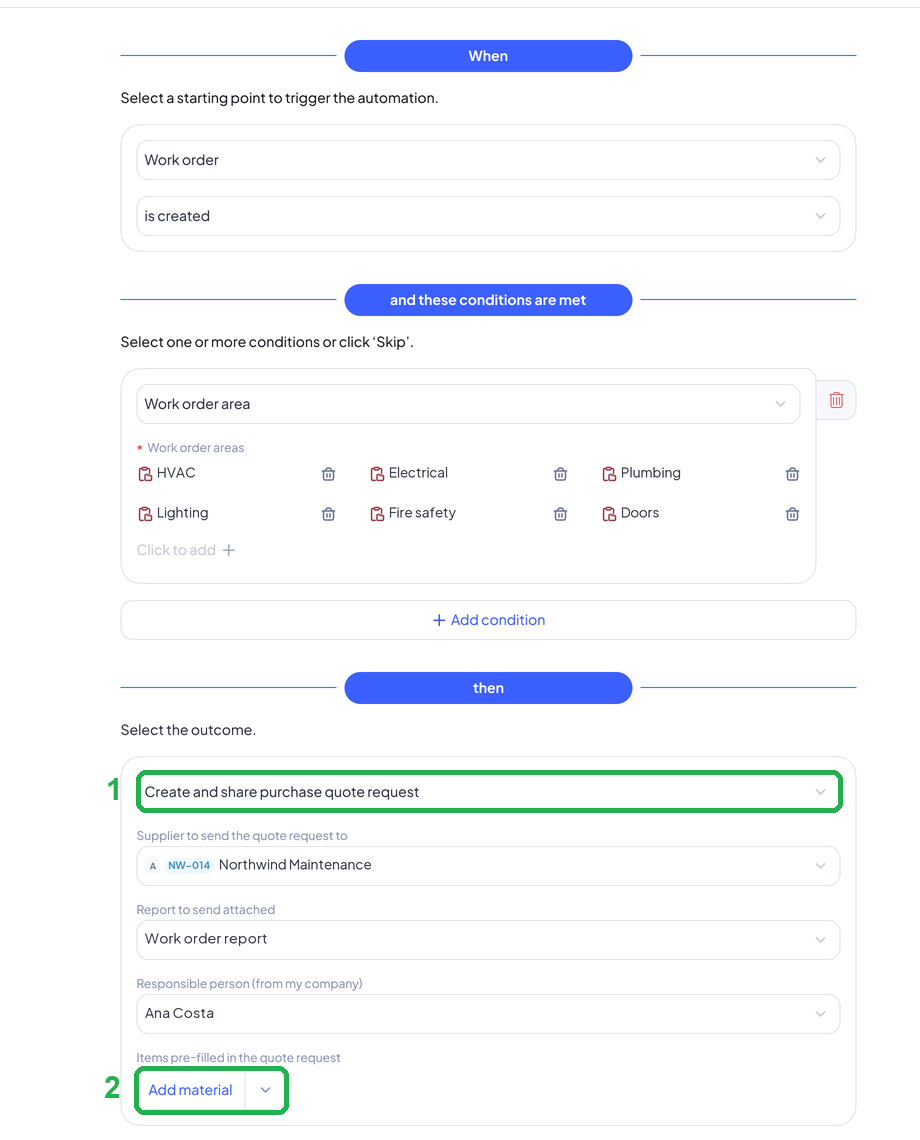
A Gear automation can create and share a purchase quote request on its own, for example every time a work order is created in a certain area. You can now add the items to the automation, so every quote request goes out with them already in it.
1. Create an automation, or open an existing one.
2. Under When, choose the starting point, like Work order and is created. Under and these conditions are met, add any conditions, like Work order area.
3. Under then, select Create and share purchase quote request (1). Fill in the supplier, the report to attach and the responsible person. Then go to Items pre-filled in the quote request, at the end of the card (2).
4. Open the arrow next to Add material (1) and choose the type of item (2): Add material, Add service, Add other costs or Add item.
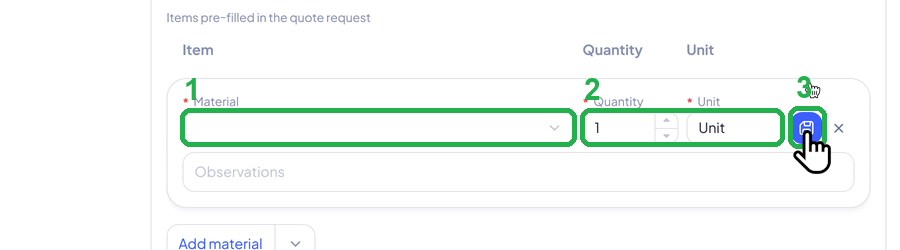
5. Pick the item (1), set Quantity and Unit (2), add Observations if you need to, and save the line (3).
6. Repeat for each item. You can edit a line with the pencil icon or remove it from the ... menu.
7. Give the automation a name under Automation name and select Save.
Adding items is optional. Automations you already have keep working as before until you add items to them.
6. Good to know
- Custom prices on a client and on a supplier are different things. On a client, they're the prices you sell at. On a supplier, they're the prices you buy at.
- Combine rate cards with automations for routine jobs: the automation sends the quote request with the right items, and the quote that comes back is checked against the agreed prices.