
When managing preventive maintenance, your operations are bound to evolve over time. Whether you have upgraded your facility's HVAC systems, closed down a physical store or building wing, or simply redesigned your seasonal schedules, change is inevitable. Naturally, you'll want to clean up those inactive maintenance plans—like routine service checklists for assets, utilities, or locations that are no longer active in your inventory.
If you have old dynamic Planned Jobs and cannot close them, this quick guide explains how to clean up your calendar in seconds.
TABLE OF CONTENTS
- 1. Why can't I close a dynamic Planned Job?
- 2. Will I lose my historical maintenance records?
- 3. Step-by-step to delete
1. Why can't I close a dynamic Planned Job?
Dynamic Planned Jobs work in a continuous loop — the moment a Planned Job Order (PJO) is closed, the system automatically generates the next one. Because of this automated behavior, it's not possible to force close these plans.
The solution: You must simply delete the master Planned Job (PJ).
2. Will I lose my historical maintenance records?
No! Your history is 100% safe.
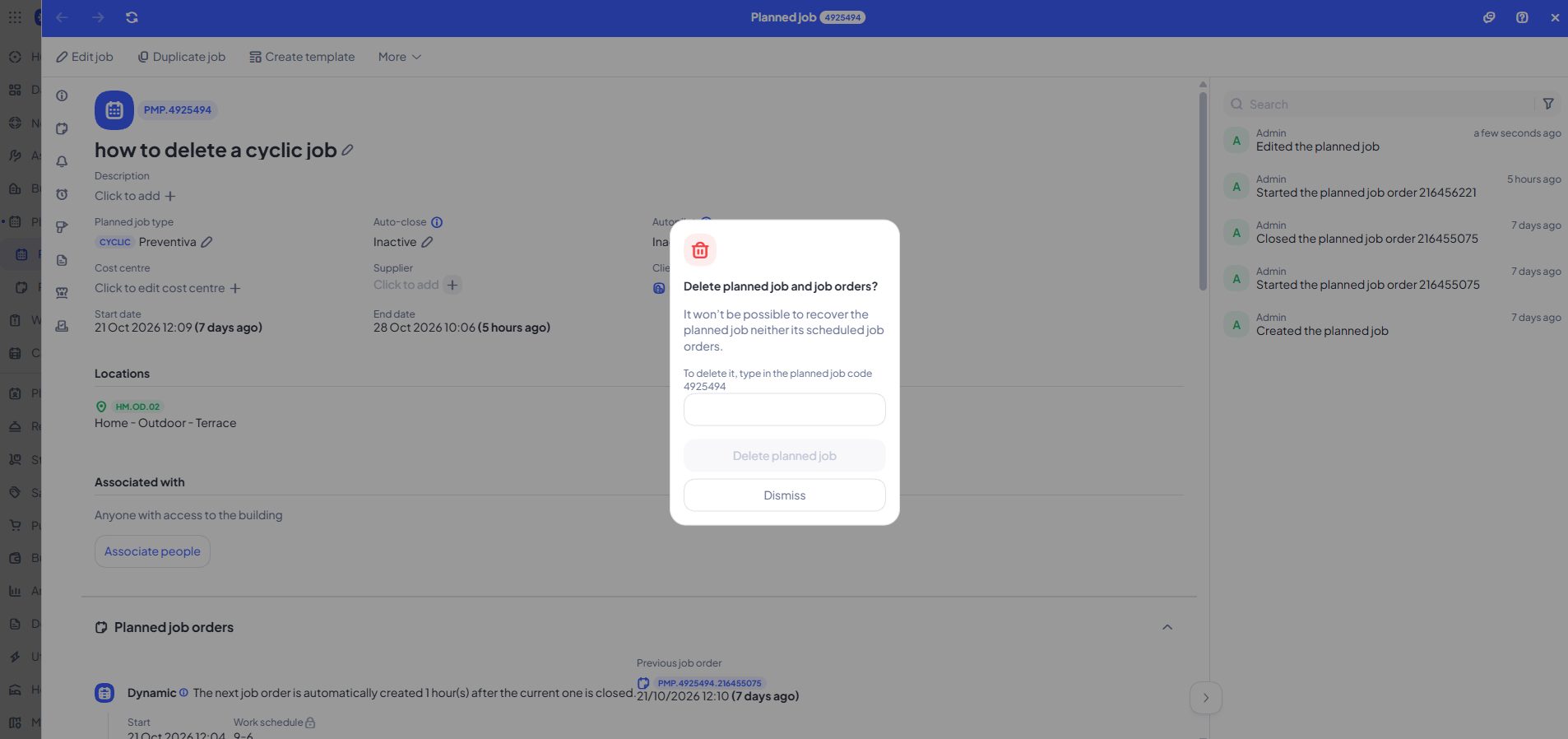
When you click delete, Infraspeak™ displays a warning message:
“It will not be possible to recover the planned job or its scheduled planned job orders.”
This message can look quite scary the first time you see it! But you can proceed with absolute confidence — deleting the master Planned Job blueprint will never erase your past work records.
Here is the exact breakdown of what happens in your database when you delete a plan — separating what is gone from what stays safe:
What is deleted (and cannot be recovered)
- The master blueprint — the "mould" or template used to generate the recurring tasks.
- All future occurrences — any PJOs still in a Planned / Scheduled state that were never actually started.
What stays 100% safe (Your intact history)
- All completed PJOs — every single occurrence that was completed, closed, or finalised in the past remains fully recorded.
- All active PJOs — any job order that is currently In progress or Paused is preserved.
- All technical evidence — every measurement, client signature, photo, and material consumed that your technicians associated with the equipment during past inspections.
In short, deleting the plan simply "wipes" the calendar clean for the future so obsolete tasks stop popping up. All your historical data remains safely attached to each individual equipment's history sheet and continues to show up in your reports.
3. Step-by-step to delete
You can easily perform this task yourself directly from the Infraspeak™ web platform by following these steps:
- Step 1: Go to the Planned Jobs app on the main menu of the web platform.
- Step 2: Search for and open the old plan you want to delete.
- Step 3: Click the three dots icon (...) in the top-right corner of the screen and select Delete.
- Step 4: As a safety double-check to prevent accidental deletions, type in the unique Planned Job code (e.g., XXXXXXX) and confirm.
And just like that, your calendar is clean, organised, and ready for what's next.