TABLE OF CONTENTS
1. Configuration Steps
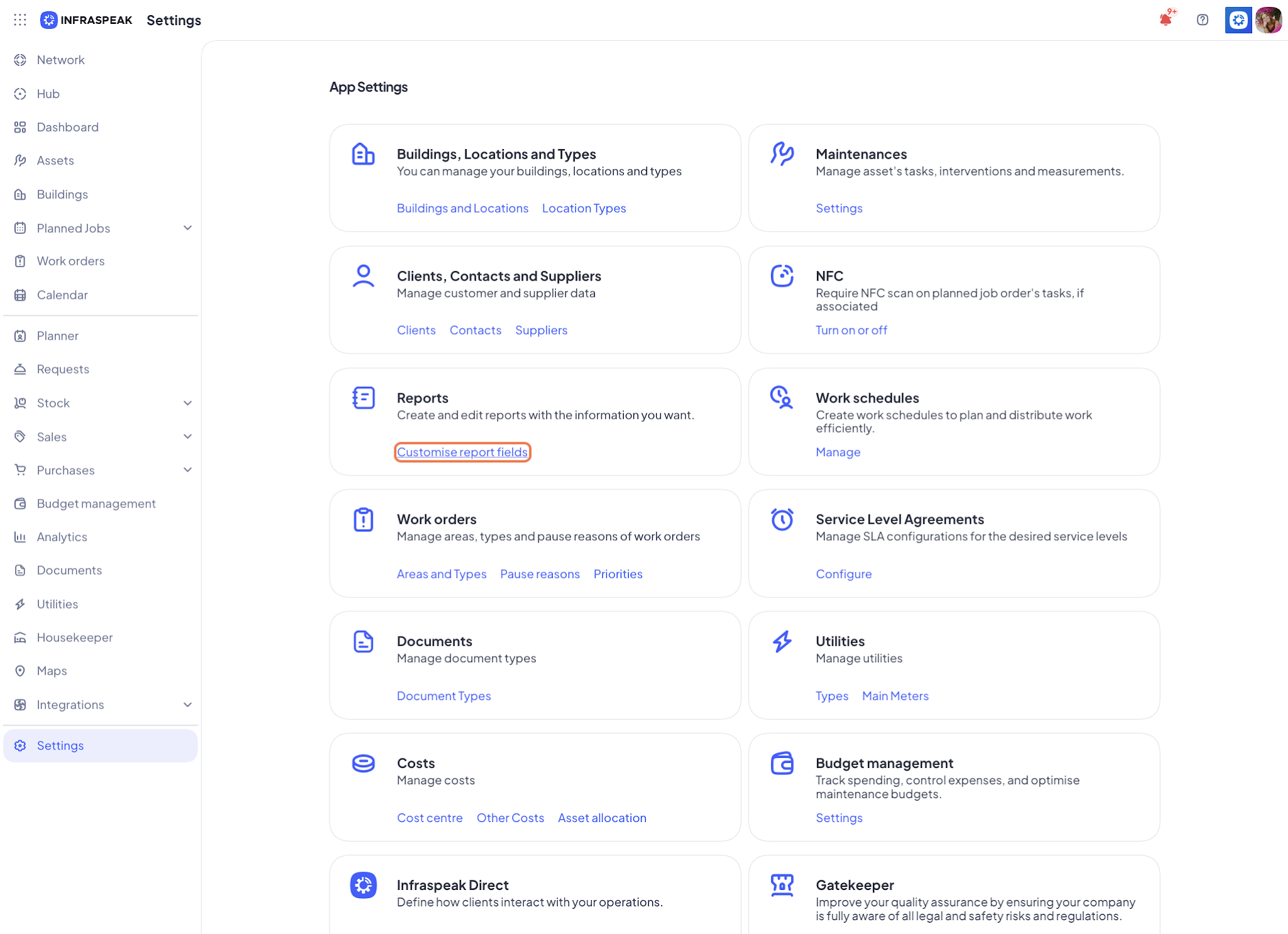
- On Settings, click on "Customize report fields"
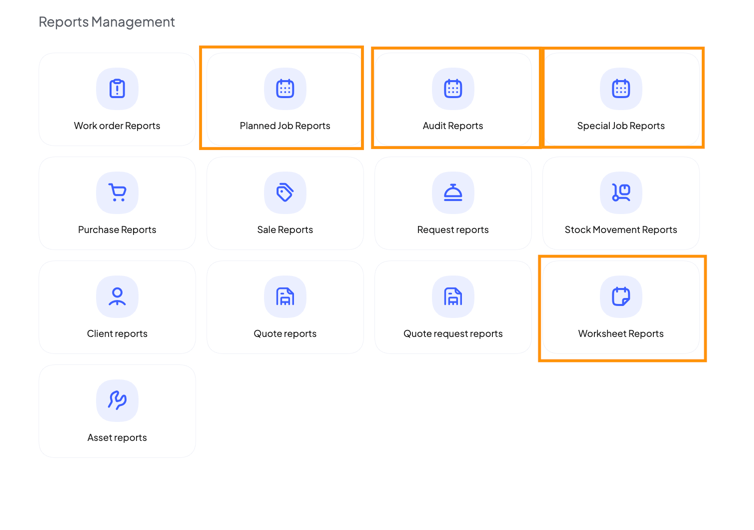
- Select the category of reports to associate clients to. For now, the supported ones are Planned Job + Audit + Special jobs + Worksheet reports
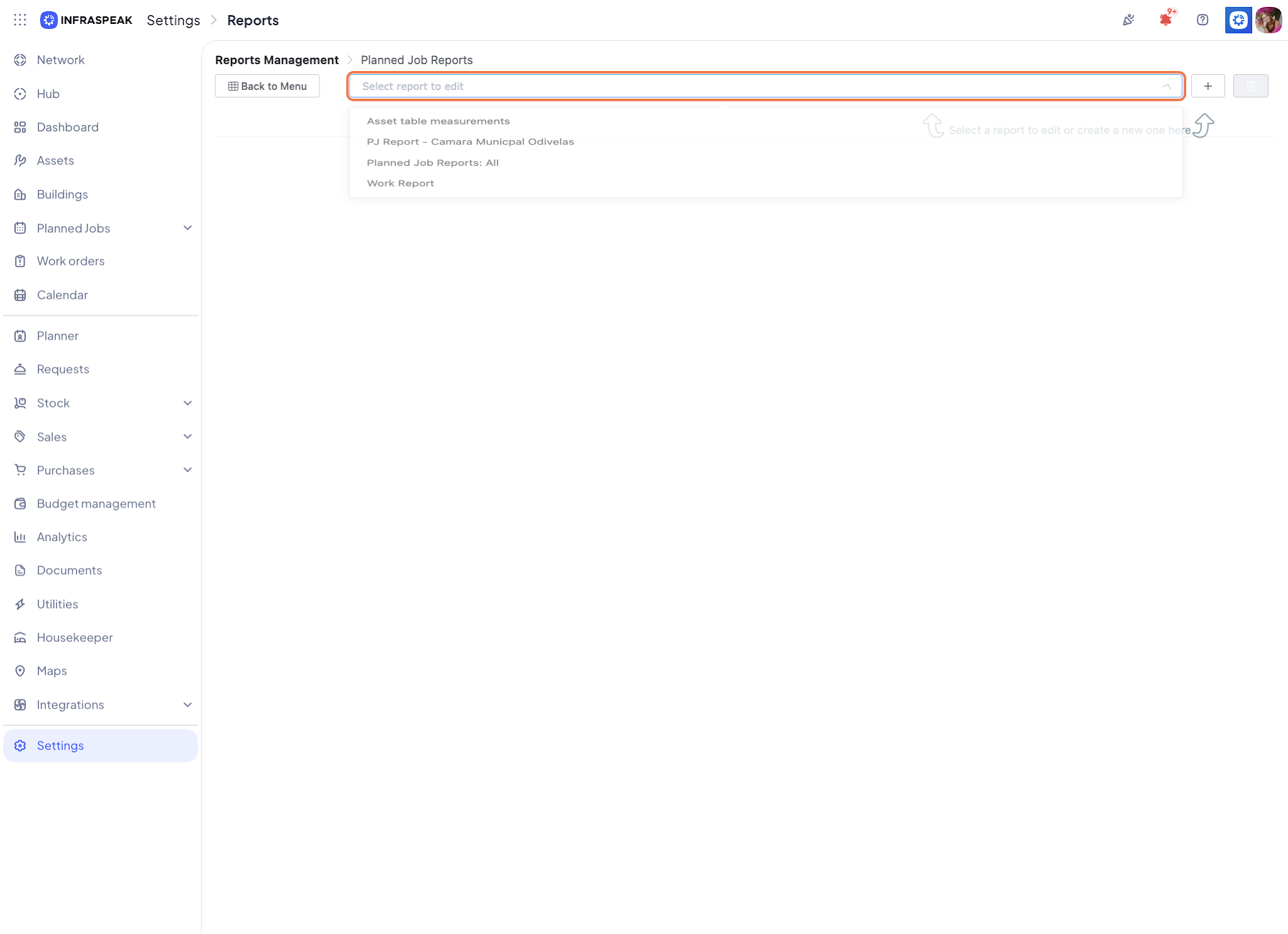
- Select the report template you want to associate to specific client(s) with
- Select Associate with specific clients. Choose the clients that should be associated to the report, and then click "Save".
Note: If you check “Associate with specific clients” but then save without selecting any clients, it will automatically select “Associate with all clients”.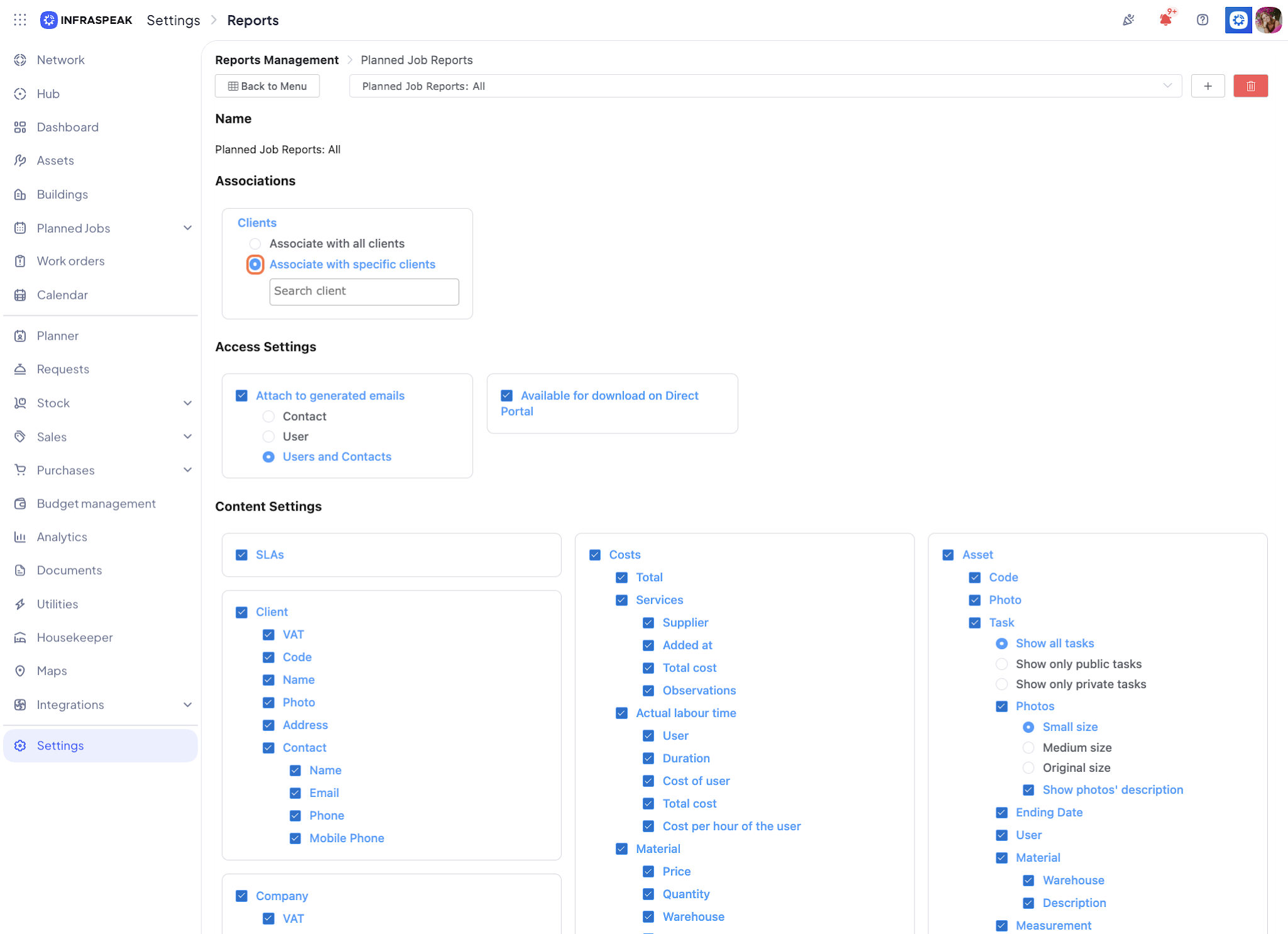
2. How is it reflected through the platform?
2.1 Client Reports on Planned Job Orders list + Planned Job Order Details Page
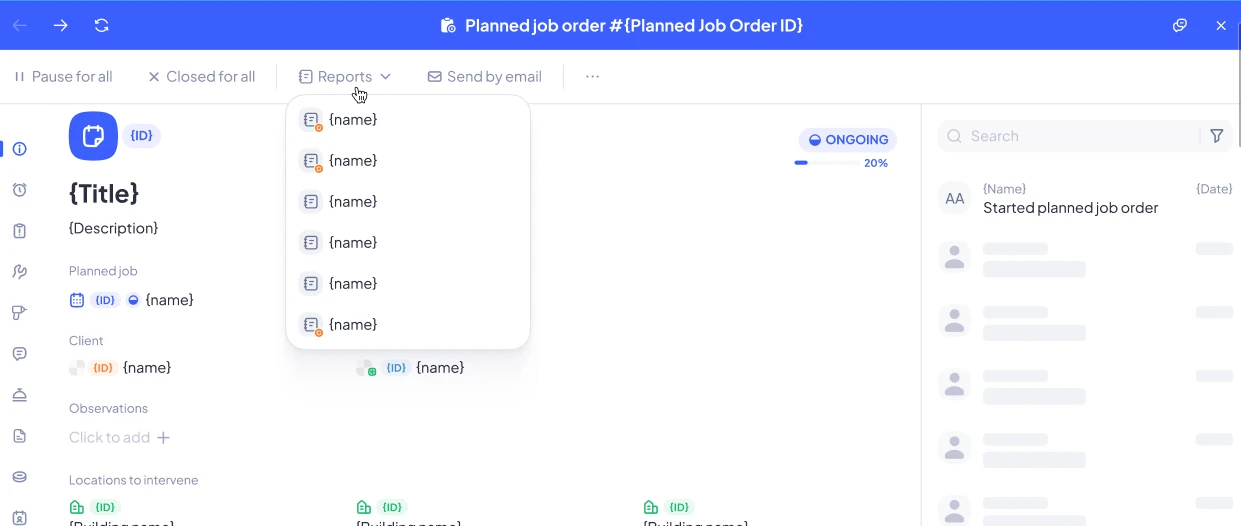
- On the Planned Job Order details page, when clicking on "Reports", only the eligible report templates for that client will be displayed in the dropdown list (common or client specific).
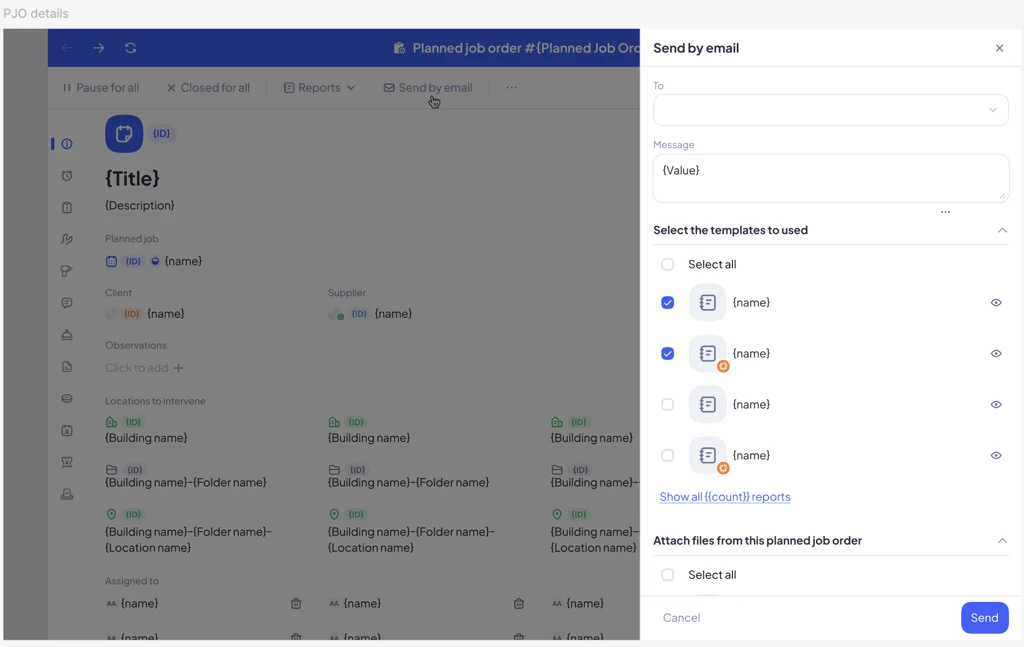
- On the Planned Job Order details page, when clicking on "Send by email", only the eligible report templates for that client will be displayed (common or client specific).
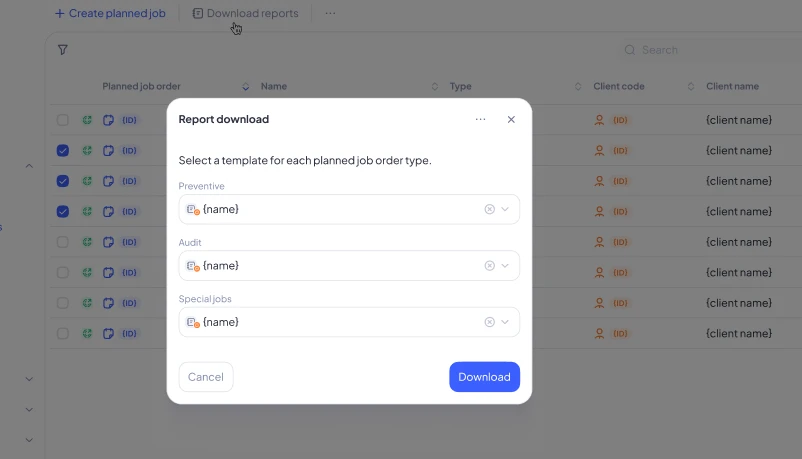
- On the Planned Job Orders list, when clicking on "Download reports", only the eligible report templates will be displayed in the dropdown list (common or client specific).
Note 1: If multiple clients are selected only reports they have in common will be displayed.
Note 2: If multiple types of Planned Job Orders are selected (Preventive, Audit, etc), the popup will display a section for each one with the dedicated dropdown list of report templates.
Note: there's a new icon that allows to see if the report is visible inside direct portal.
2.2 Client Reports on Direct Portal
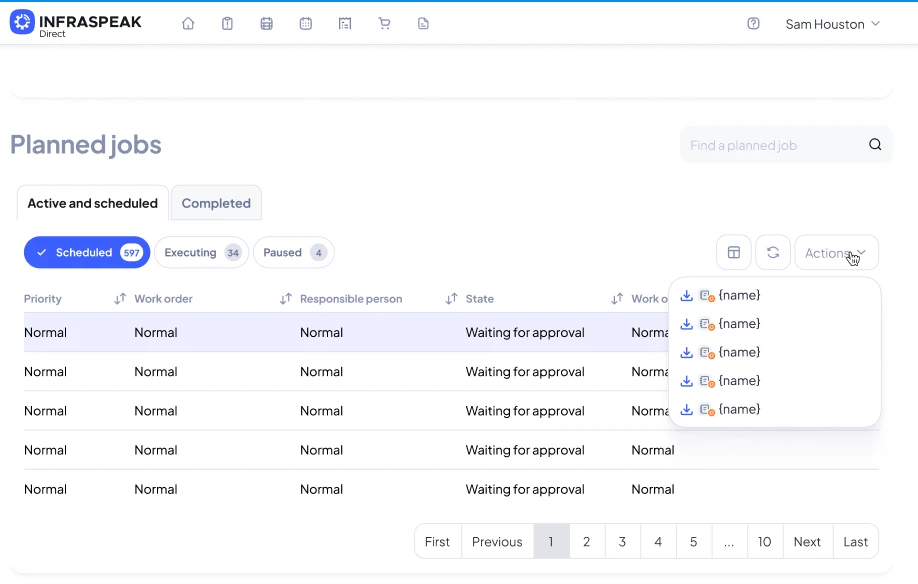
- Contacts accessing the Planned Job Orders list on Direct Portal will only be able to download eligible report templates - the "Actions" dropdown will display specific reports if that client has a specific report set for them.
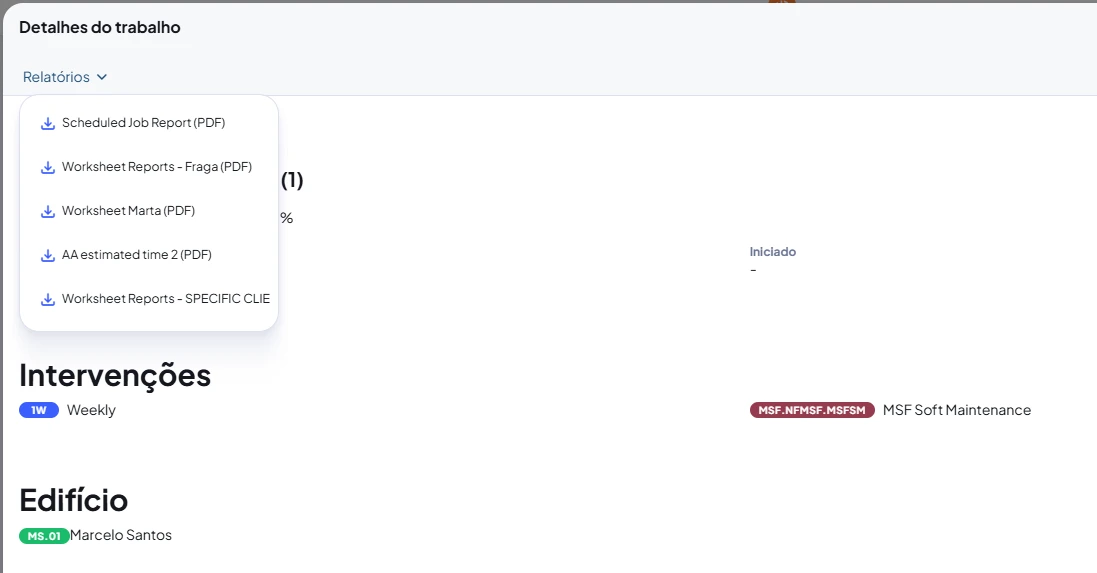
- Contacts accessing the Planned Job Order details page on Diret Portal will only be able to download eligible report templates - the "Reports" dropdown will display specific reports if that client has a specific report set for them.
2.3 Client Reports on Email Notifications
- When configuring notifications on the Planned Job (creating or editing), the user will see what templates are going to be sent for each type (Contact or Users)
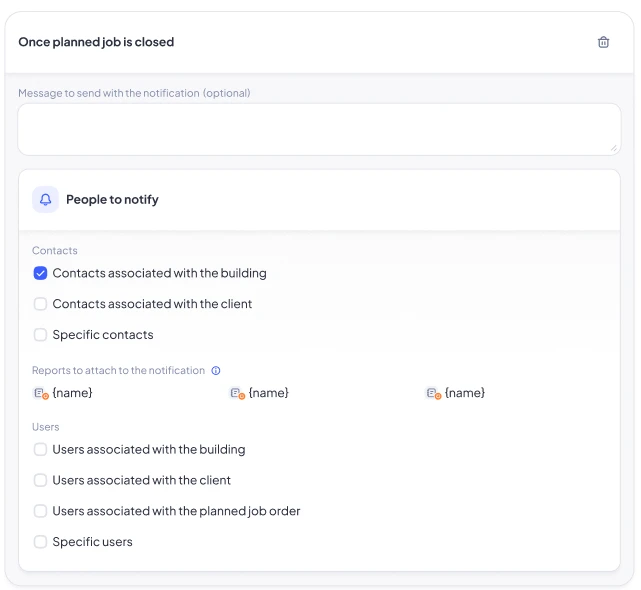
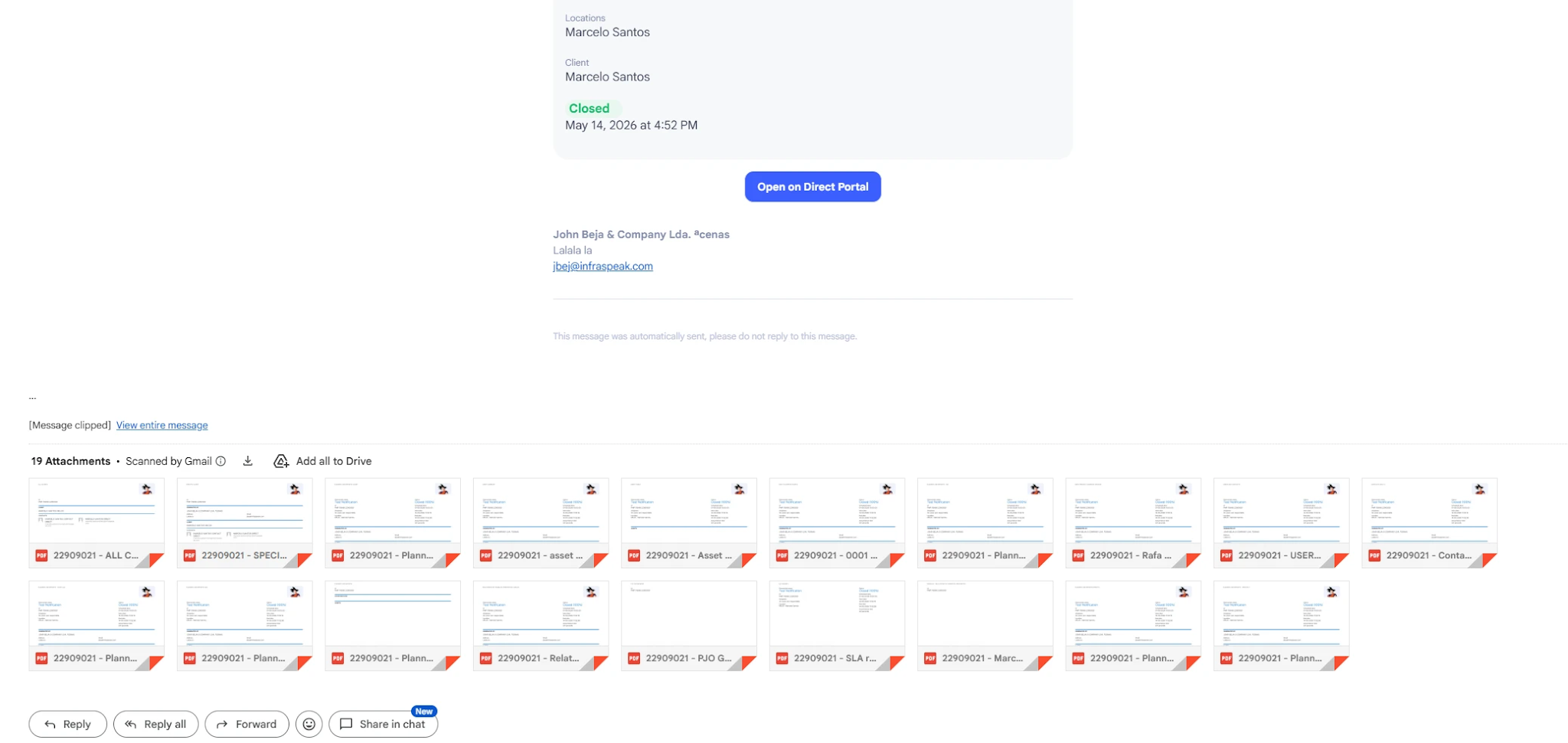
- When the notification email is sent, only the eligible reports will be attached.