
Using QR codes for your assets is a fantastic way to streamline your workflows and access equipment information instantly. The setup process is simple, and you'll be ready to download them in no time.
TABLE OF CONTENTS
- 1. Option A: For Direct Page Users
- 2. Option B: For users who do not use the Direct Page module
- 3. Important Specification
Here is a complete guide on how to get started and how to download your QR codes depending on your current platform setup.
1. Option A: For Direct Page Users
1. Request Activation: The specific extension needed is not visible on the Infraspeak Hub, so you just need to reach out to our Customer Success team and ask us to activate the "Asset-QRcode" extension for your account.
2. Automatic Generation: As soon as we activate the extension behind the scenes, the system will automatically generate Direct Page QR codes for all your assets, whether they are new or already existing.
3. Custom Codes Protection: If you are already using your own custom QR codes, there is no need to worry! The automatic generation process will protect them and will never overwrite any existing custom codes you have in place.
4. Download: After the generation is complete, you can download the QR codes entirely on your own by accessing Buildings > [selecting the desired Building] > clicking on the Share button > Download QR codes.
2. Option B: For users who do not use the Direct Page module
For users who do not use the Direct Page module, getting your QR codes requires a slightly different approach using a free custom indicator. Here is exactly how you can get them:
1. Request the Custom Indicator: Simply reach out to our Customer Success or Care team and ask us to install the QR code export custom indicator for your account.
2. Locate the Tool: Once our team sets it up behind the scenes, log into your Infraspeak web platform, open the Analytics module, and navigate to Custom indicators: Analytics > Custom Indicators > QR Codes. From there, you can easily download single or multiple QR codes all at once.
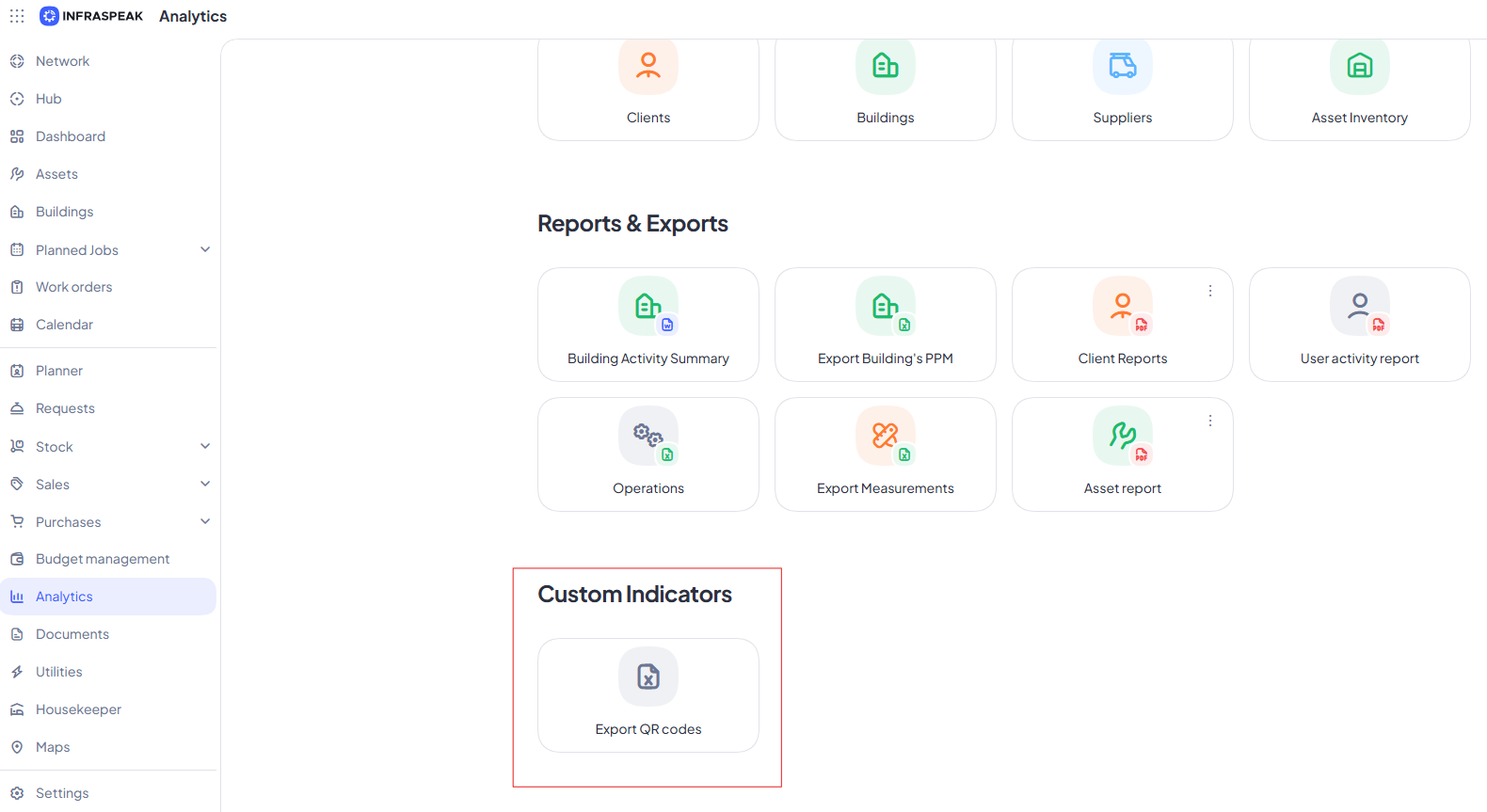
3. Generate and Download: Click on the QR codes option, and you will be able to generate and download the standard QR codes for your assets directly from that page.
While we can easily set up the custom indicator, if you ever decide you'd prefer to use the Direct Page module, just reach out to your Customer Success/Account Manager to add it to your plan.
3. Important Specification
Please bear in mind that QR code sizes are fixed and cannot be changed or customized. They are generated in a standard, optimal size to ensure they can be easily scanned by any mobile device.
If you are ready to activate your QR codes or have any questions about which method is best for you, contact our support team!