
To help keep your team aligned and your records accurate, Infraspeak allows you to document key details directly within your tasks. Below, we’ll guide you through how to add notes and observations to both your Planned Jobs and Planned Job Orders:
TABLE OF CONTENTS
1. During Execution
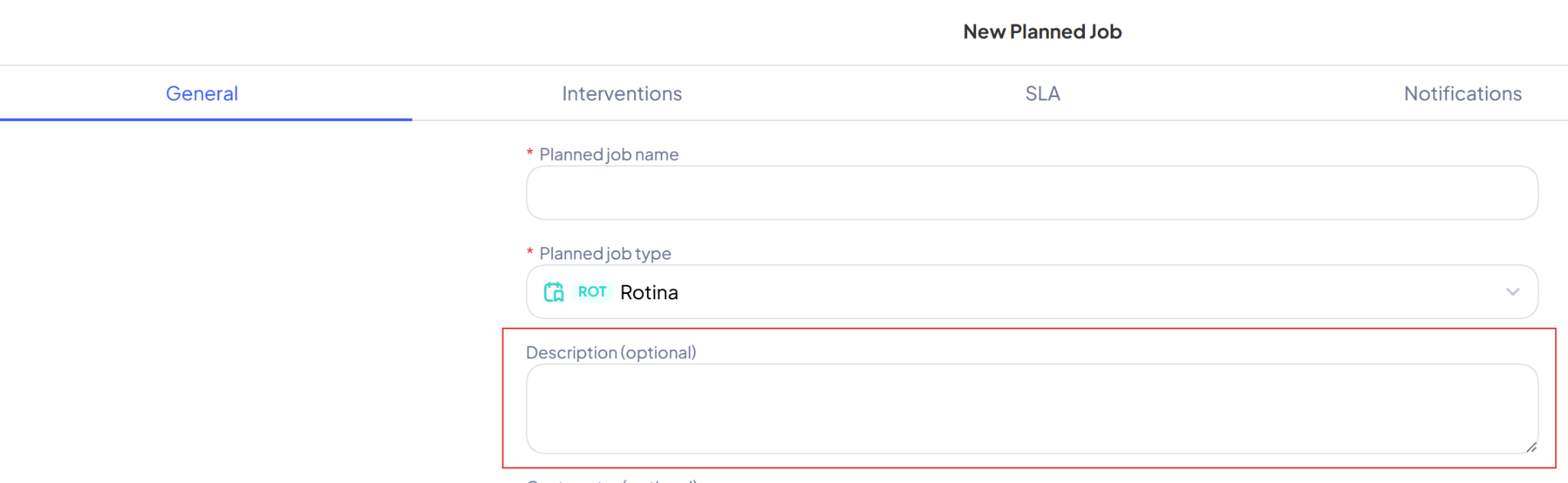
When creating or editing a Planned Job, you can add your notes directly in the "Description" field.
If you are creating a Template for a Planned Job, you also have a specific "Observations" field available to add extra context or internal guidelines.
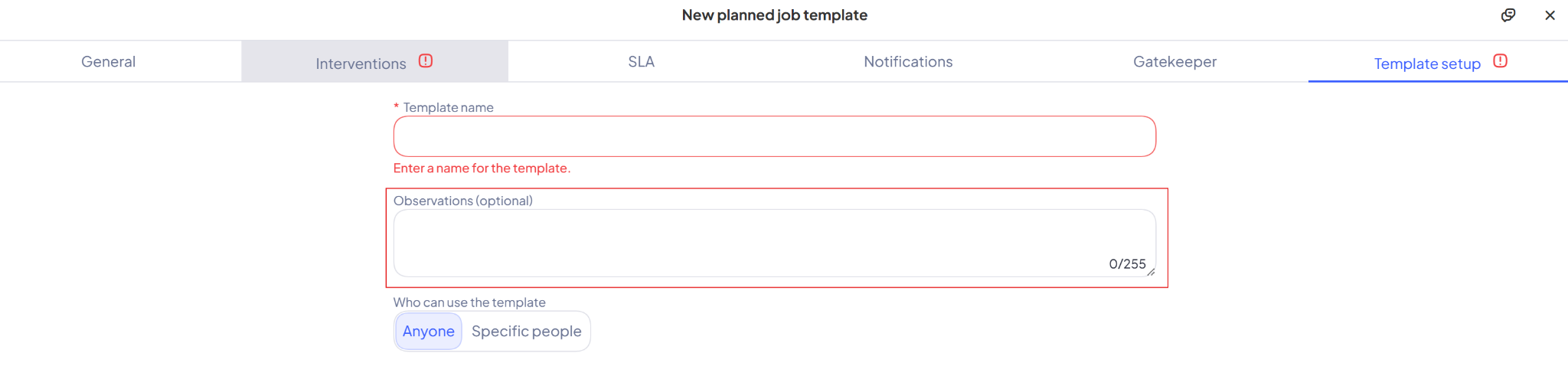
Tip: Observations are considered a private field and will not be shared if you send the Planned Job over the Infraspeak Network. If you need your client or supplier to read your notes, be sure to use the "Description" field instead.
2. How to add Documents
In cases where a simple note or observation is insufficient, you have the option to attach documents that provide further detail. Here is how you can add documents to your Planned Jobs and Planned Job Orders via the web platform:
- Open an existing Planned Job or Planned Job Order.
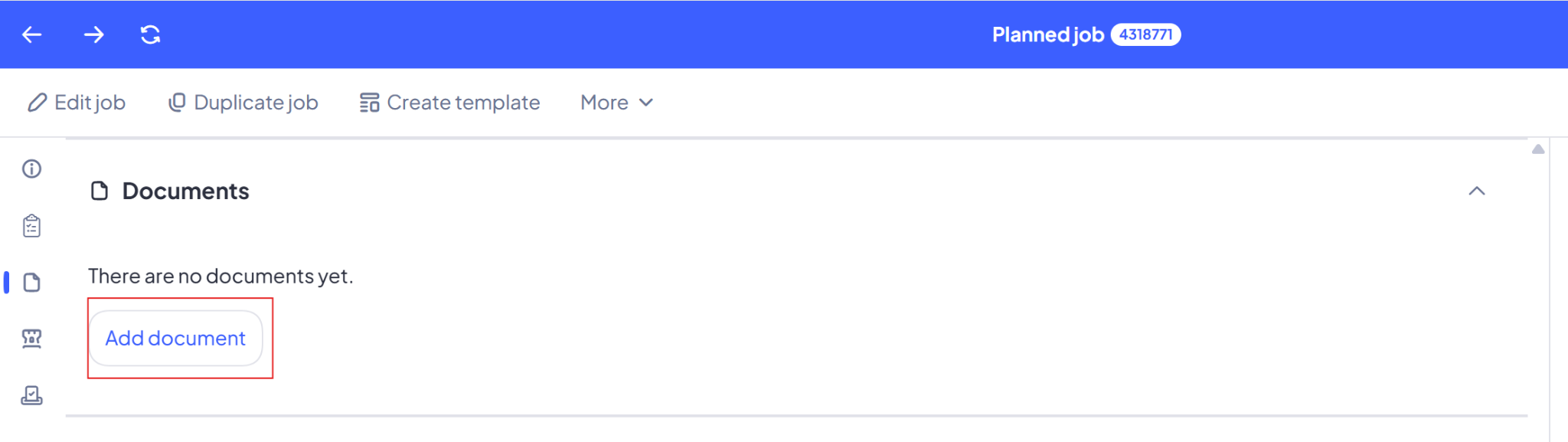
- Scroll down to the Documents section.
- Click on Add Documents to open the upload window.
- Drag and drop your document into the box or upload the file.
- Fill in optional details like a description, document category, or expiration date, and set your sharing permissions if needed.
- Click the Add button in the bottom-right corner.