
To help keep your team aligned and your records accurate, Infraspeak allows you to document key details directly within your tasks. Below, we’ll guide you through how to add notes and observations to both your Planned Jobs and Planned Job Orders:
TABLE OF CONTENTS
1. During execution
- Open the Infraspeak Next app on your mobile device and locate the scheduled Planned Job Order.
- Tap "Start" to begin executing the work.
- On the main screen of the Planned Job Order, simply tap "Add observation" to leave a general note about the entire job.
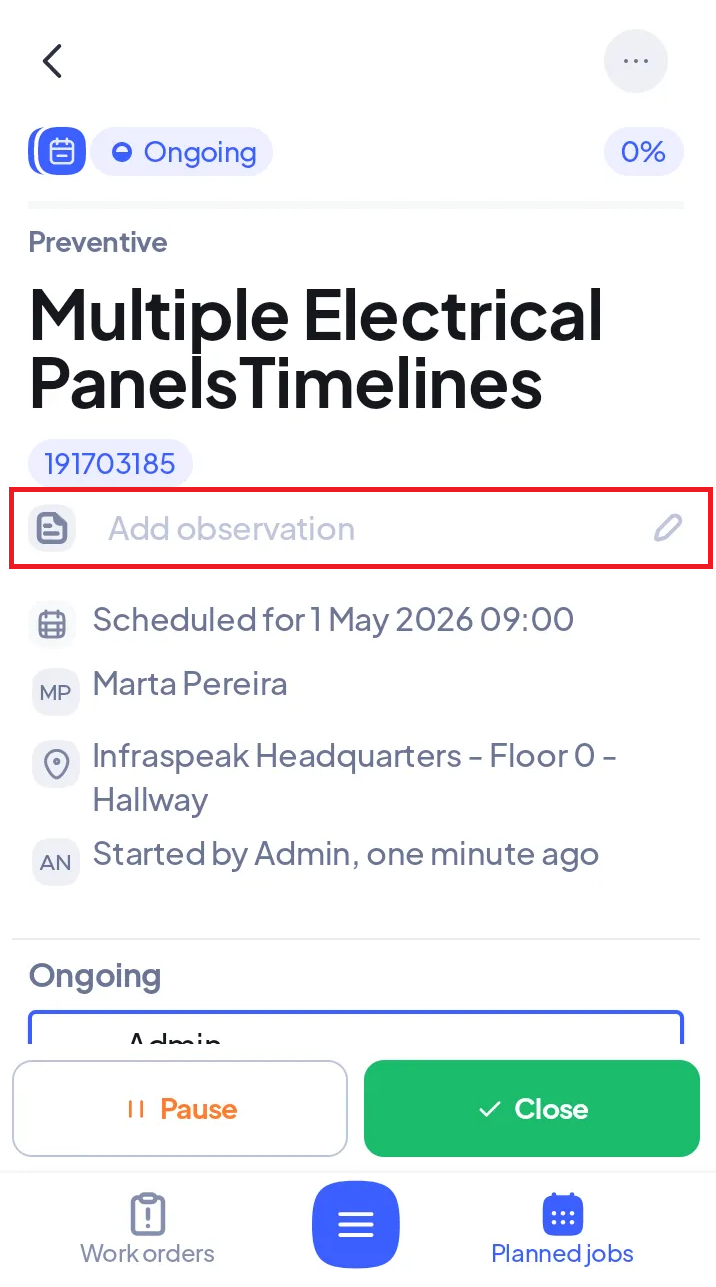
If you need to leave more granular notes, you can open individual tasks or measurements within the Planned Job Order and add observations directly to them as you mark them complete.
2. How to add Documents
In cases where a simple note or observation is insufficient, you have the option to attach documents or even photos and videos that provide further detail. Here is how you can add documents to your Planned Jobs and Planned Job Orders via the mobile app:
- Open the Infraspeak Next app and find the Planned Job Order you want to add the document to.
- Scroll down until you see the Documents section.
- Tap on Add document/photo.
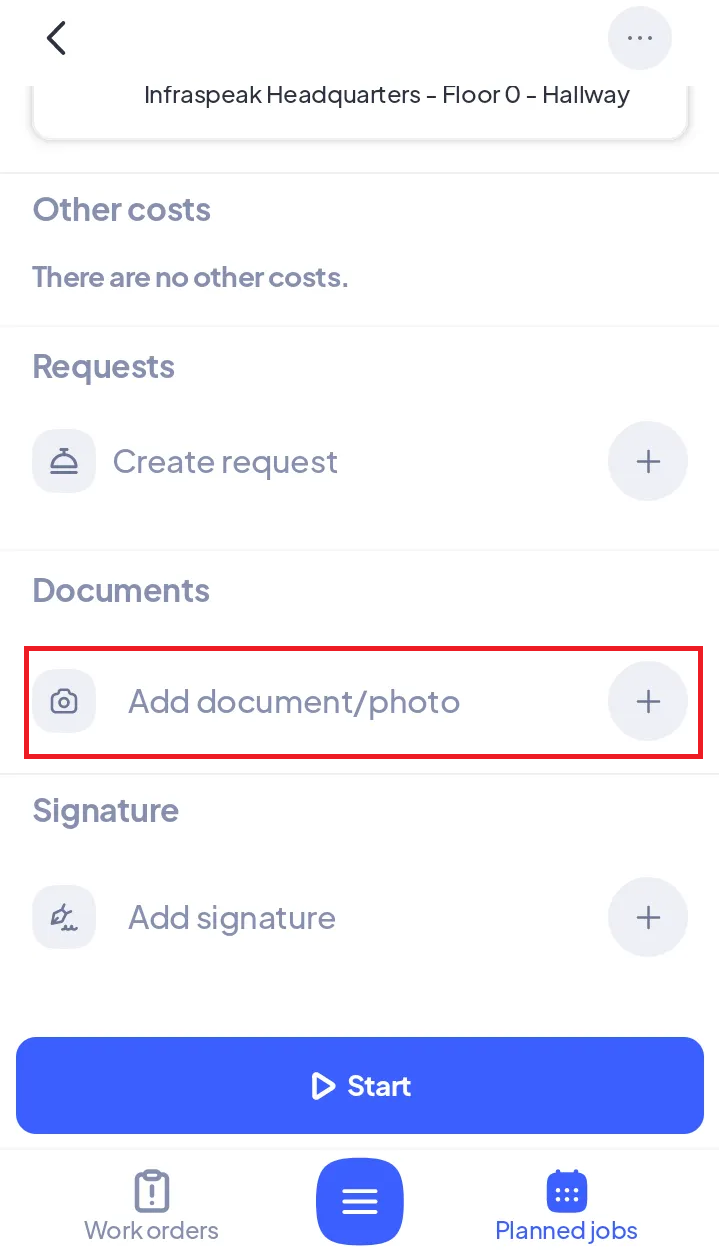
Choose to take a new picture with your camera, select a photo/video from your gallery, or upload a file directly.