
This article helps you understand why Infraspeak Direct users (both Reporters and Contacts) might not be able to view specific documents or images associated with a Work Order or a Planned Job, and it guides you through configuring the necessary settings to make these files visible.
TABLE OF CONTENTS
- 1. Understanding Document Visibility in Infraspeak Direct
- 2. Why a Direct User Cannot See a Document
- 3. How to Make Documents Visible to Direct Users
1. Understanding Document Visibility in Infraspeak Direct
Infraspeak Direct is an interface specifically engineered to provide visibility and tracking to external users, such as Reporters and Contacts. Both profiles can view Work Order details, track statuses, and communicate through message histories.
However, visibility over specific file attachments is tightly regulated by individual file permissions to maintain data security across your operation.
2. Why a Direct User Cannot See a Document
If a Direct user has complete visibility over a specific Work Order or Planned Job but cannot view an attached document, it is because the document's specific visibility permissions are hidden from them.
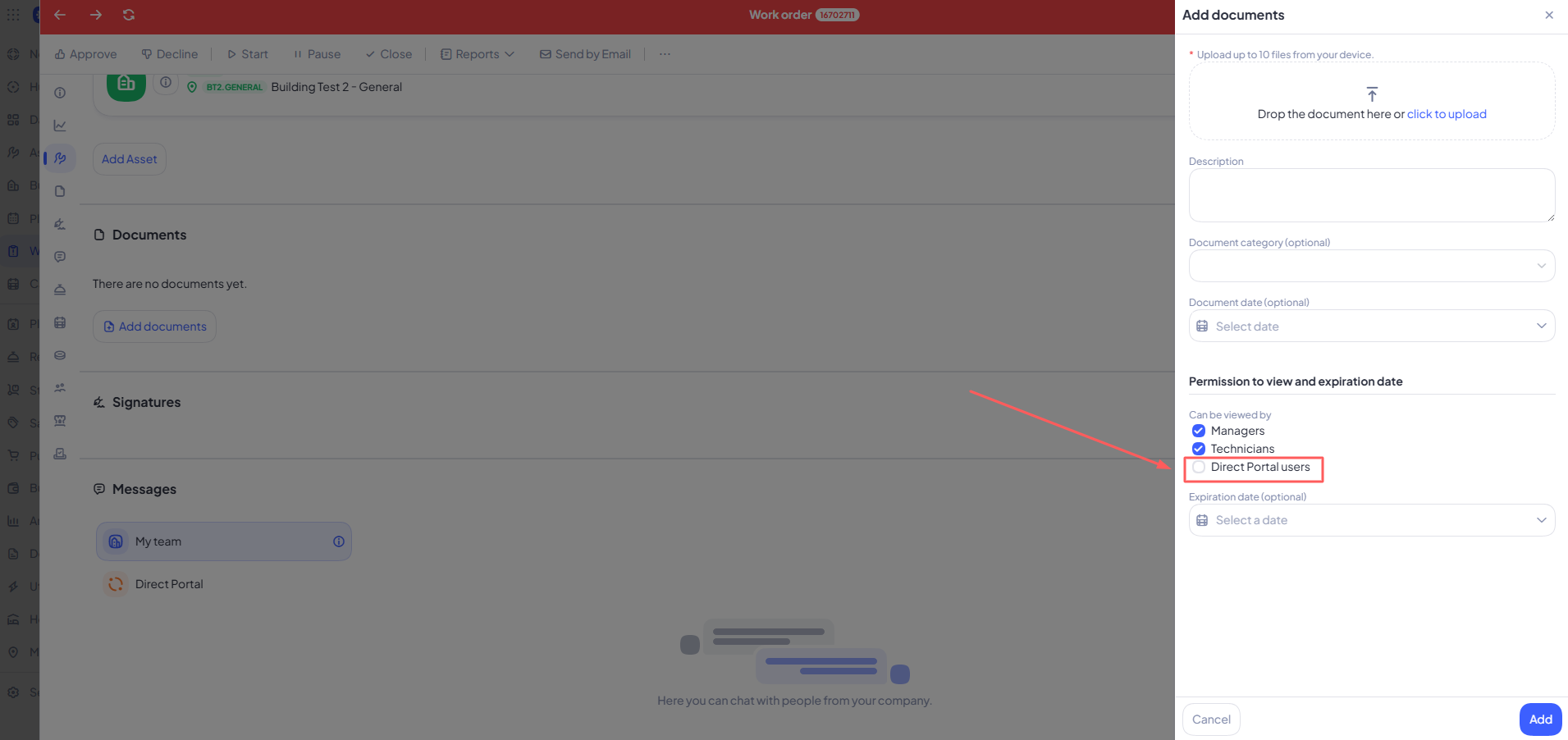
In Infraspeak’s Documents Management architecture, files are managed and stored securely. Whenever a new document is uploaded to a Work Order, a Planned Job, or a Planned Job Order, the system defaults to keeping it internal unless explicit permissions are granted. If the "Infraspeak Direct users" option was unchecked during upload, the file remains hidden from the Direct portal.
3. How to Make Documents Visible to Direct Users
3.1 Ad-Hoc Adjustments via Web Platform
If a Work Order, Planned Job, or Planned Job Order contains a document that needs to be shared with an external user, an Administrator, Manager, or Technician can adjust this setting ad-hoc from the web platform. Note that this permission checkbox is only available for files attached to Work Orders, Planned Jobs, or Planned Job Orders, and is not available when adding a document directly to an Asset.
- Access the Infraspeak web platform and open the relevant Work Order, Planned Job or Planned Job Order.
- Locate the attached document or image and edit its settings.
- Navigate to the Permissions and alerts section (also displayed as "Can be viewed by").
- Explicitly select the Direct Portal users checkbox.
- Save the changes. The document will now appear automatically in the "Documents" section of the Direct web portal.
3.2 Key Rules Based on Application and User Roles
The behavior of automated visibility changes depending on who uploads the file and which application they use:
| User Profile | Application Used | Action Performed | Result on Direct Web Portal |
| Reporter / Contact | Infraspeak Next App / Infraspeak Web | Adds a photo/document to a Work Order or Planned Job. | Automatically visible in the Direct portal's "Documents" section (only for that Direct user). |
| Technician / Admin / Manager | Infraspeak Web | Adds a photo/document directly to a WO. | Optional visibility. Controlled manually via the "Direct Users" checkbox. |
| Technician / Admin / Manager | Infraspeak Web | Adds a photo/document to a task within a WO. | Never visible. Task-level attachments do not feature a Direct permission toggle and remain strictly internal. |
| Technician / Admin / Manager | Infraspeak Legacy App / Infraspeak Next App | Adds a photo/document to an occurrence or task. | Never visible. Legacy and Next app uploads to Work Orders or Planned Jobs do not push files to the Direct portal's document stream. |