
You can perform several bulk actions directly on the platform by using our default Importer and Exporter function, with no need to open a support ticket. This article will help you understand which data you can manage in bulk to keep your operation running smoothly.
TABLE OF CONTENTS
- 1. Where to find these tools
- 2. Exporting data
- 3. Importing and updating data
- 4. Consulting your history logs
1. Where to find these tools
To access these tools, head over to the Infraspeak web platform, click on “Settings” in the left bottom corner, and select the option “Imports and exports”.
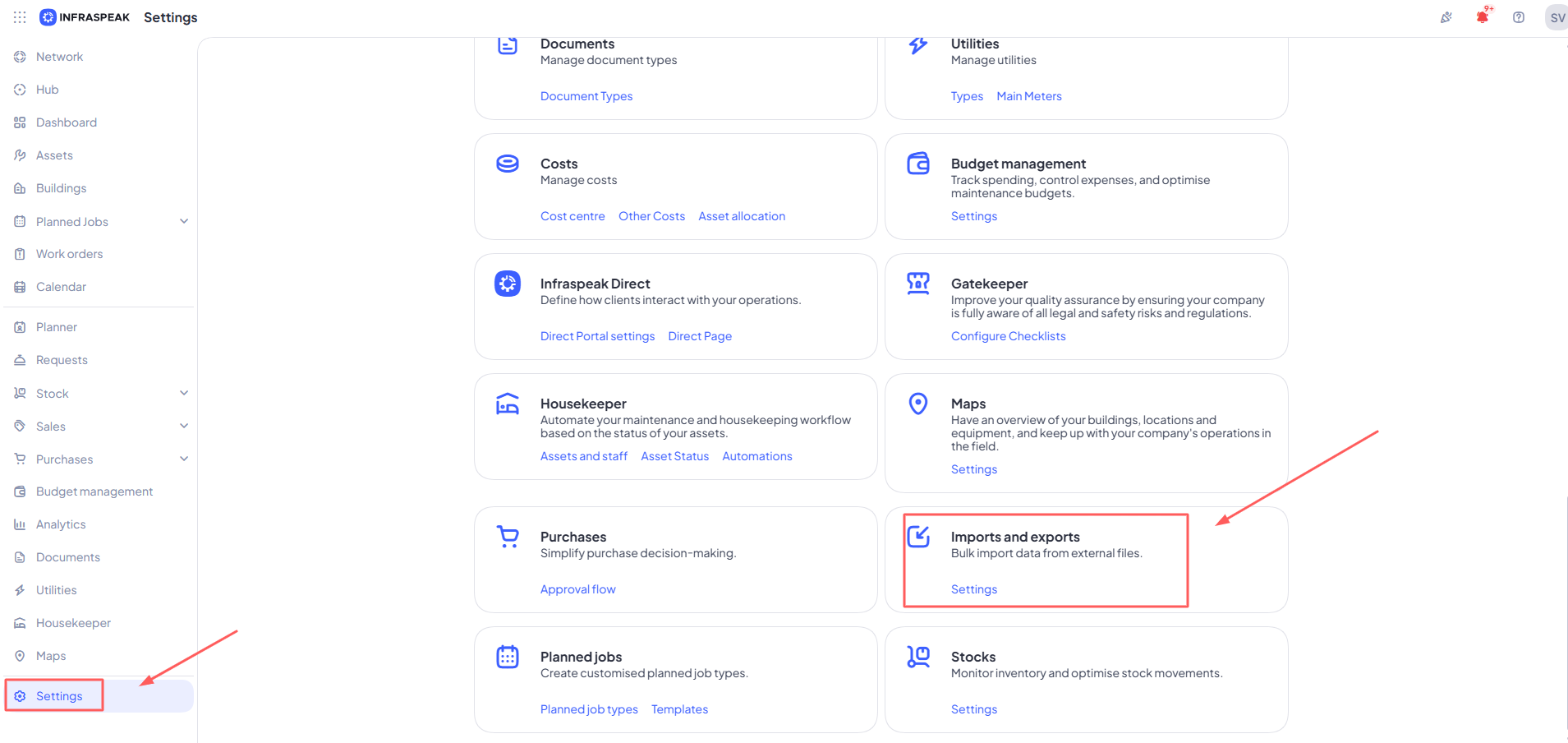
On the page that appears after, click on "Export data" or "Import data" to access the function that you wish to use.
2. Exporting data
When you need to extract information from the platform, you can select the specific file and details you want to export. The system will generate the file and send it directly to your email.
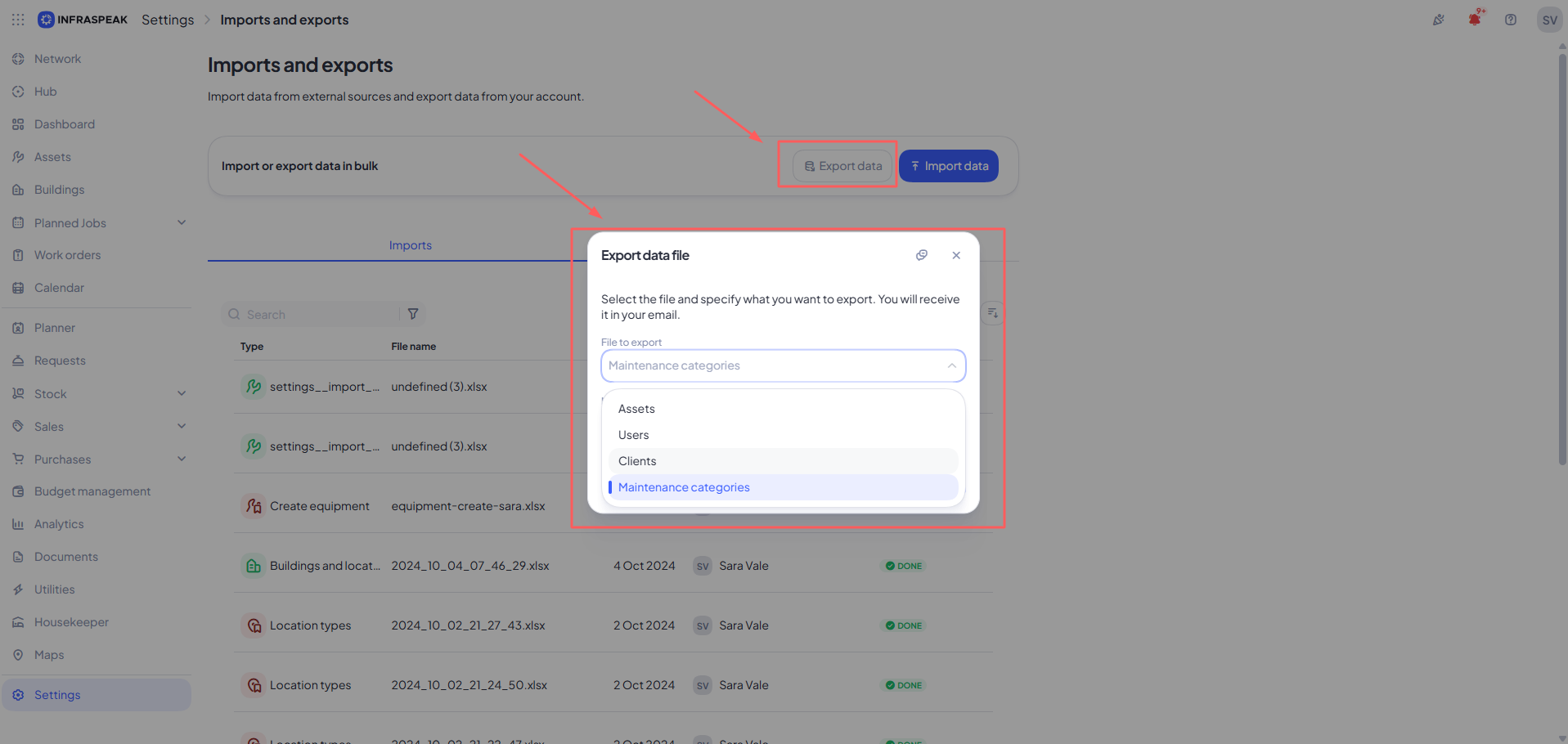
2.1 Available files for export
- Assets: You can filter by "All Types", "Equipment", or "Location". You can also narrow this down by specific Clients, Buildings or Asset Categories;
- Users: Select from "All types”, “Administrator", "Manager", "Technician", "Reporter", or "Operator". Filters for specific Clients or Buildings are also available;
- Clients: Select specific clients or export your entire registry at once;
- Maintenance Categories: Choose one or multiple categories to extract.
3. Importing and updating data
You can bulk upload or update information using template Excel files available through our default importers.
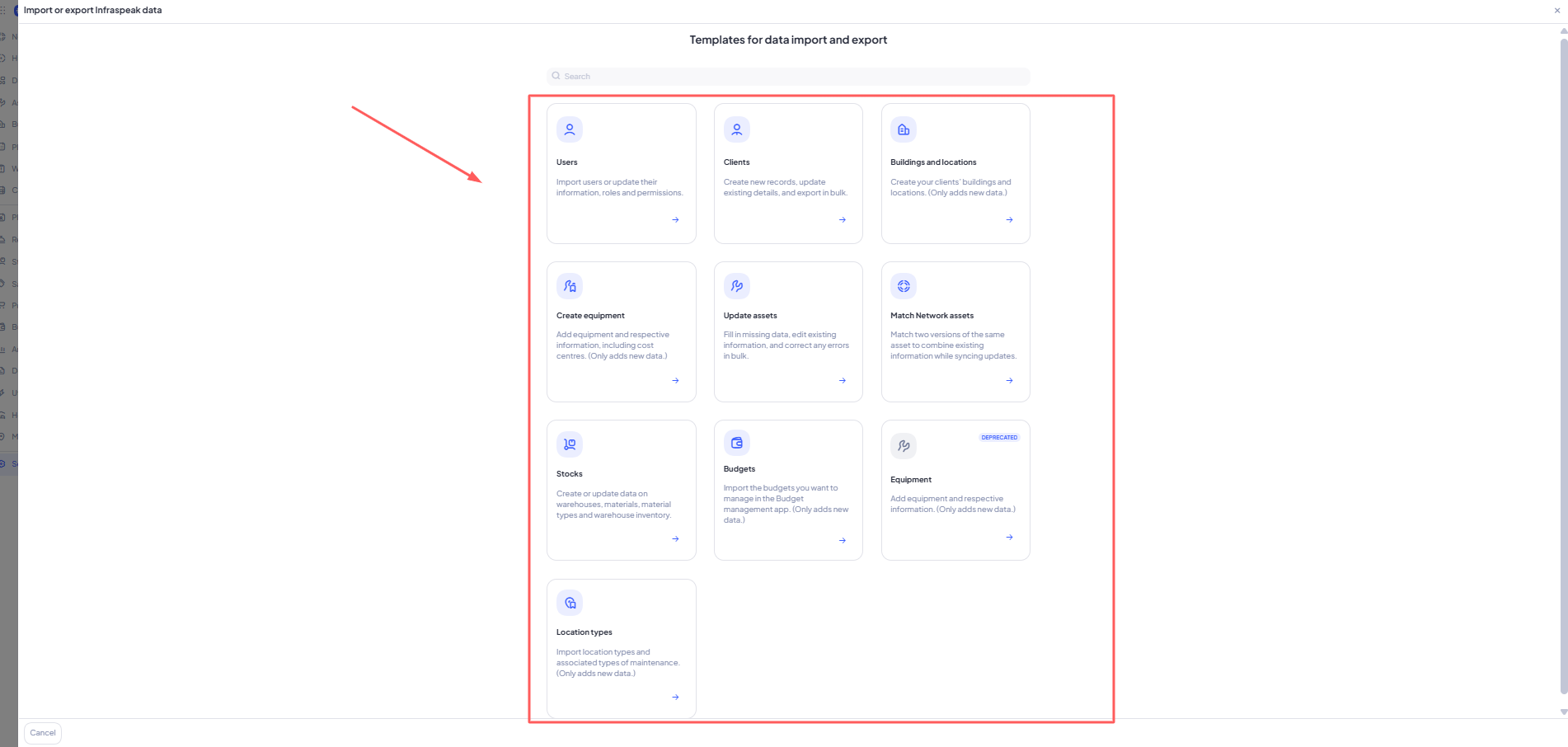
3.1 Available templates for data import and export
- Users: Import new users or update their current information, roles, and permissions;
- Clients: Create new records, update existing details and export in bulk;
- Buildings and Locations: Create new buildings and locations for your clients (this only adds new data);
- Create Equipment: Add new equipment and their respective information, including cost centres;
- Update Assets: Fill in missing data, edit existing asset information and correct any errors on your current inventory in bulk;
- Match Network assets: Match two versions of the same asset to combine existing information while syncing updates;
- Stocks: Create or update data regarding warehouses, materials, material types and warehouse inventory;
- Budgets: Import the budgets you want to manage in the Budget management app (only adds new data);
- Location Types: Import new location types along with their associated types of maintenance (only adds new data).
Note: You may see an importer labeled "Equipment - Deprecated". Please be aware that this is an outdated tool and should no longer be used for your bulk updates.
4. Consulting your history logs
In the "Imports and exports" section, you can also consult your history logs to track previous activities.
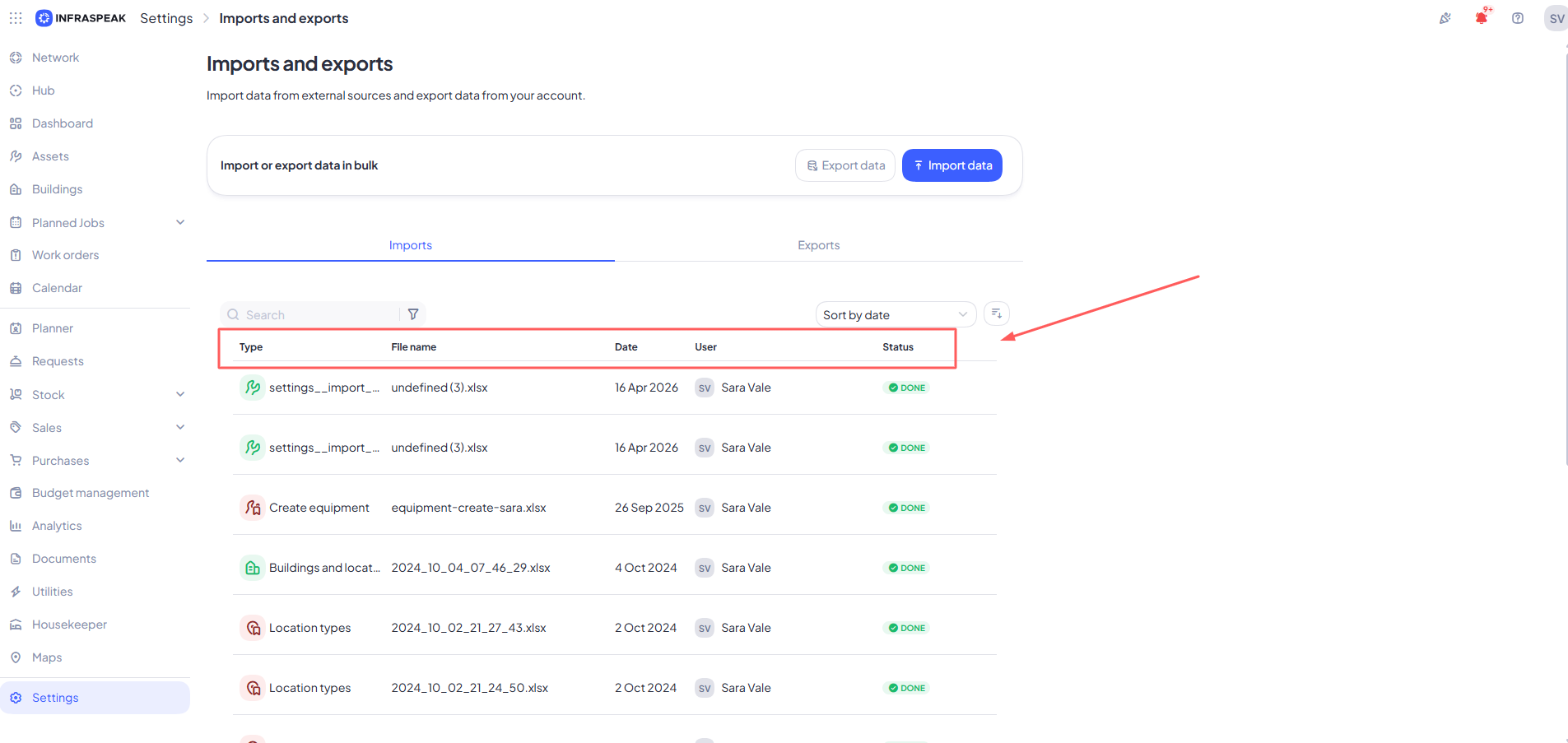
This allows you to verify:
- Type: Whether it was an export or import action;
- File name: The specific name of the document processed;
- Date: When the action was performed;
- User: The name of the team member who initiated the action;
- Status: The current state of the request (e.g., completed or pending).