
Before Starting:
Ensure your entity has the Infraspeak Network™ activated and that you have connected your entity with your clients.
Video tutorial
Now
1. Open the Work Orders app
2. Double-click on the Work Order you would like to share
Note: you can only share a work order that is not started or paused. You cannot share a work order that is closed or ongoing.
3. On the top right corner, click Share and select the supplier from the drop-down list
(You can only share with suppliers that are already connected via the Network).
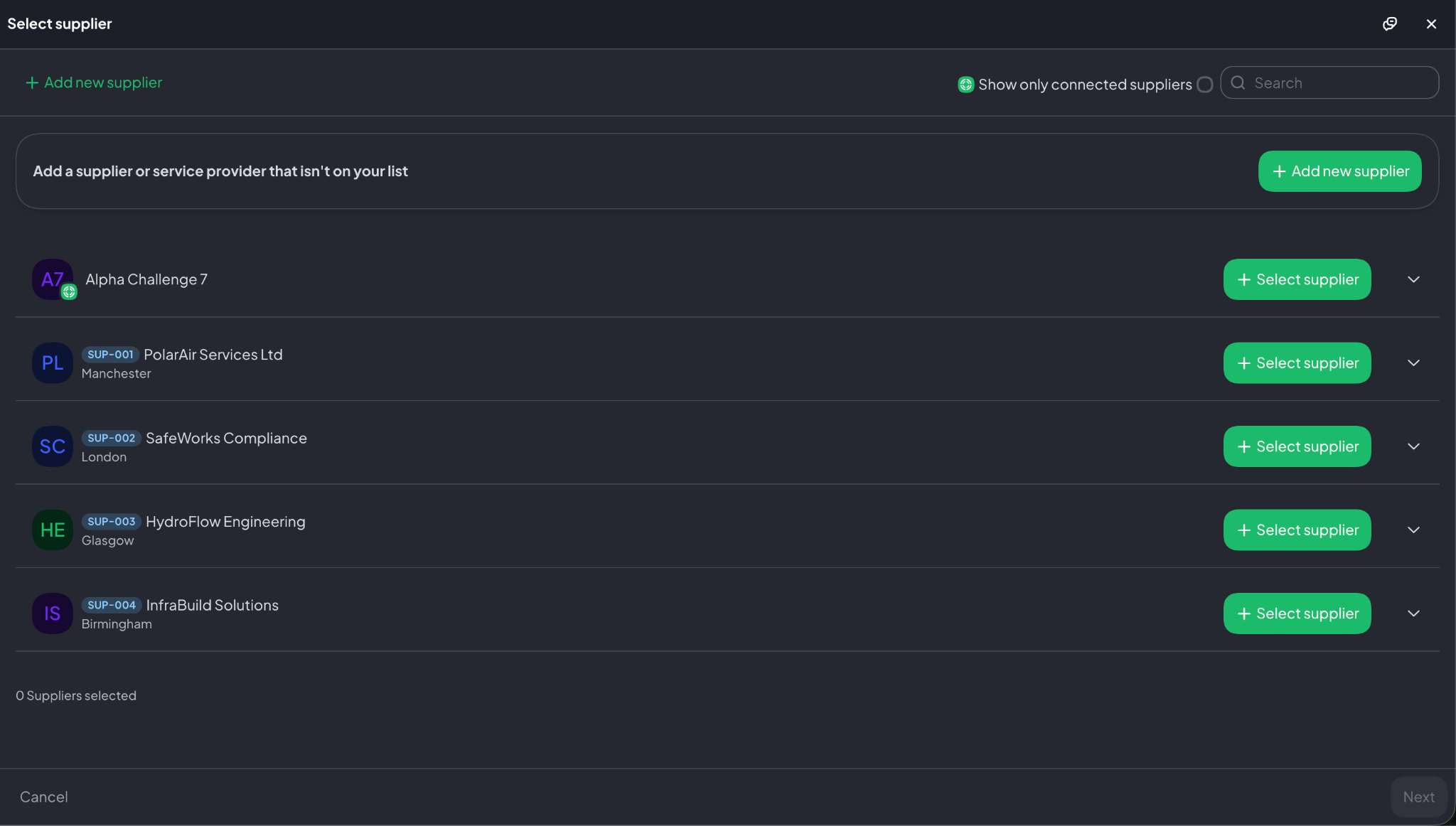
4. For easier filtering, make sure to tick the box on the top right to Show only connected suppliers on network.
5. After you’ve selected your supplier, click Next.
6. Add notes to help the supplier and provide extra context.
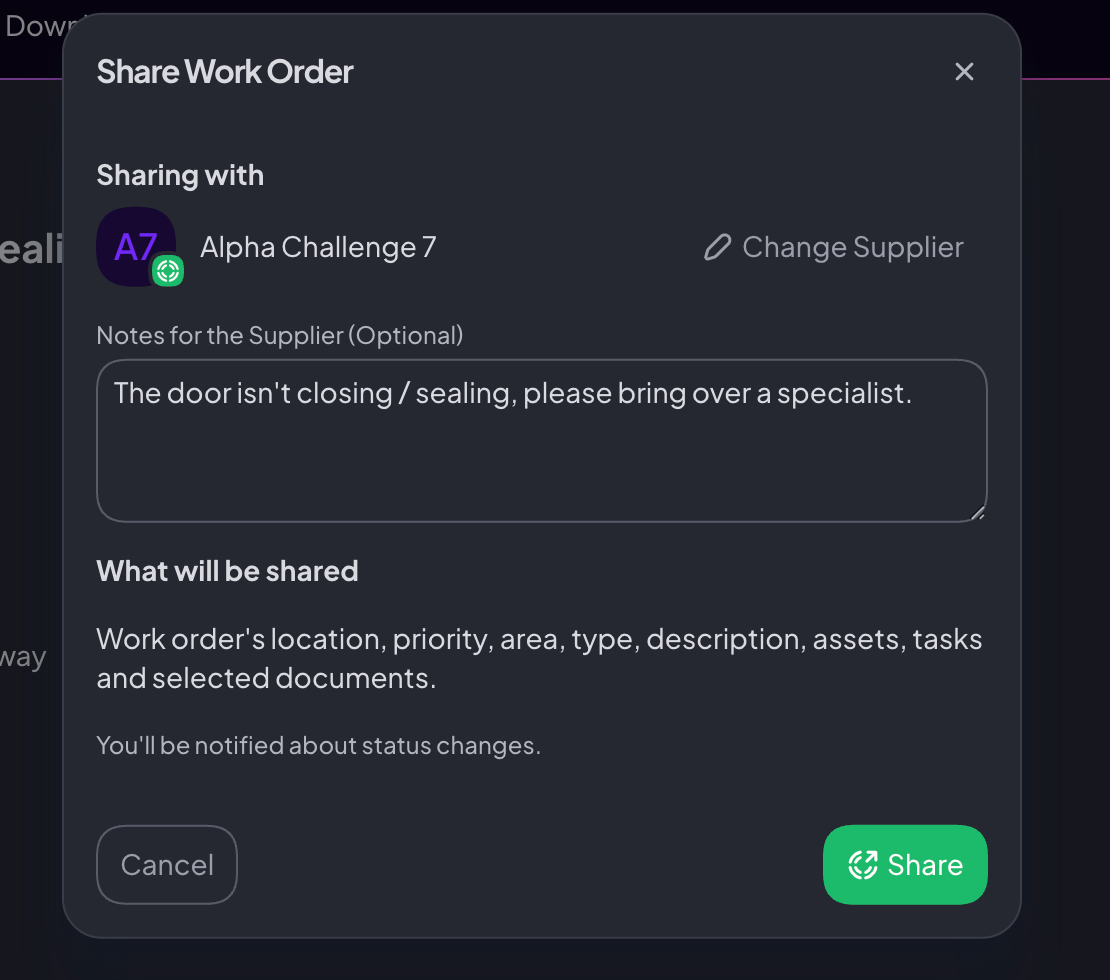
7. Click Share. If the work order has not been approved yet, it will be approved automatically.
How to automatically share work orders with your suppliers
1. Head over to the Settings menu
2. Under Gear AI, click on Automations
3. Click on Create automation
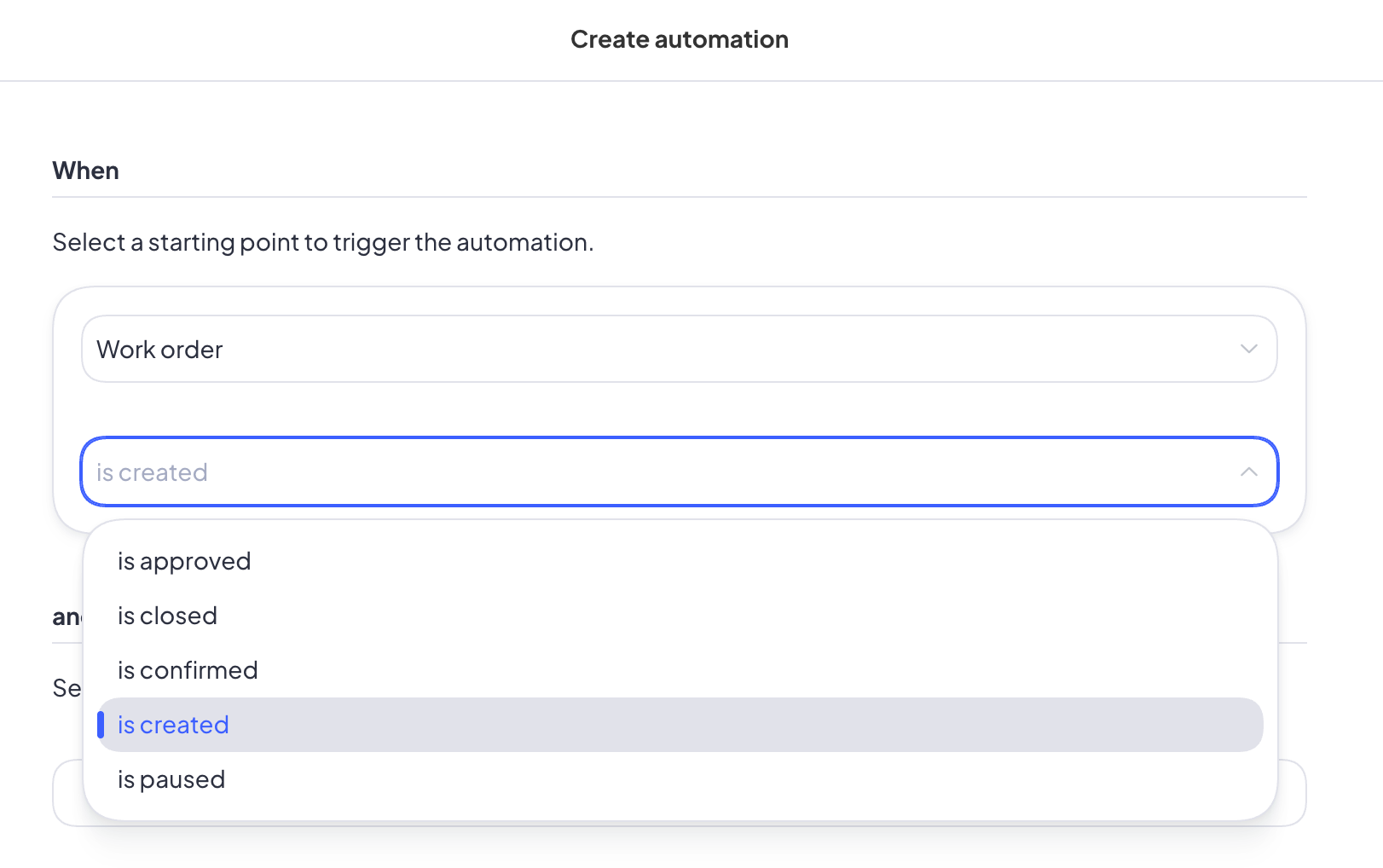
4. For the first condition, set as Work Order and any of the other executions (i.e. is created)
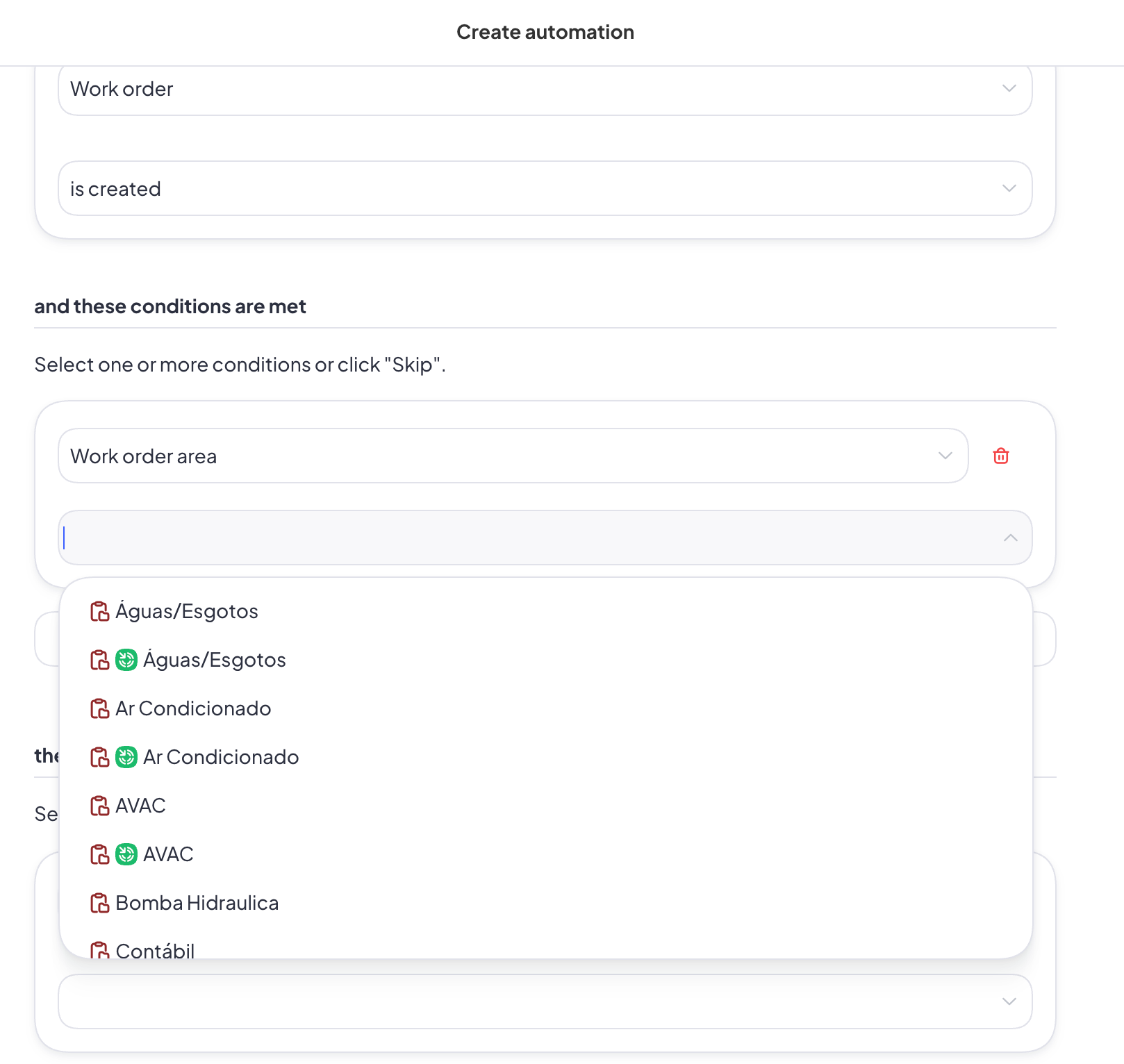
5. If applicable, set a new condition for Work Order Area and pick the one (or multiple) that fit the automation you’re trying to create
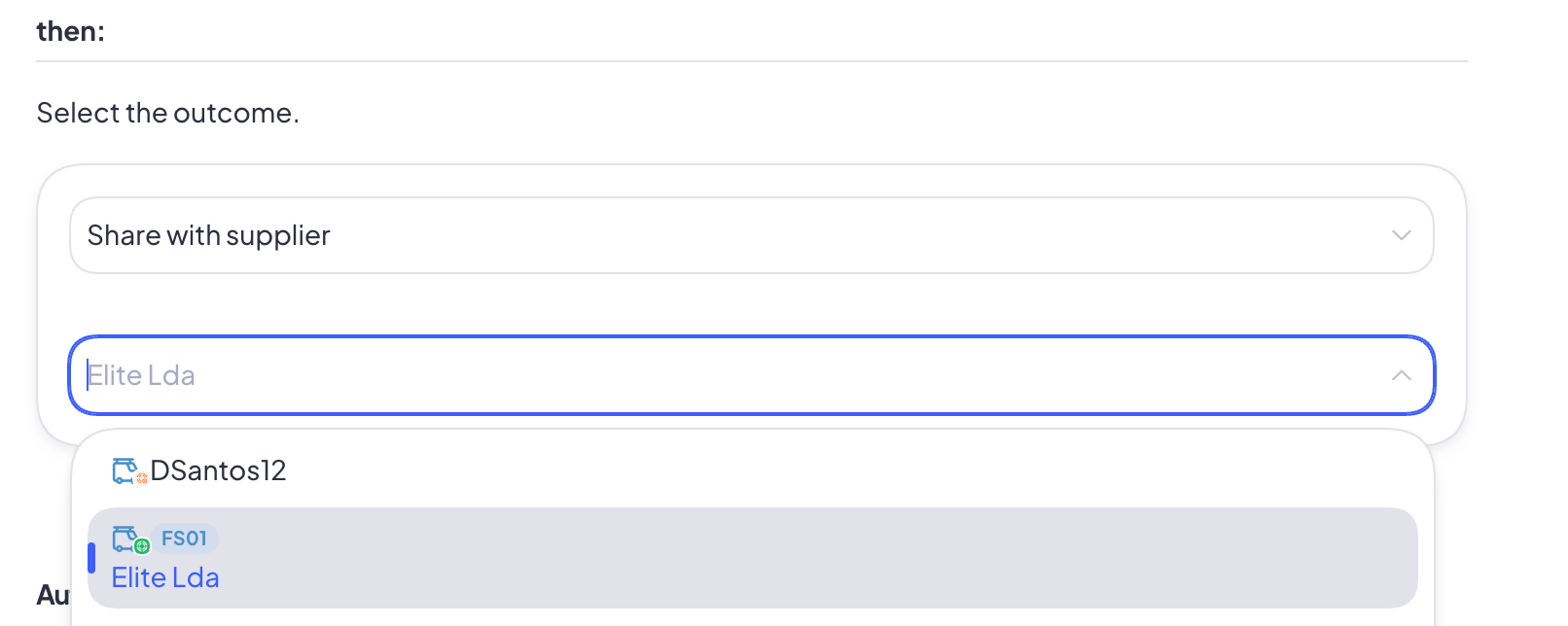
6. As for the outcome, make sure to choose Share with Supplier from the drop-down menu
7. If you plan on adding more automations, make sure to give this one a name in the last field so that it gets easier for you to find it. Then Save!