
Before Starting: Ensure your entity has the Infraspeak Network™ activated and that you have connected your entity with your clients.
Now
1. Head over to Settings
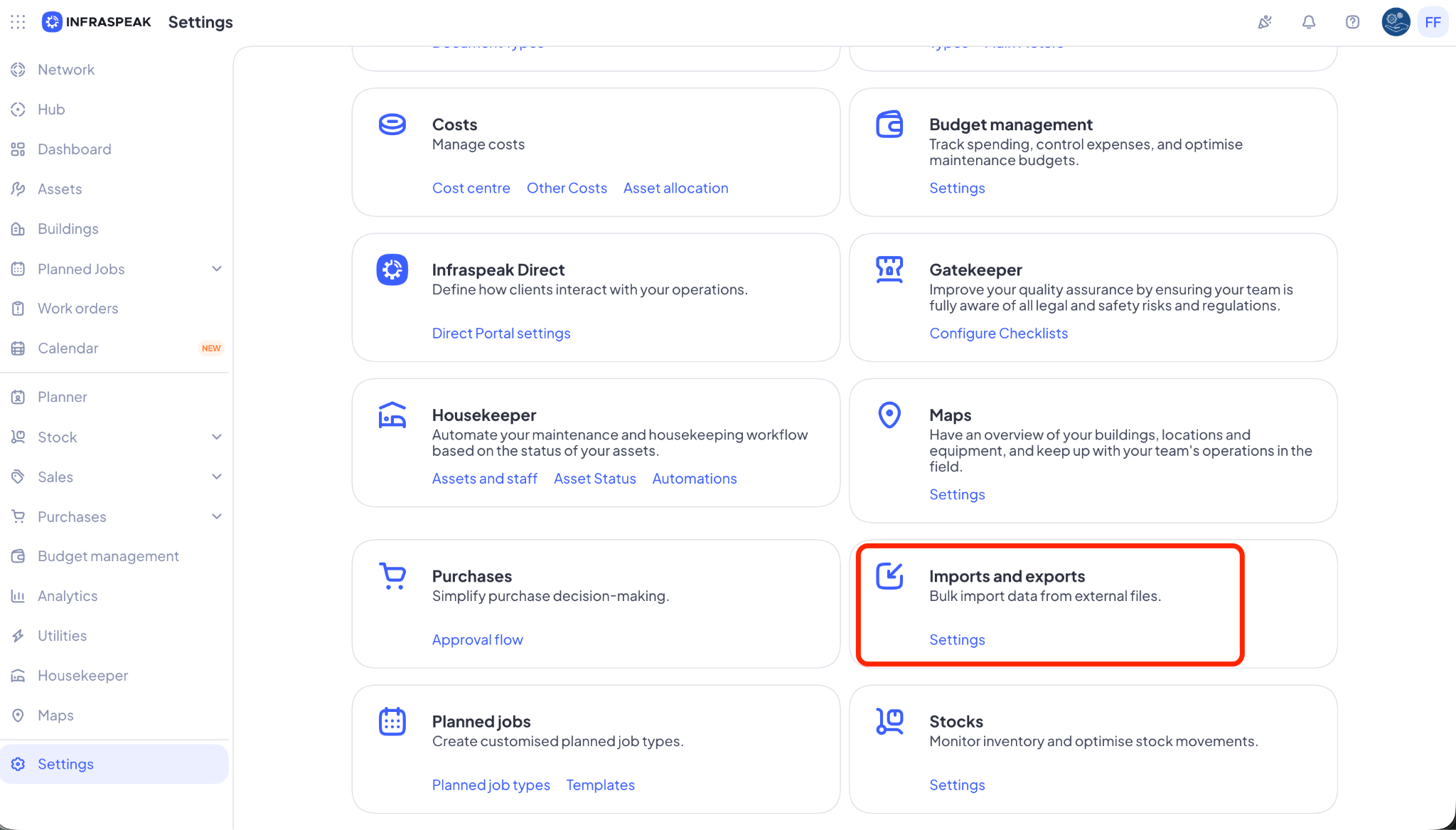
2. Scroll down or search until you find the section Imports and Exports. Click on Settings
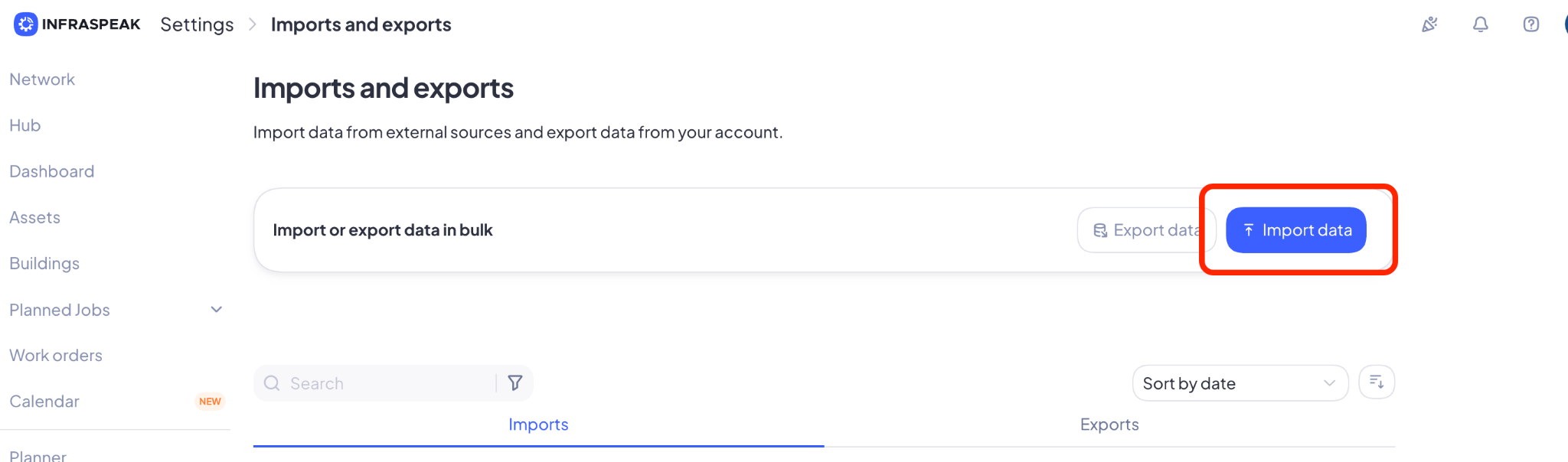
3. Click on Import Data
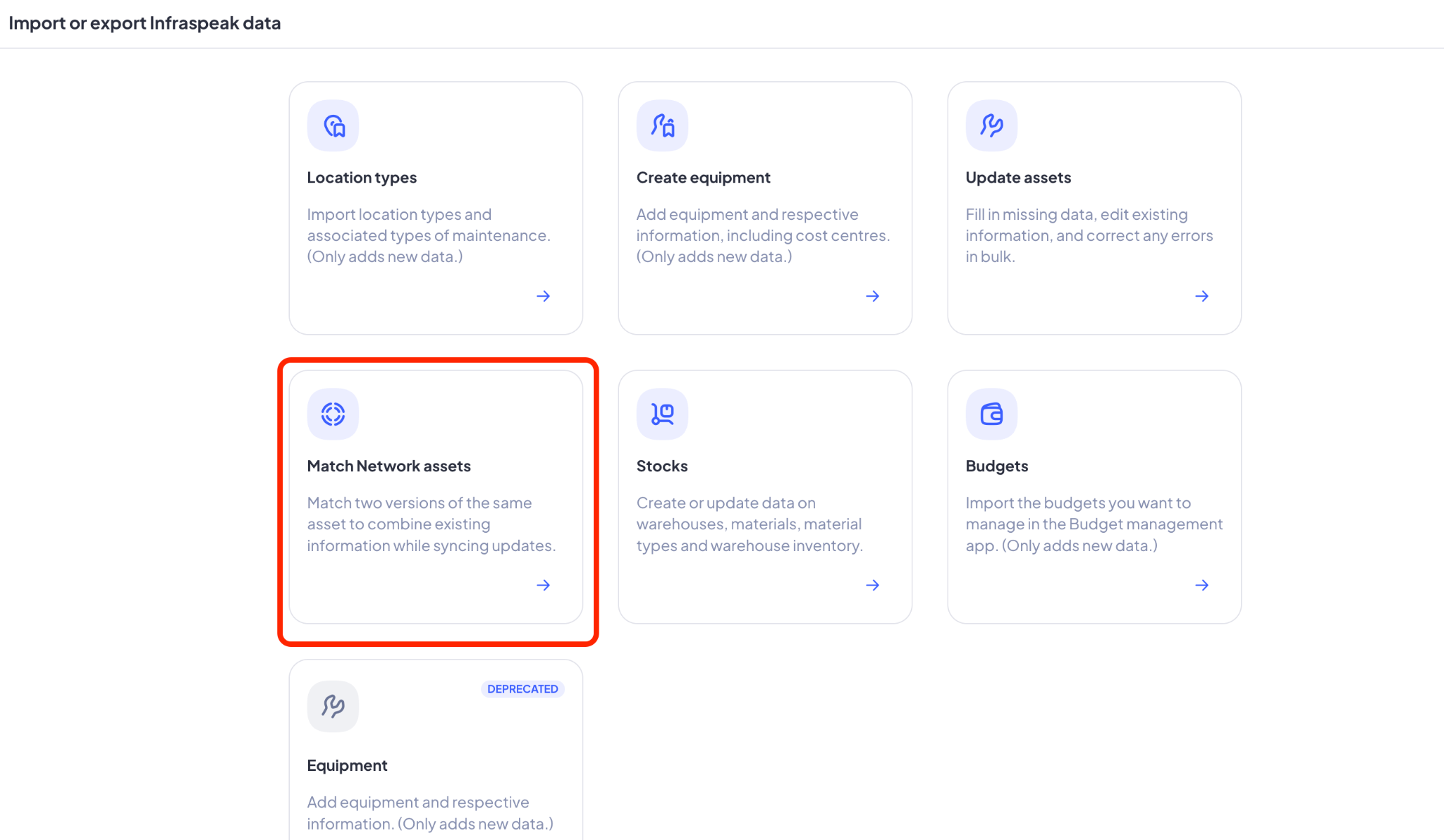
4. Here you will see a full list of templates for data imports. Since we’re focusing on assets, scroll down until you find Match Network assets and click it.
5. Here, click on Download Template. This will be a spreadsheet file so make sure you have the appropriate software to then open it.
6. This template lets you match assets received through Network with those in your Infraspeak, thus preventing duplicate assets from existing on your end.
7. Follow the instructions in the spreadsheet to gather the necessary information for the network asset match to take place:
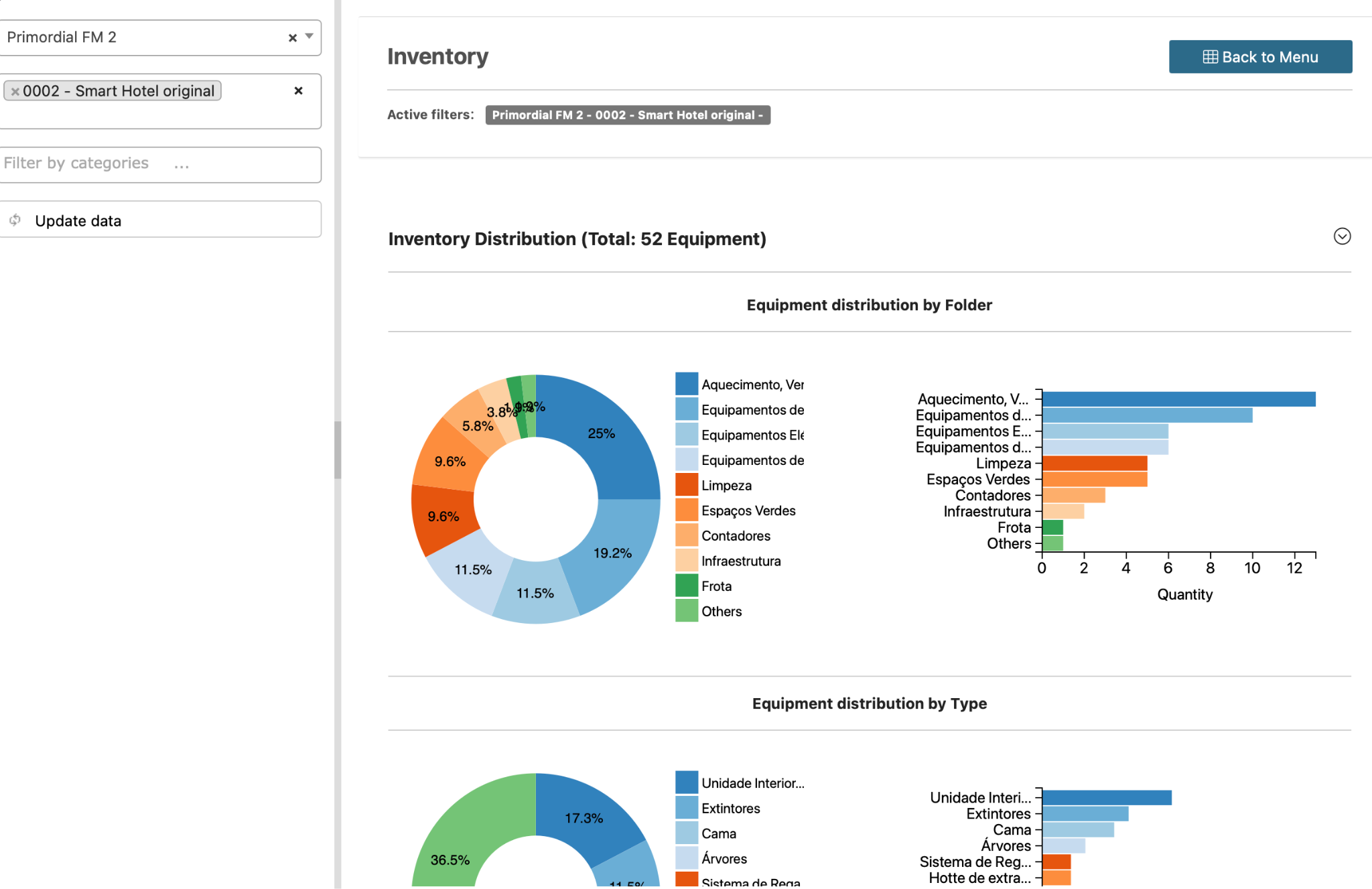
a. Open the Analytics App in your Infraspeak account
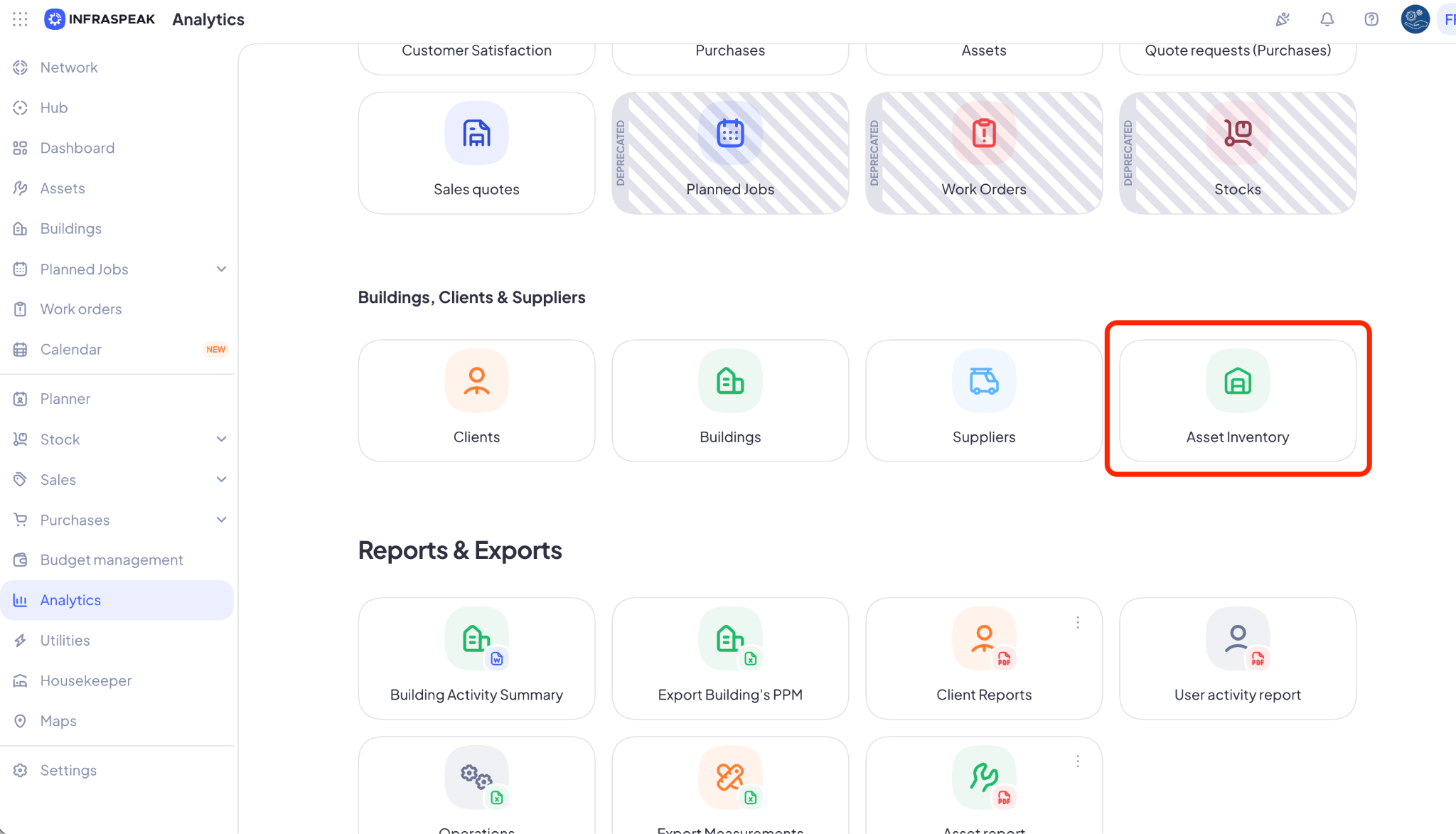
b. In the Buildings, Clients & Suppliers section, click on Asset Inventory
c. Use the left panel to filter by client and buildings of the assets you want to match
d. Click Update data
e. Scroll down and click either Export equipment pieces, Export locations, or Export All depending on the scope of assets you want to match
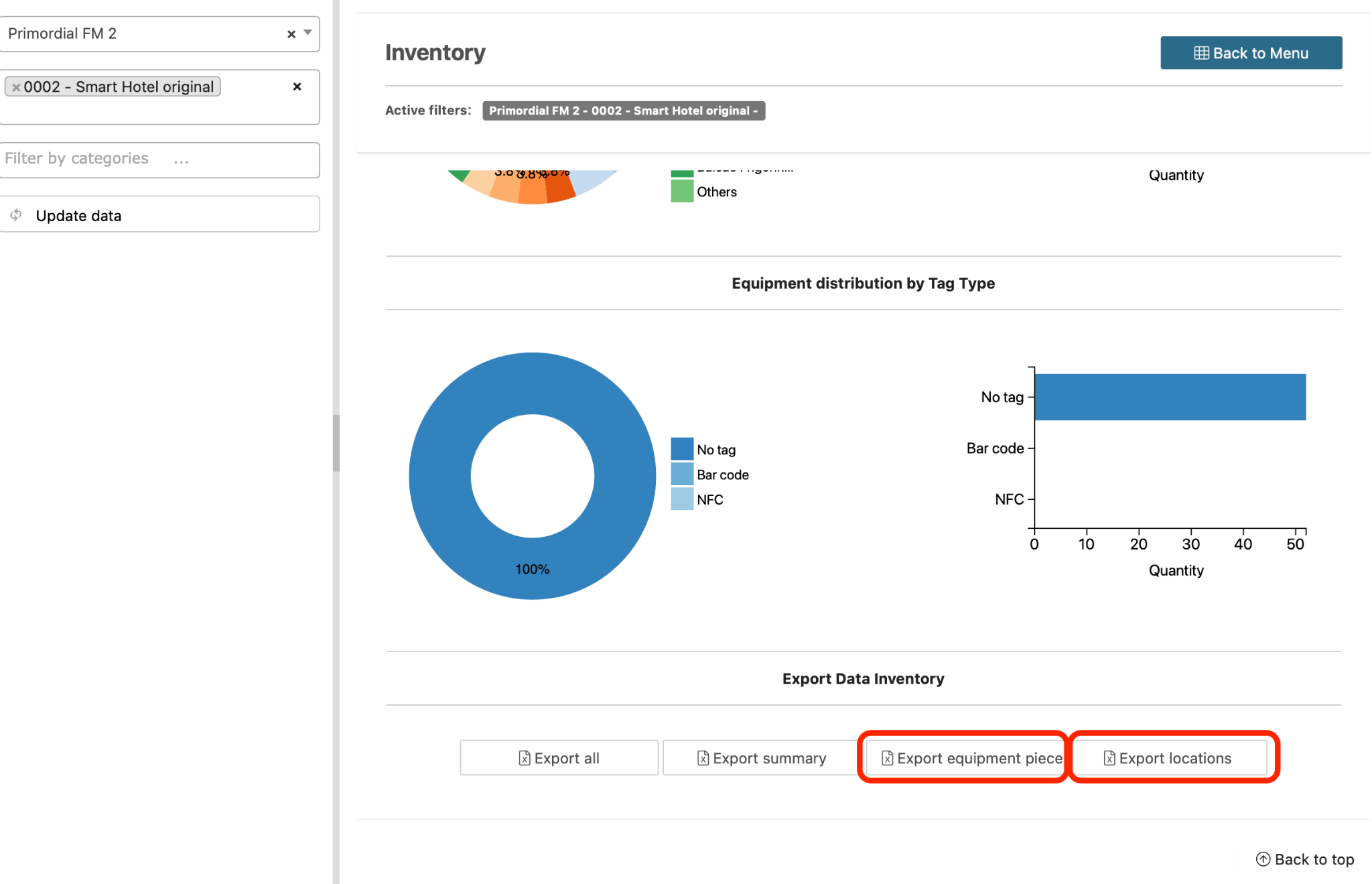
Note: The exported Excel file will contain the asset IDs you need to complete this one
8. Now that you have all your Asset IDs, head over to the spreadsheet to proceed
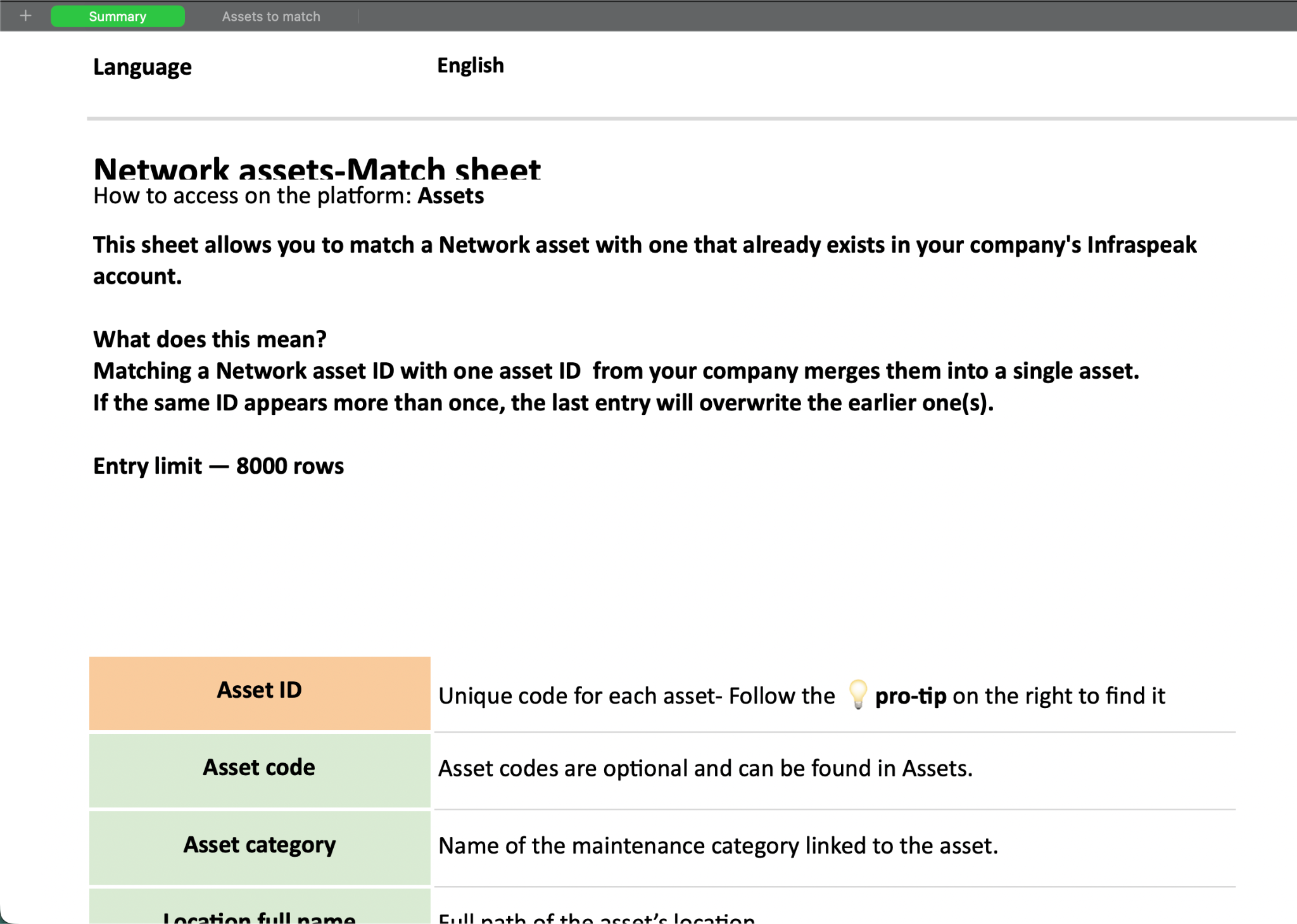
9. In the spreadsheet, you will find two separate sheets: Summary and Assets to match
a. In Summary you will find an explanation on how Asset Matching works on Network, as well as a Glossary for certain fields mean, and what’s mandatory / optional to fill out
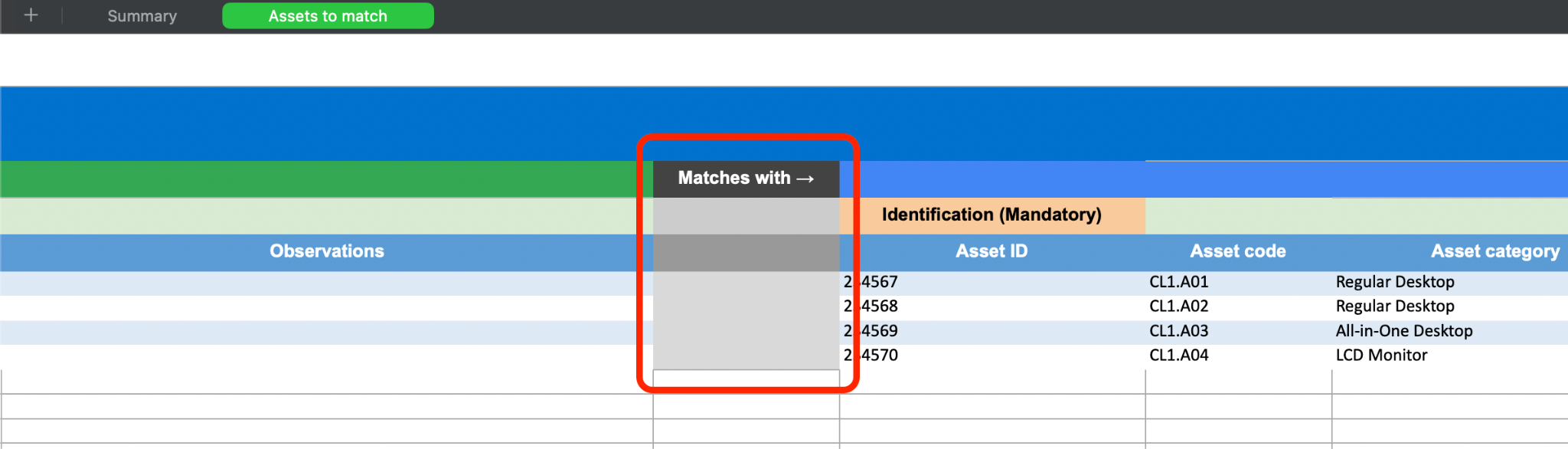
b. In Assets to Match you will find the sheet that needs to be filled with the details you previously gathered:
i. Remember, only the Asset ID is mandatory, but for the sake of importing these assets automatically into their right place, you may want to fill out the other fields
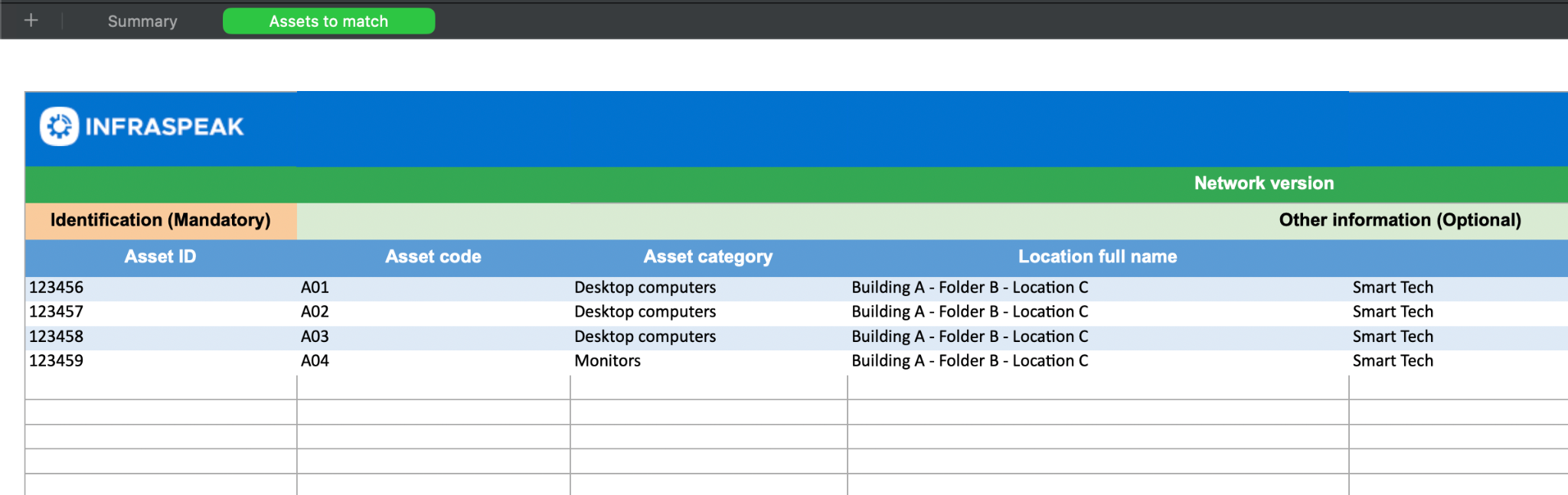
ii. Make sure to fill this spreadsheet knowing that you want to match the assets on the right with the assets on the left. It is the only order in which this importer currently works, so keep this in mind.
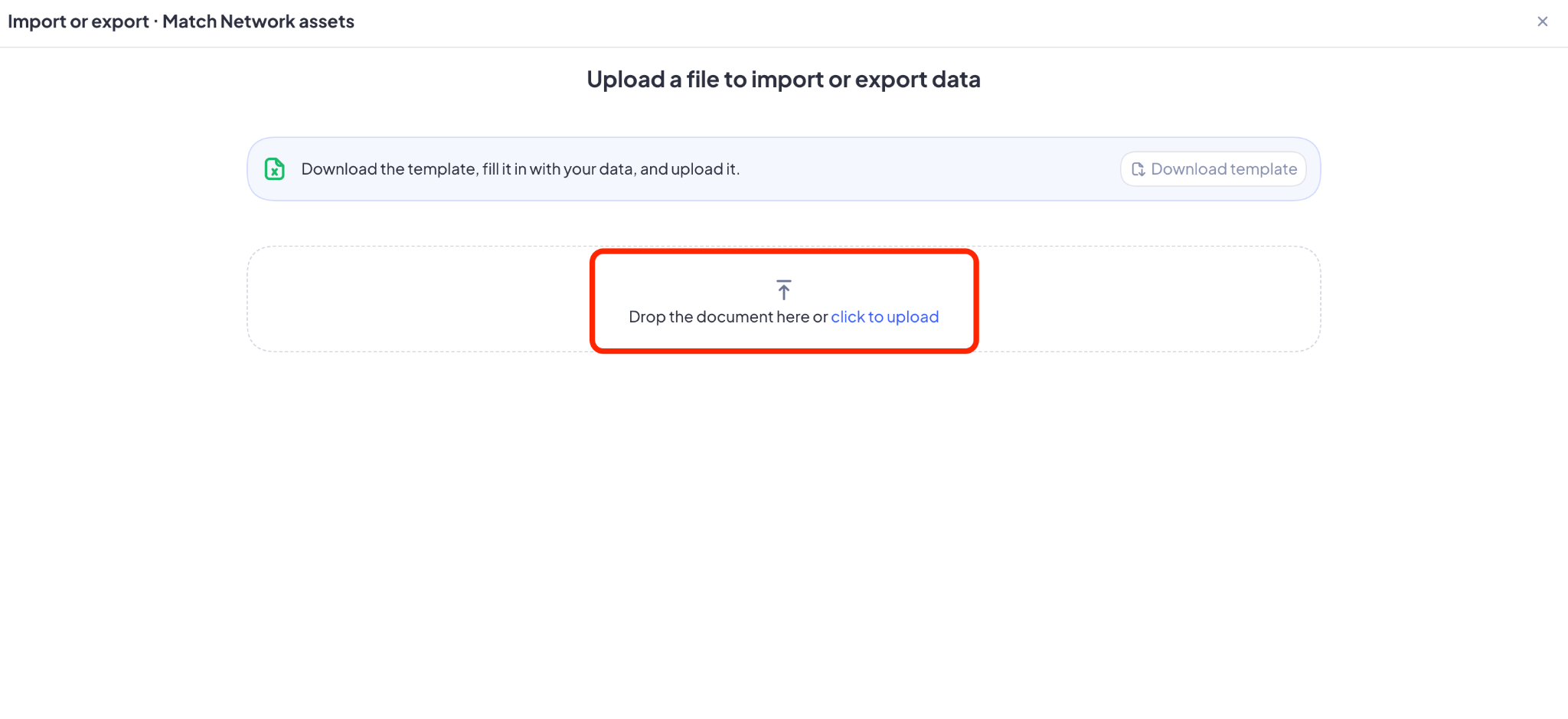
10. When you’re done filling out the spreadsheet, head back to Settings > Import or Export > Match Network assets and upload the template with the Asset IDs you’re trying to match
Done! If you have any questions, please contact your Customer Success Manager! They’re here to help.