
Before Starting
Ensure your entity has the Infraspeak Network™ activated and that you have connected your entity with your clients.
Video tutorials
Now
At this point, there are multiple ways in which you can share Documents with your clients on Infraspeak. They can be shared through Work Orders (and respective tasks), Planned Jobs, Planned Job Orders (and respective tasks), Quote Requests, and Quotes.
On Planned Jobs
Open an existing planned job or planned job order
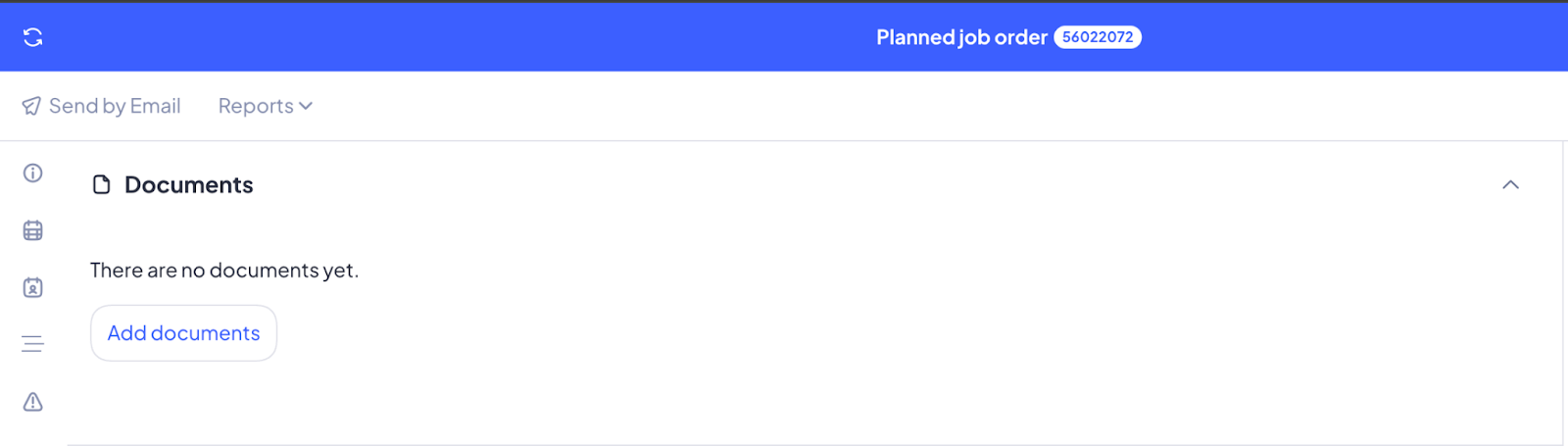
Scroll down the planned job or planned job order and look for the Documents section
There, click on Add Documents and a new window will open:
You’ll see you can add a description, include a document category and set a document date as optional steps.
Drop the document in the box or upload it
Include a description of the document you’re uploading to this planned job
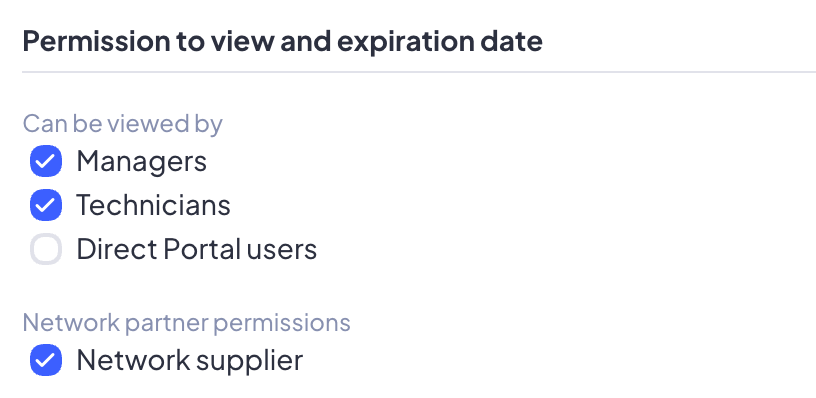
Set who can view this document within your organization or whether this document should be shared in case the Planned Job has been shared.
To share this document, make sure to tick the box related to the Network partner permissions.
Set an expiration date if you’d like, and then press the Add button on the bottom-right corner.
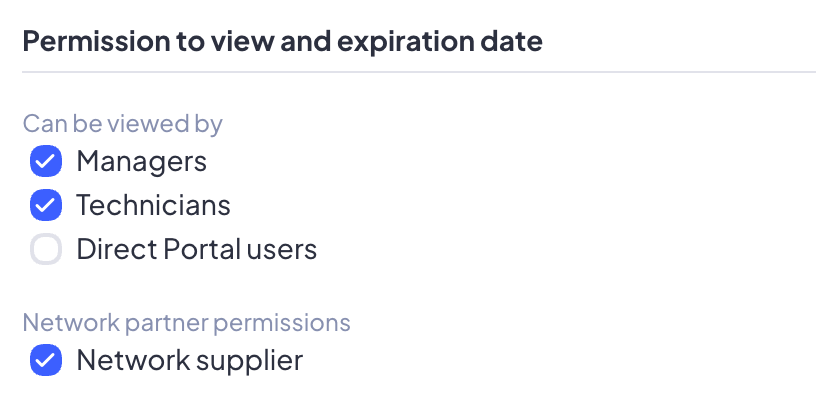
Note: the description, document date, document expiration date and the document itself are shared with your Network partner, but the document category is not.
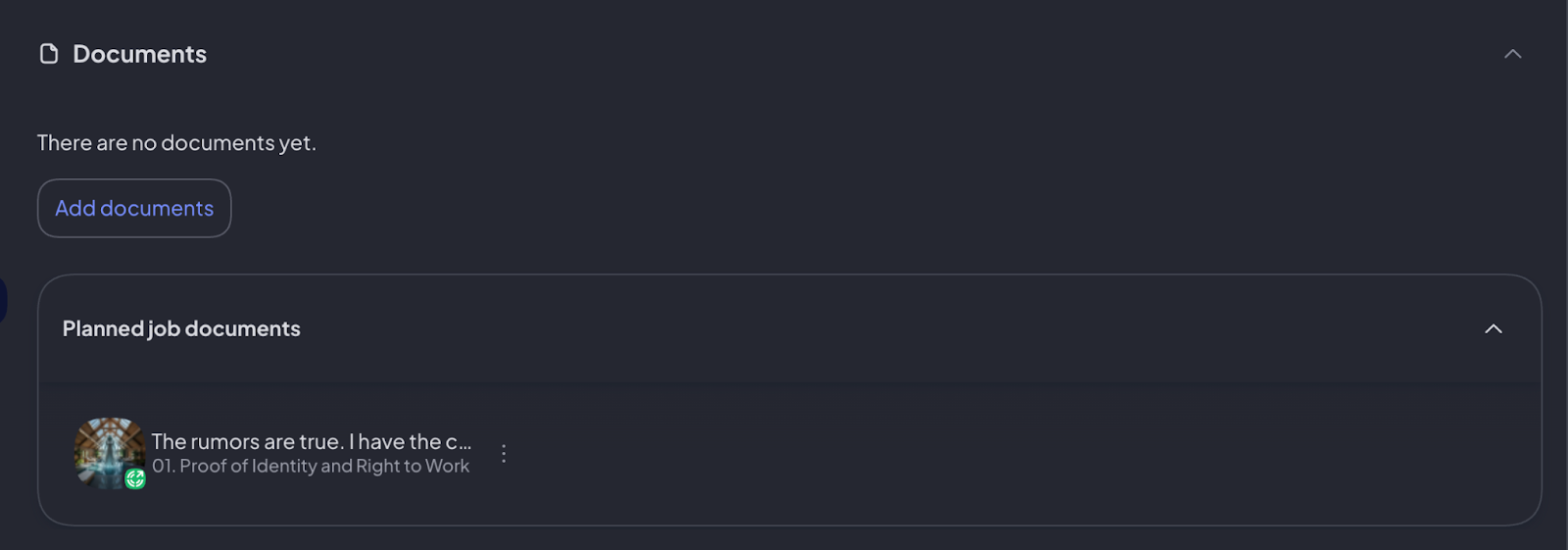
The documents you uploaded will appear in the Documents section of the planned job, and you’ll know if a document is shared with your Network partner if it has the green Network icon on it. You can find this same entry in the Work Order history section on the right side.
Notes:
If you attached a document to a Planned Job and then shared it, the document can be shared as well alongside the Planned Job.
Documents uploaded to a Planned Job Order on mobile are automatically shared to facilitate communication and interaction between Network partners.
On Work Orders
Open an existing Work Order (regardless of its status)
Scroll down the Work Order until you find the Documents section
There, click on Add Documents and a new window will open:
You’ll see you can add a description, include a document category and set a document date as optional steps.
Drop the document in the box or upload it
Include a description of the document you’re uploading to this work order
Set who can view this document within your organization or whether this document should be shared in case the Work Order has been shared.
To share this document, make sure to tick the box related to the Network partner permissions.
Set an expiration date if you’d like, and then press the Add button on the bottom-right corner.
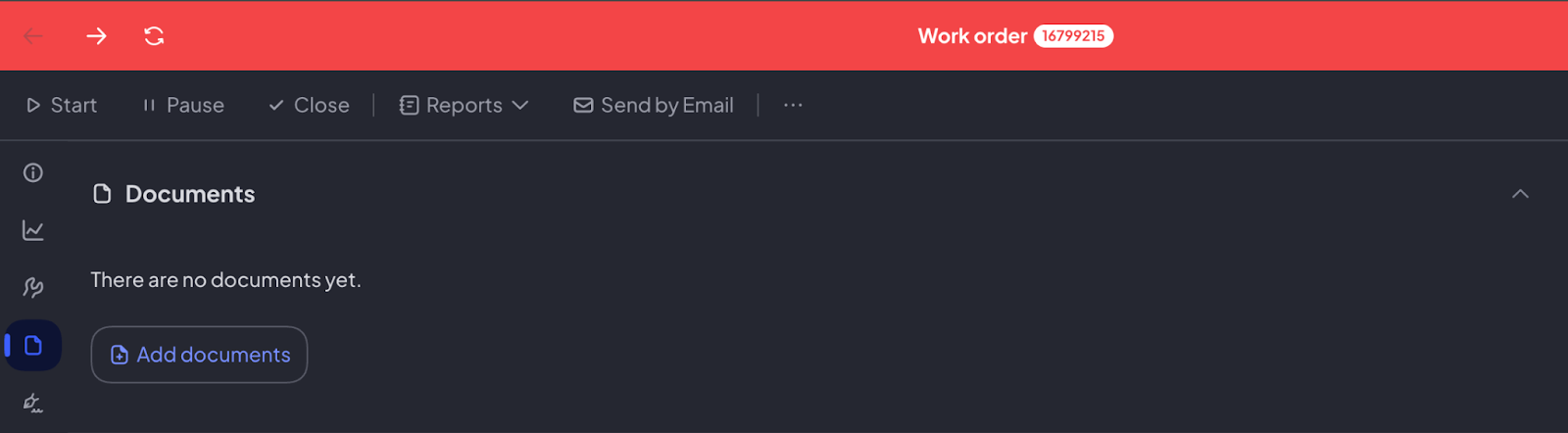
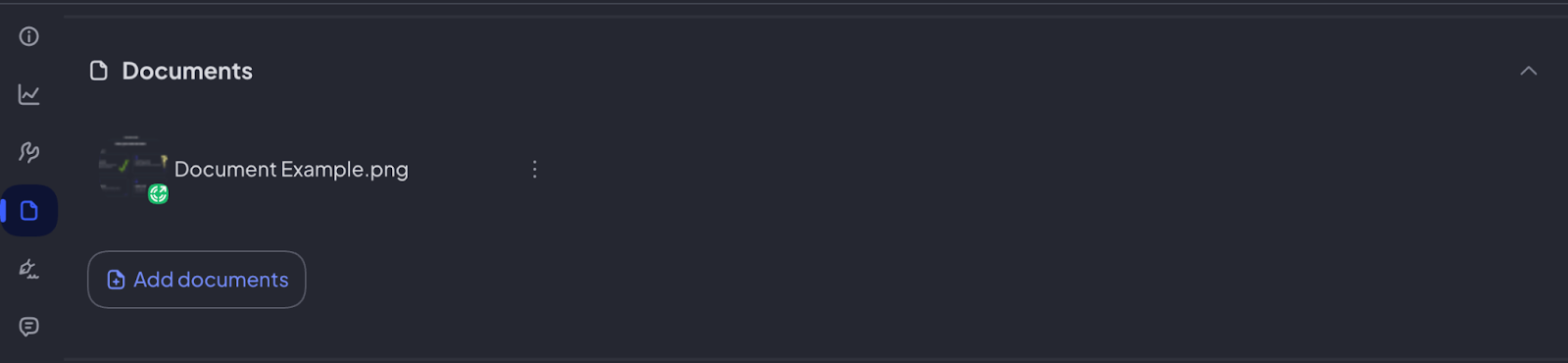
The documents you uploaded will appear in the Documents section of the Work Order, and you’ll know if a document is shared with your Network partner if it has the green Network icon on it. You can find this same entry in the Work Order history section on the right side.
Notes:
If you attached a document to a Work Order and then shared it, the documents can be shared as well alongside the Work Order.
Documents uploaded in a Work Order on mobile are automatically shared to facilitate communication and interaction between Network partners.
On the Next App (Mobile)
Whether it’s a Planned Job or a Work Order, uploading documents and sharing them on Network via mobile has never been easier. Make sure you have the Infraspeak Next App downloaded on your mobile device to get started.
Open the Infraspeak Next app
Look for the Planned Job Order / Work Order you want to upload your document into
Scroll down until you see the Documents section
Tap on Add document/photo. You can take a picture directly from your phone camera, add a photo / video from your library, or add a document. You can upload as many documents as you’d like.
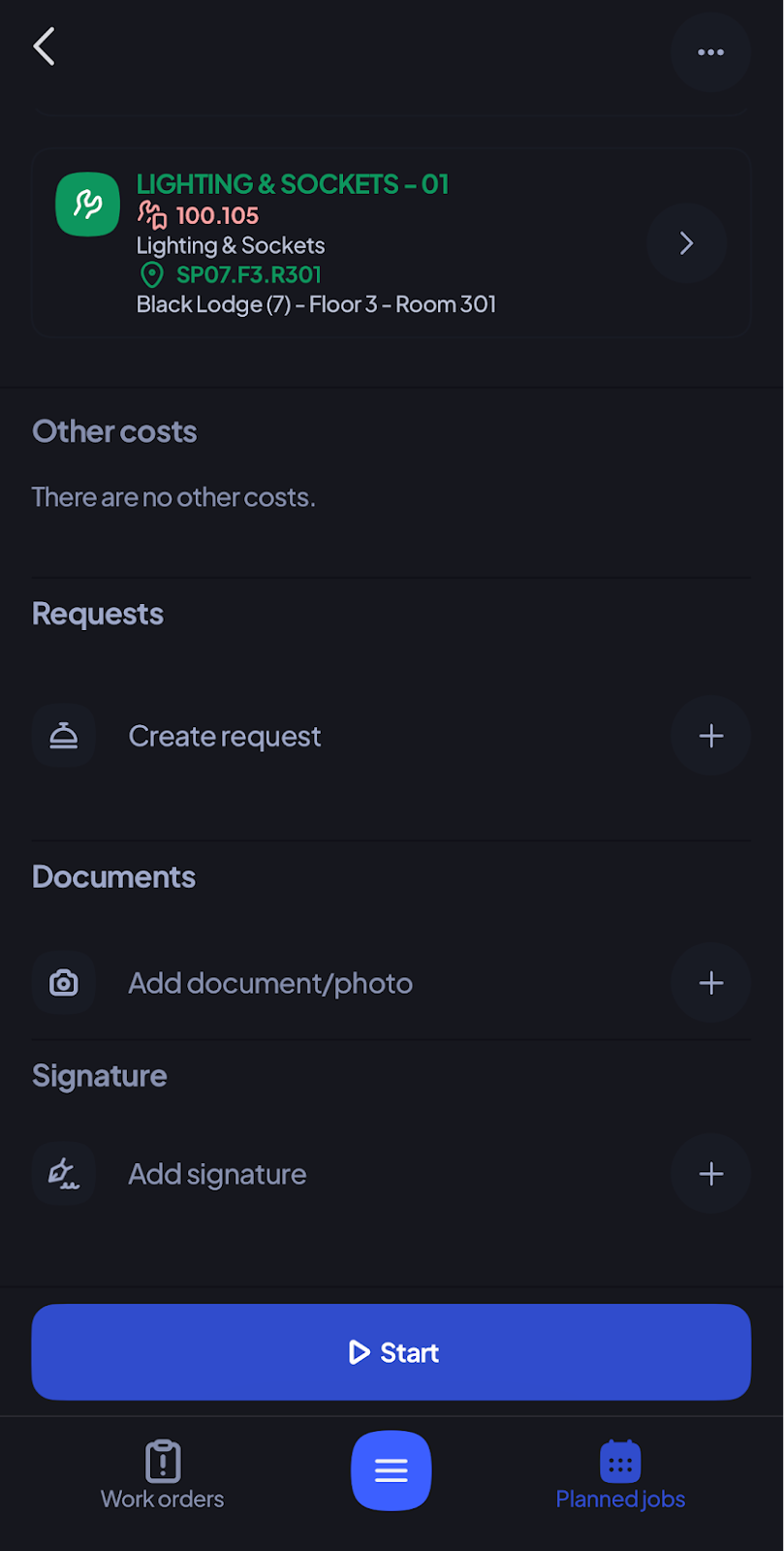
5.After uploading your documents, you’ll find them in the same place where you uploaded them.
Notes:
Documents uploaded in a Work Order or Planned Job on the Next App are automatically shared to facilitate communication and interaction between Network partners.