
Before Starting
How to connect your entity with your clients on Infraspeak Network?
Ensure your entity has the Infraspeak Network™ activated and that you have connected your entity with your clients.
Now
Open the Planned Jobs app and click on Planned Jobs.
Select an existing planned job from the shown list and double-click to expand it.
Inside this planned job, you will see a green Share button on the top right corner of your screen. Press that button.

Here, you will see that your Supplier has shared this Planned Job with you
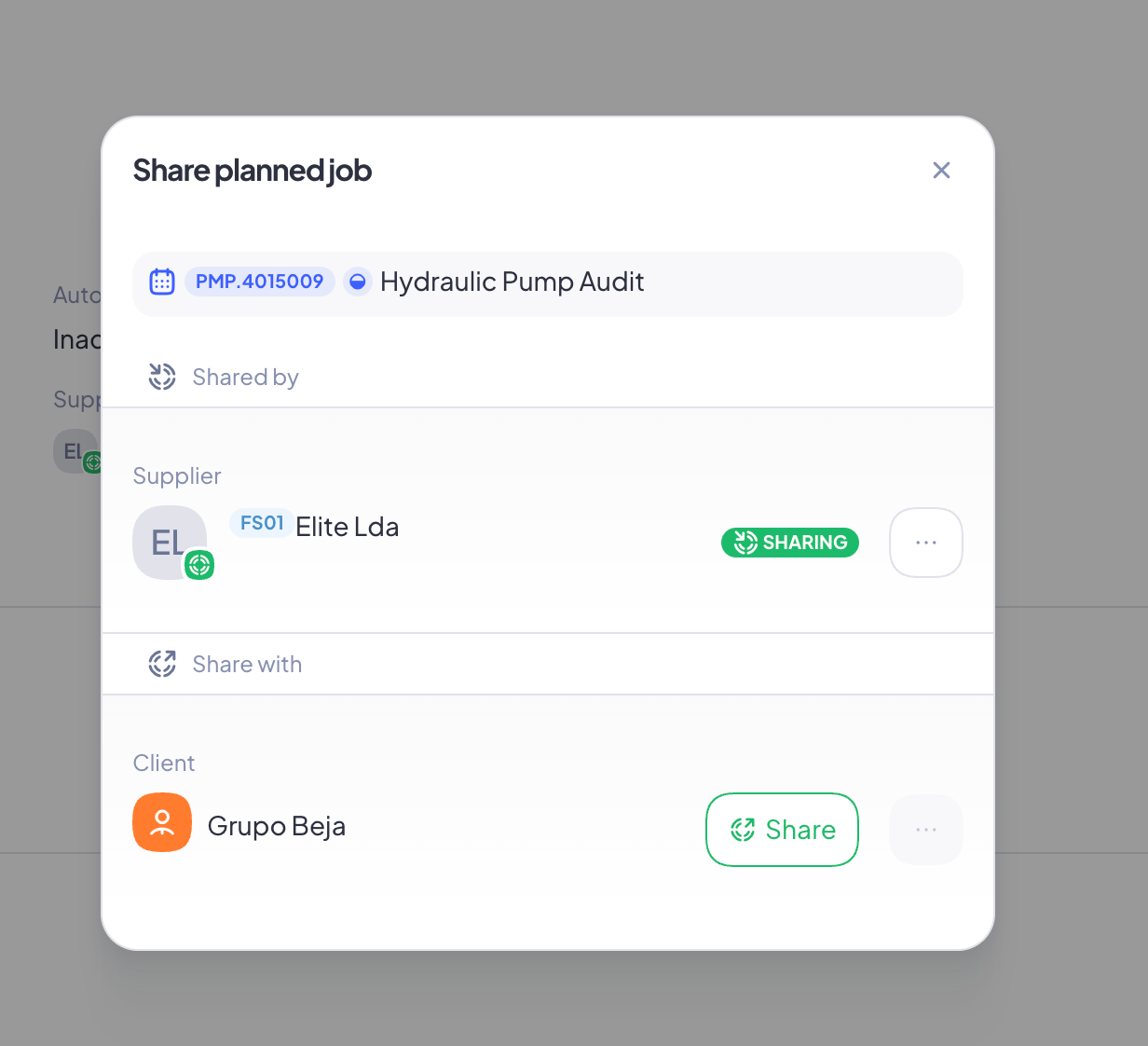
You can only share the Planned Job with the client associated with the building. You can change this by editing the client currently assigned to this building in your Settings. If that one is correct, just press the Share button to proceed.
Add notes to help the client better understand the scope of this job
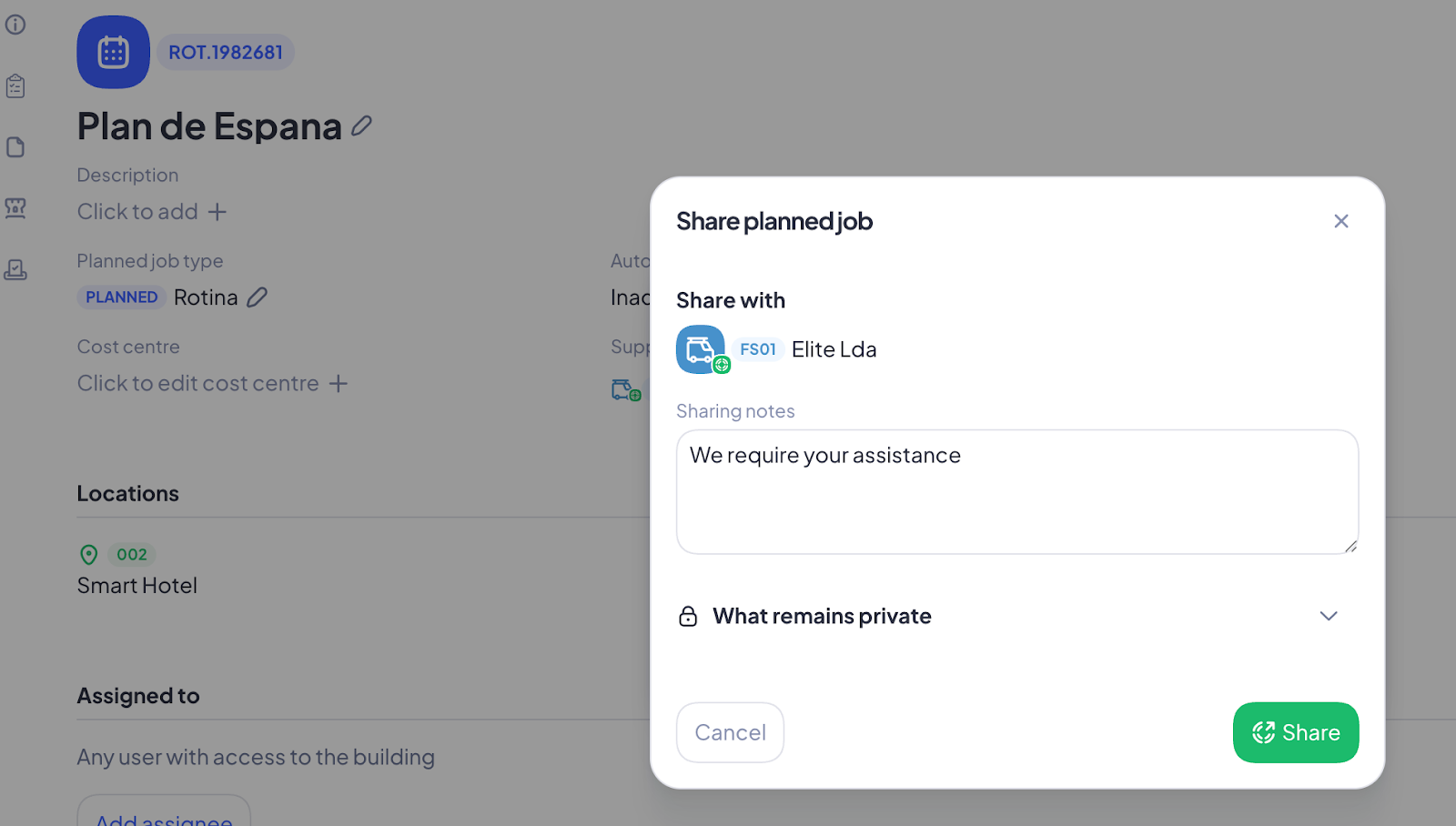
Note: Sharing a planned job will share alongside it the following information:
Locations
Interventions (including assets and tasks)
Planned Job Type and Description
Planned Job Order date
You will not be sharing the following information:
Cost Centre
Assignees
Internal Notifications
Internal SLA
Gatekeeper
Customer Satisfaction
Information that is shared and not shared is identified via a ?icon in the Planned Job interface.

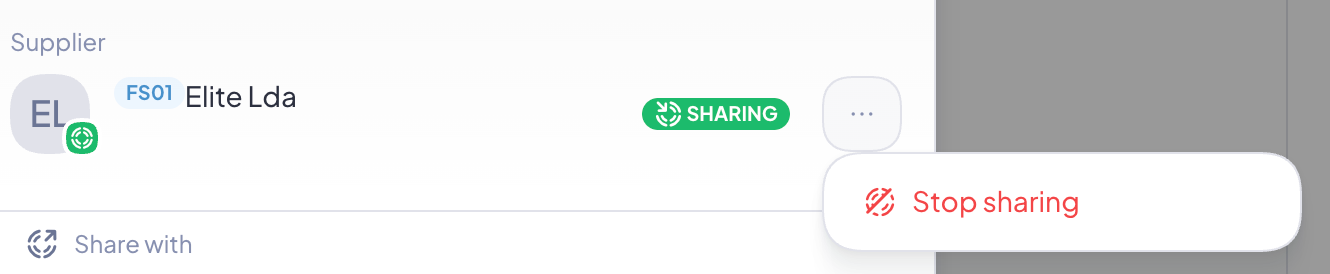
If you ever want to stop sharing this Planned Job, open the planned job, click Share, then the ellipsis and the option to stop sharing will appear.
Done! If you have any questions, please contact the Customer Care team! They’re here to help.
Notes:
All buildings received from a supplier will be automatically associated with your company's client. If that’s not what you want, you can change to any other client by going to settings > buildings > select the building in question and edit the client field with the client you want to send the Planned Job to.
Clicking Share will send an email notification to your client with a clickable link for them to collaborate on that planned job with you.
You can only edit some fields while a planned job is shared. They are the following:
Title of the Planned Job
Description
Supplier (if any)
Cost Centre (which is not shared but can still be edited for internal purposes)
Assignees (also not shared)
Documents (can be shared)
If you need to edit any other field after sharing a planned job you need to Stop Sharing it, edit the information you need to change, and then share it again.
A planned job can simultaneously be shared with a client and/or supplier
Planned Job Orders will work the same (as intended) for technicians.