
Before Starting: Ensure your entity has the Infraspeak Network™ activated and that you have connected your entity with your clients.
Video tutorial
Now
In its current state, Infraspeak allows you to set sharing preferences with each individual client you may have on Infraspeak Network. These preferences can be set in a myriad of ways, but one of the most efficient ones is through Client Settings.
We offer you two ways in which you can set these preferences: definite sharing, and conditional sharing. This means that you can set preferences to, i.e. share every work order with this client (with no exceptions), or only share the ones under certain conditions - all automatically.
Below are the steps you need to take in order to set conditional and definitive sharing preferences with your clients on Infraspeak:
1. Open Settings on the bottom-left corner of your screen
2. Scroll down until you see Clients, Contacts and Suppliers. Click on Clients
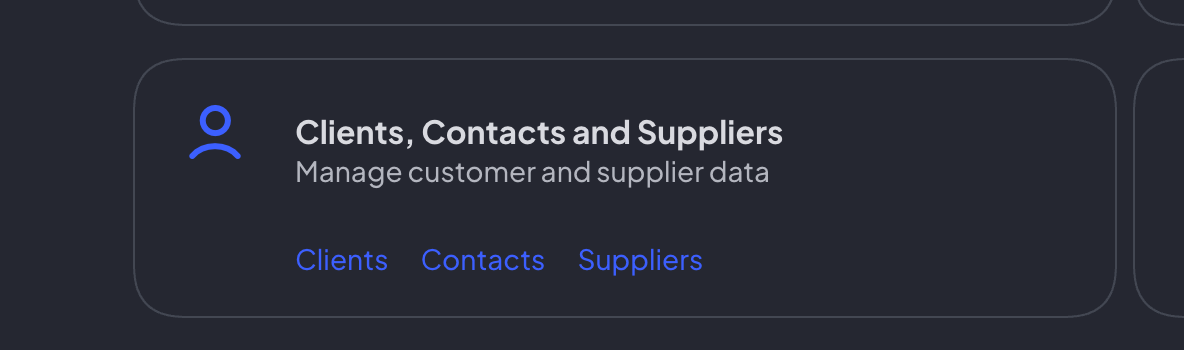
3. In that screen, look for the specific Client you want to set sharing preferences with, either by scrolling down, switching pages, or searching for it through the search bar.
4. On your Client’s page, there are three separate sharing preferences you can set for that client:
a. Asset Sharing Rules
b. Automatic sharing of Planned Jobs
c. Automatic sharing of Work Orders
Asset Sharing Rules
You can set Asset Sharing Rules through a variety of ways on Infraspeak, and for different approaches make sure to read [this article]. Within the Client settings, all you have to do is repeat the following steps:
1. Look for Associations, and open the Buildings and Assets drop-down menu
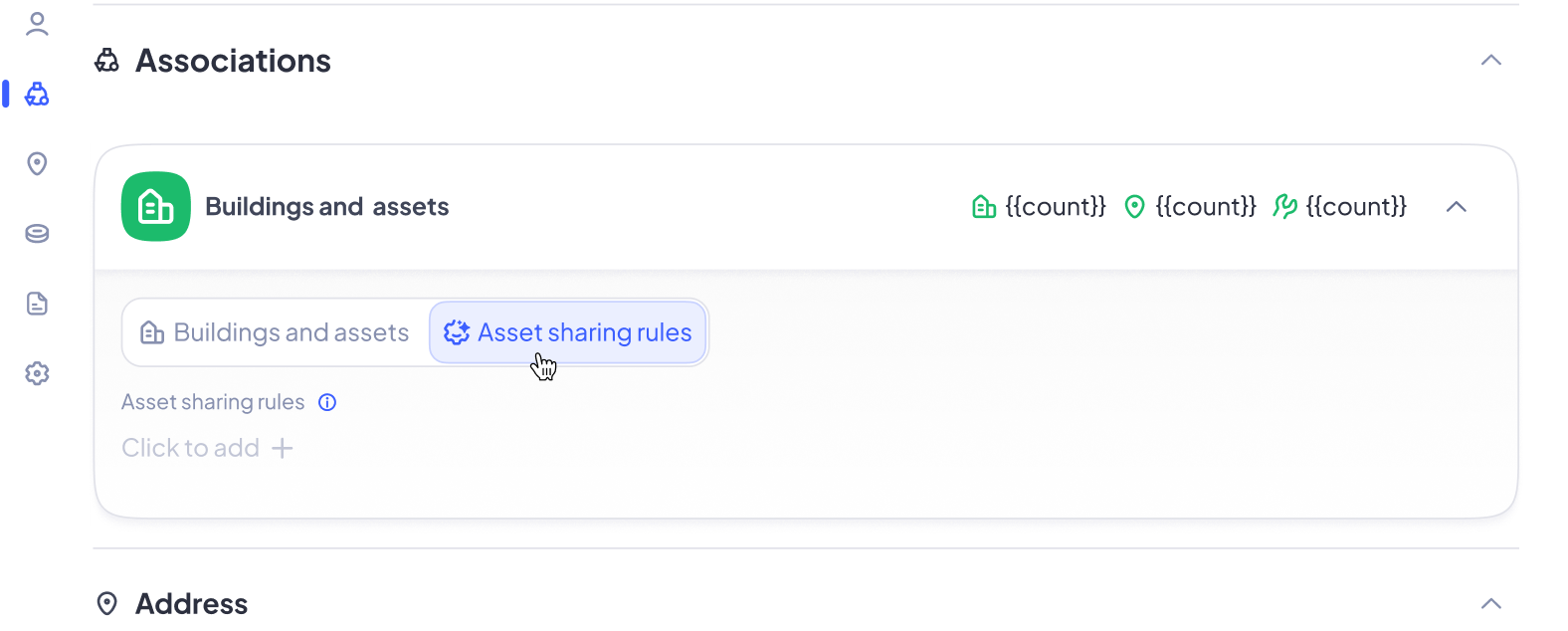
2. Click the toogle that says Asset Sharing Rules and click to add a new one
Note: On this screen, you’ll see an option to automatically share buildings and assets associated with that partner. By default it’s toggled ON. Here, you have two options:

- Leave it ON, and automatically share buildings and assets with this partner.
- Toggle it OFF and customize your sharing preferences.
If you leave it ON, just press the Create rule and share button on the bottom-right corner. All of your buildings, locations and equipment will be shared with this client from here on!

If you toggled it OFF, proceed to the next step.
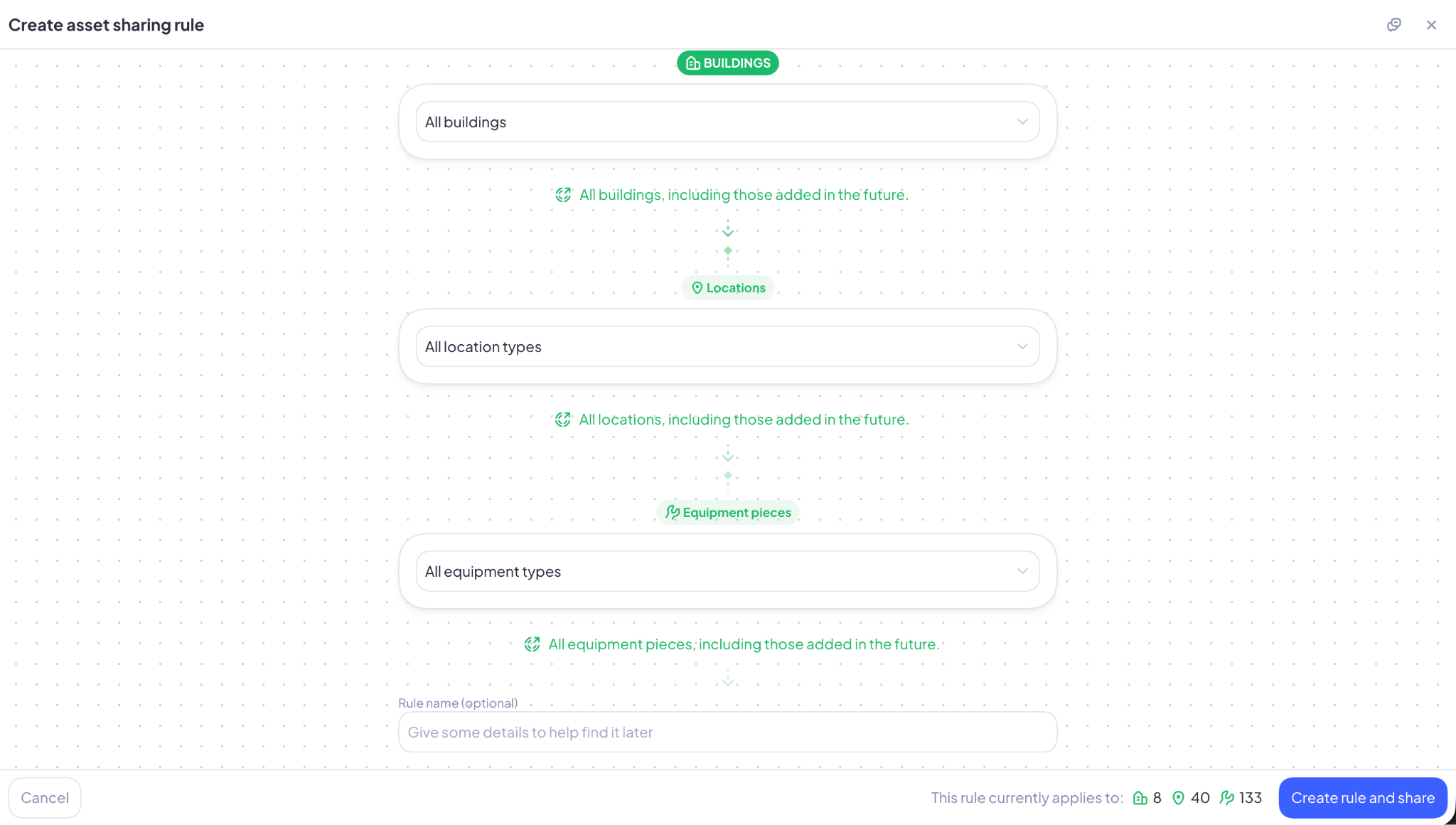
3. In this menu, you will see three rules you can set for asset sharing: for buildings, locations and equipment types. This is concatenated, meaning, the rules you set for buildings will impact locations, and the ones you set for locations, will impact equipment types.
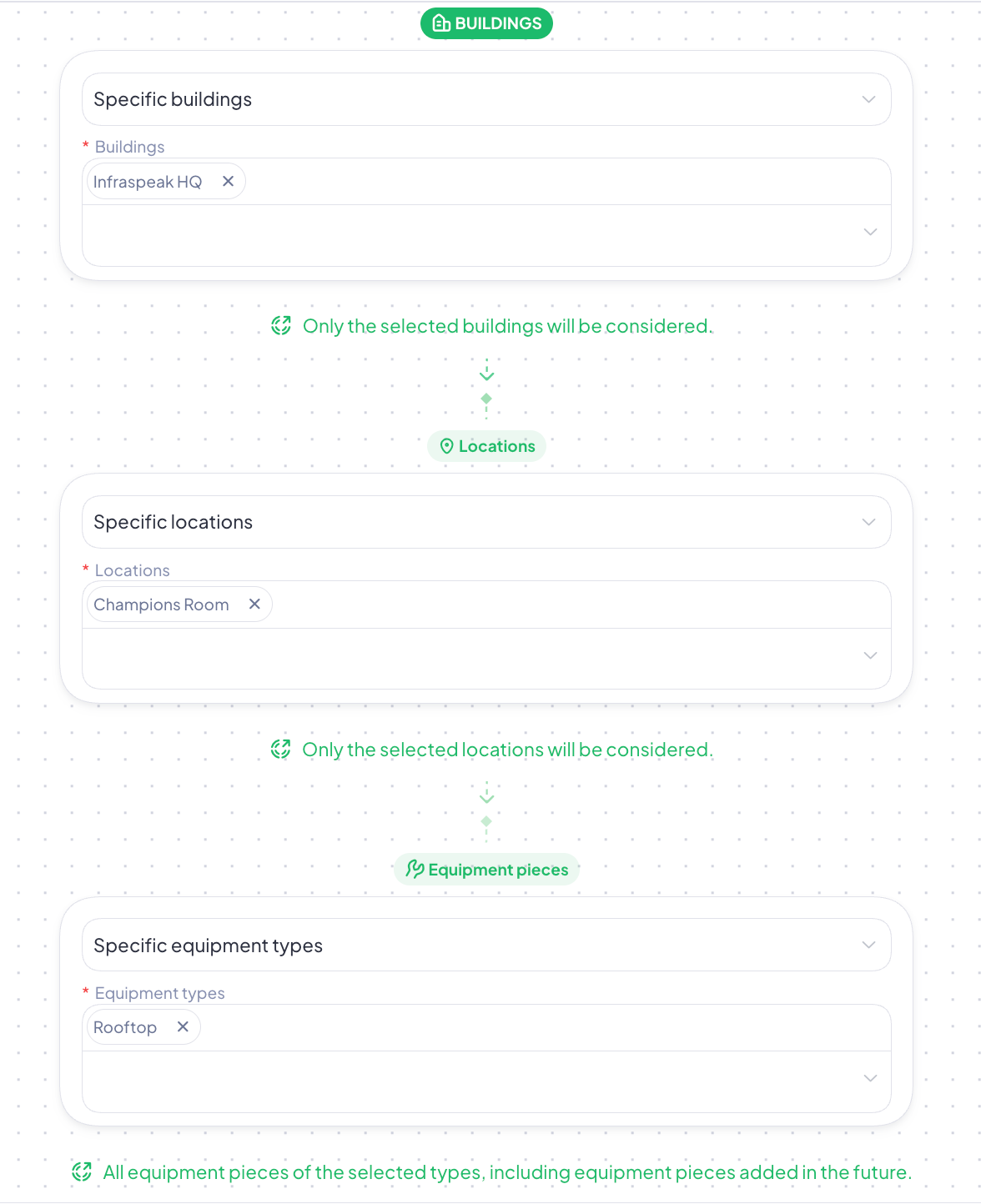
4. In the example below, by choosing Specific Buildings and picking the one I wanted to narrow down this automation to, I could then only pick specific locations from Infraspeak HQ and equipment types from the Champions Room.
5. After you’ve completed your selection of specific buildings, locations and equipment types, look to the footer of this screen. You can cancel the progress you’ve made so far, or you can press Create rule and share so that you can now automatically share assets with your client.

Automatic sharing of Planned Jobs and Work Orders
1. On your Client’s page, scroll all the way down until you find Workflow Preferences
2. Here, you will find a toggle
a. Turn it ON for work orders, and all new work orders will be shared with this client automatically
b. Turn it ON for planned jobs, and all new planned jobs from this client involving a single building will be shared with them automatically
c. Turn it OFF for either, and there won’t be any automatic sharing done for either planned jobs or work orders with this client
Done! If you have any questions, please contact your Customer Success Manager! They’re here to help.