
Before starting: Ensure your entity has the Infraspeak Network™ activated and that you have connected your entity with your client's: How to connect your Infraspeak with suppliers?
There are currently three ways in which an asset can be shared with your Network clients:
- Through Asset Sharing Rules
- By sharing a Work Order with your Client
- By sharing a Planned Job with your Client
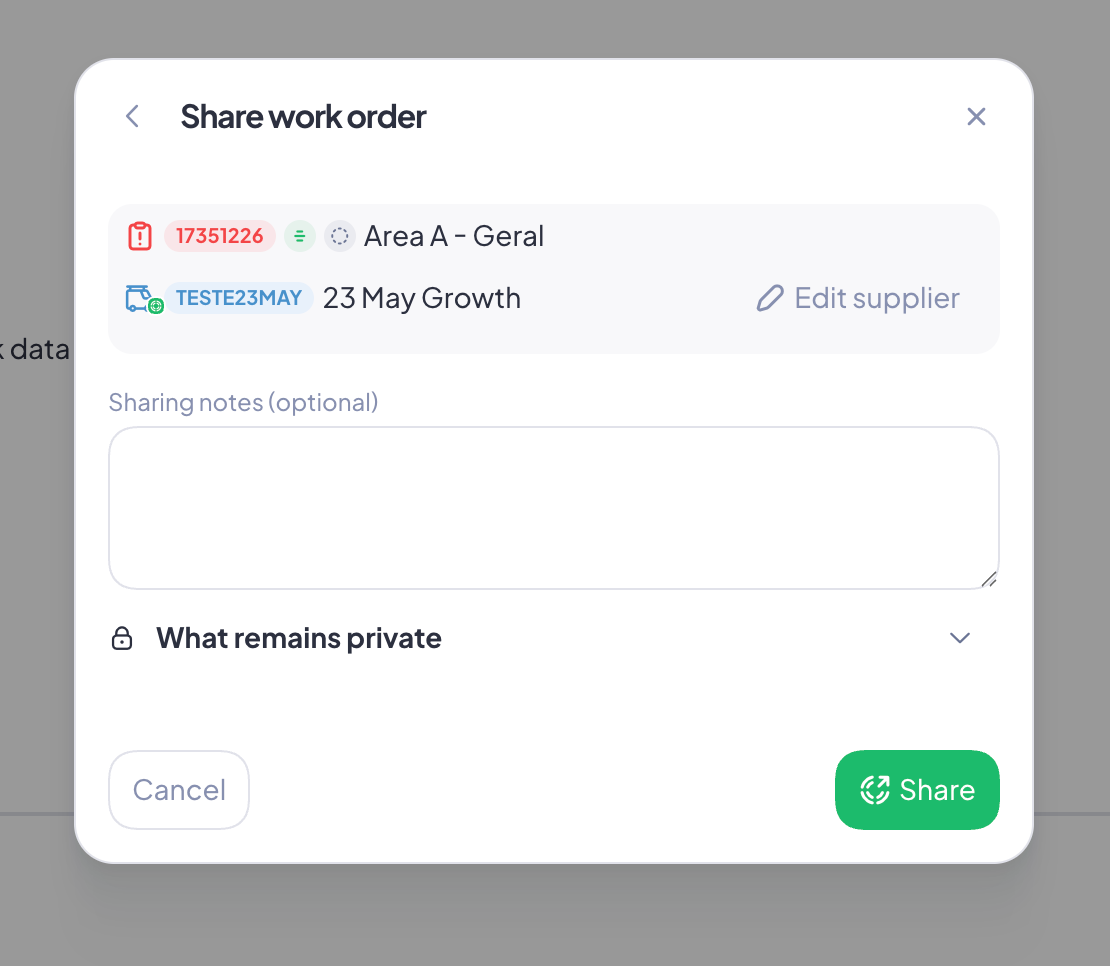
When you share a Work Order or Planned Job with your Client, the buildings, locations and equipment associated with it will be shared as well. This can be seen during the act of sharing in the following screens:
Set Asset Sharing Rules to share assets with your Clients
1. Head over to Settings
2. Scroll down or search for Clients, and click to enter that section
3. Look for the Client you want to share assets with and click on them
4. On that Client’s page, look for Associations, and open the Buildings and Assets drop-down menu
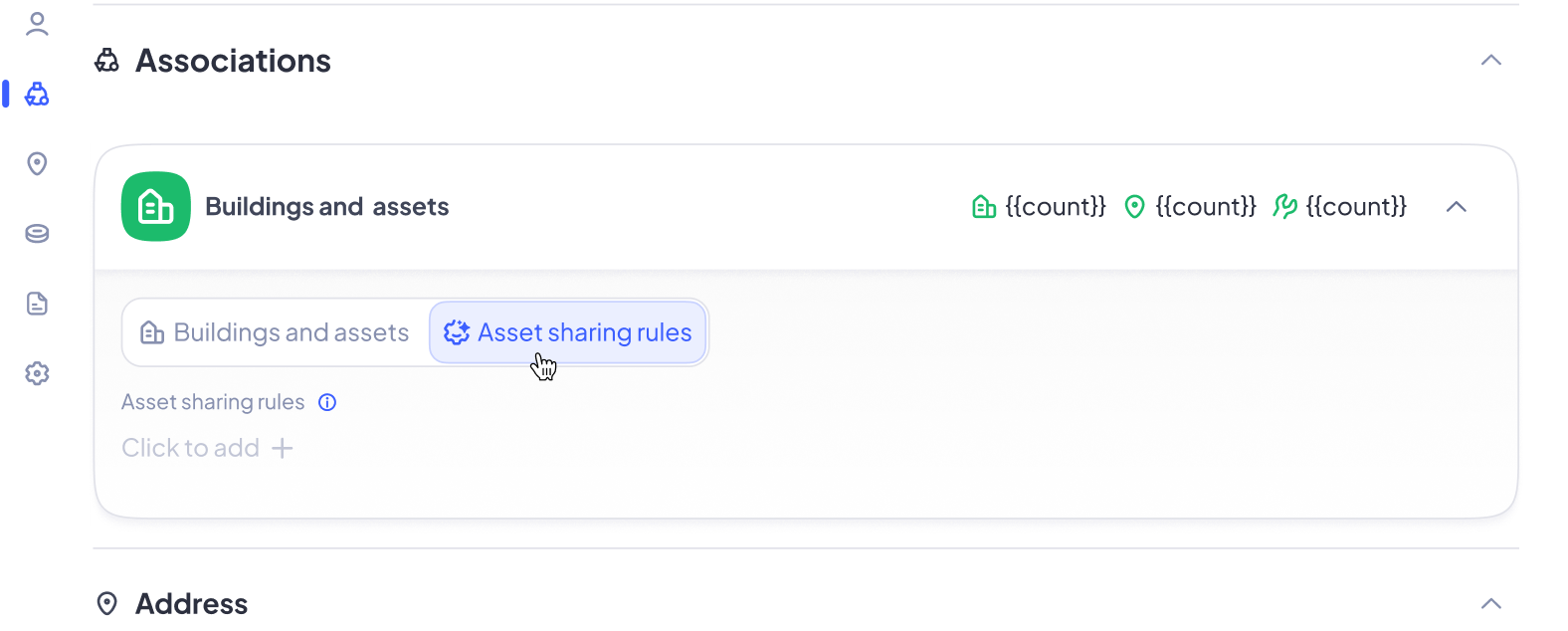
5. Click the toggle that says Asset sharing rules and click to add a new one
Note: On this screen, you’ll see an option to automatically share buildings and assets associated with that partner. By default it’s toggled ON. Here, you have two options:

1. Leave it ON, and automatically share buildings and assets with this partner.
2. Toggle it OFF and customize your sharing preferences.

If you leave it ON, just press the Create rule and share  button on the bottom-right corner. All of your buildings, locations and equipment will be shared with this client from here on!

If you toggled it OFF, proceed to the next step.


6. In this menu, you will see three rules you can set for asset sharing: for buildings, locations and equipment types. This is concatenated, meaning, the rules you set for buildings will impact locations, and the ones you set for locations, will impact equipment types
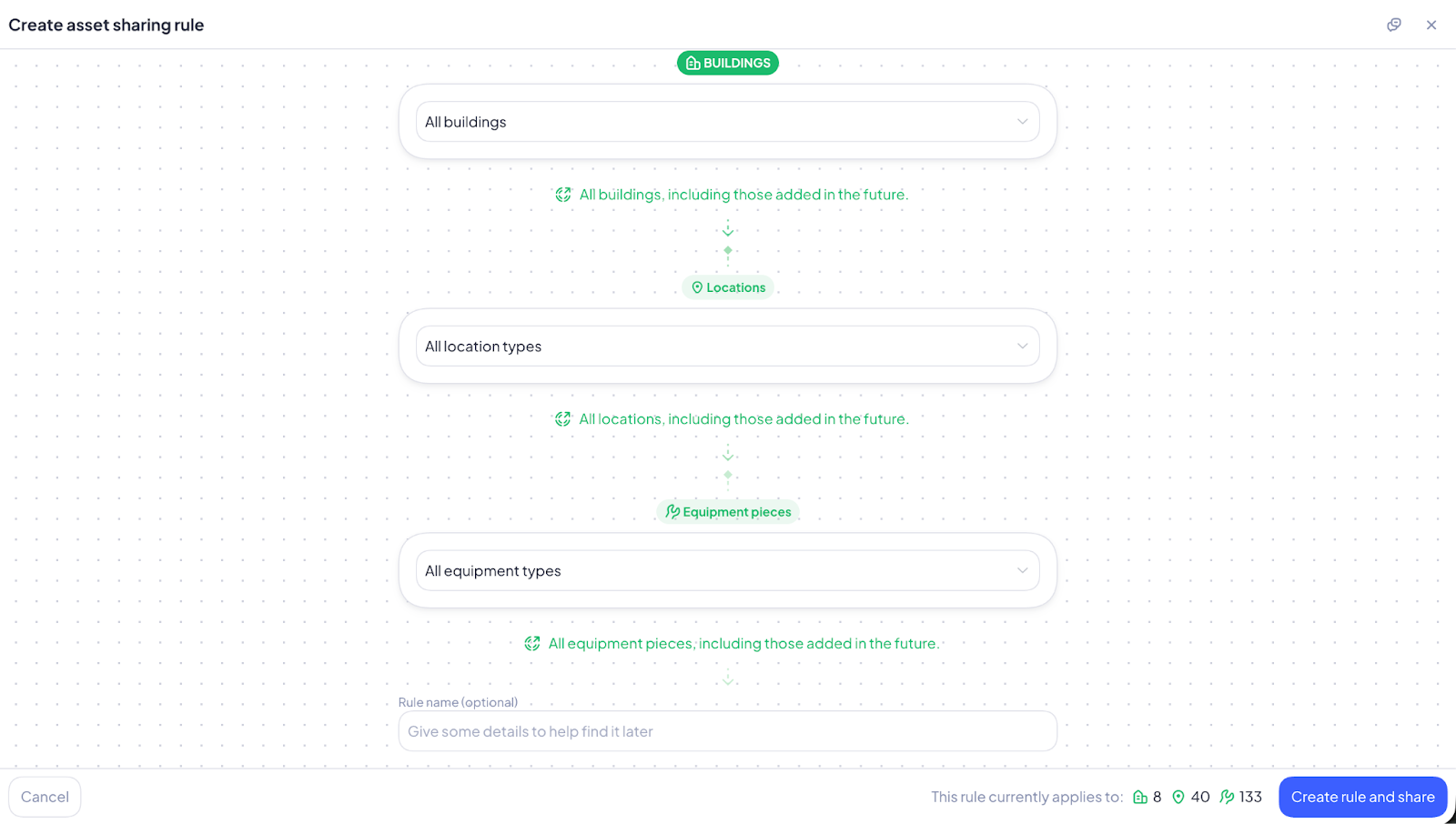
7. In the example below, by choosing Specific Buildings and picking the one I wanted to narrow down this automation to, I could then only pick specific locations from Infraspeak HQ and equipment types from the Champions Room
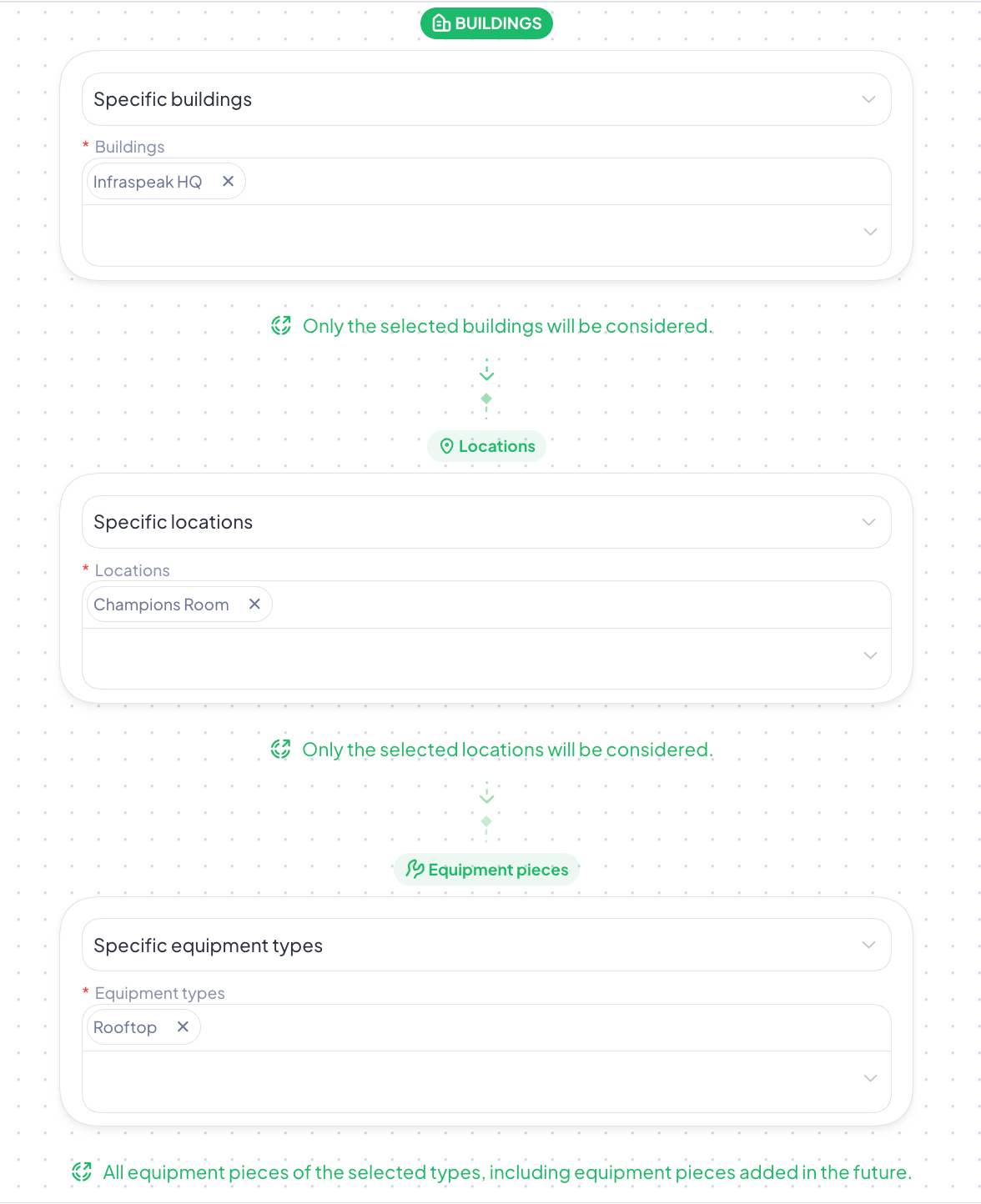
8. After you’ve completed your selection of specific buildings, locations and equipment types, look to the footer of this screen. You can cancel the progress you’ve made so far, or you can press Create rule and share so that you can now automatically share assets with your client
