
Before starting: Ensure your entity has the Infraspeak Network™ activated and that you have connected your entity with your client's: How to connect your Infraspeak with suppliers?
In its current state, there are two major ways in which you can share Work Orders with your clients on Infraspeak. Work Orders can be shared after they’ve been created, and they can be shared through automations.
How to share a work order that has already been created
1. Open the Work Orders app
2. Find the Work Order that you want to share with your Client
3. On the top-right corner, look for a green Share button
4. Press it, and the Client you originally picked for this Work Order is already pre-selected. If this is the correct Client, press Share. If this is not the correct client, make sure to edit the Client field on the Work Order itself before proceeding with the share
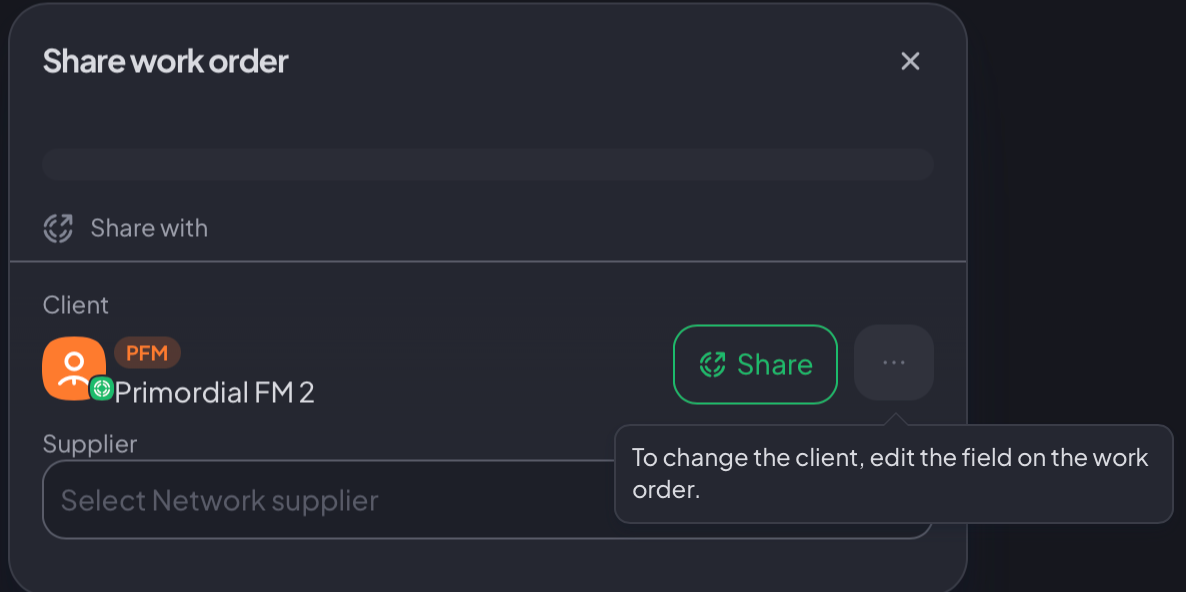
5. Include some sharing notes, such as a description of the issue that needs fixing, and finally Share it with your client!
Note: you will know this Work Order has been shared because:
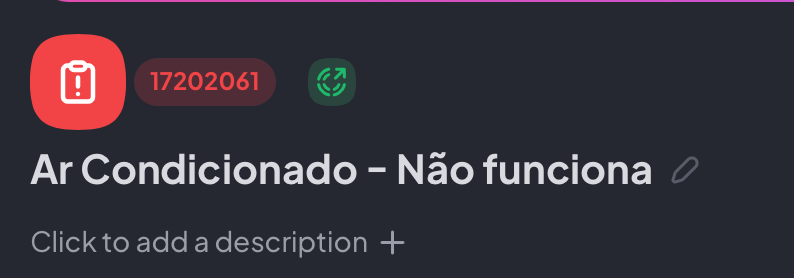
 It now has a green outwards-facing Network icon


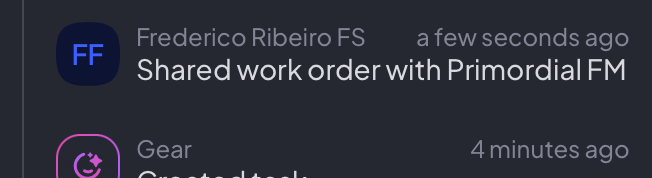
There is a share notification on the history section of this Work Order that confirms it.


Additionally, a Work Order can only be shared with a Client if you are already connected to them through Network.
How to automatically share work orders with your clients
There are currently two ways in which you can automatically share work orders with your clients. For the easiest one, head over to the Settings menu:
1. Scroll down until you find your Client settings
2. There, look for the Client you want to set automatic work order shares with and open their Client page
3. Scroll all the way down until you find Workflow preferences, and press the toggle ON to set automatic work order shares between you and this Client

Note: this setting will make it so that all new work orders you create with this client will be automatically shared. If you only want to share some of them, read the next section
In case you don’t want to automatically share all work orders but only some, follow the steps below:
1. Head over to the Settings menu
2. Under Gear AI, click on Automations
3. Click on Create automation
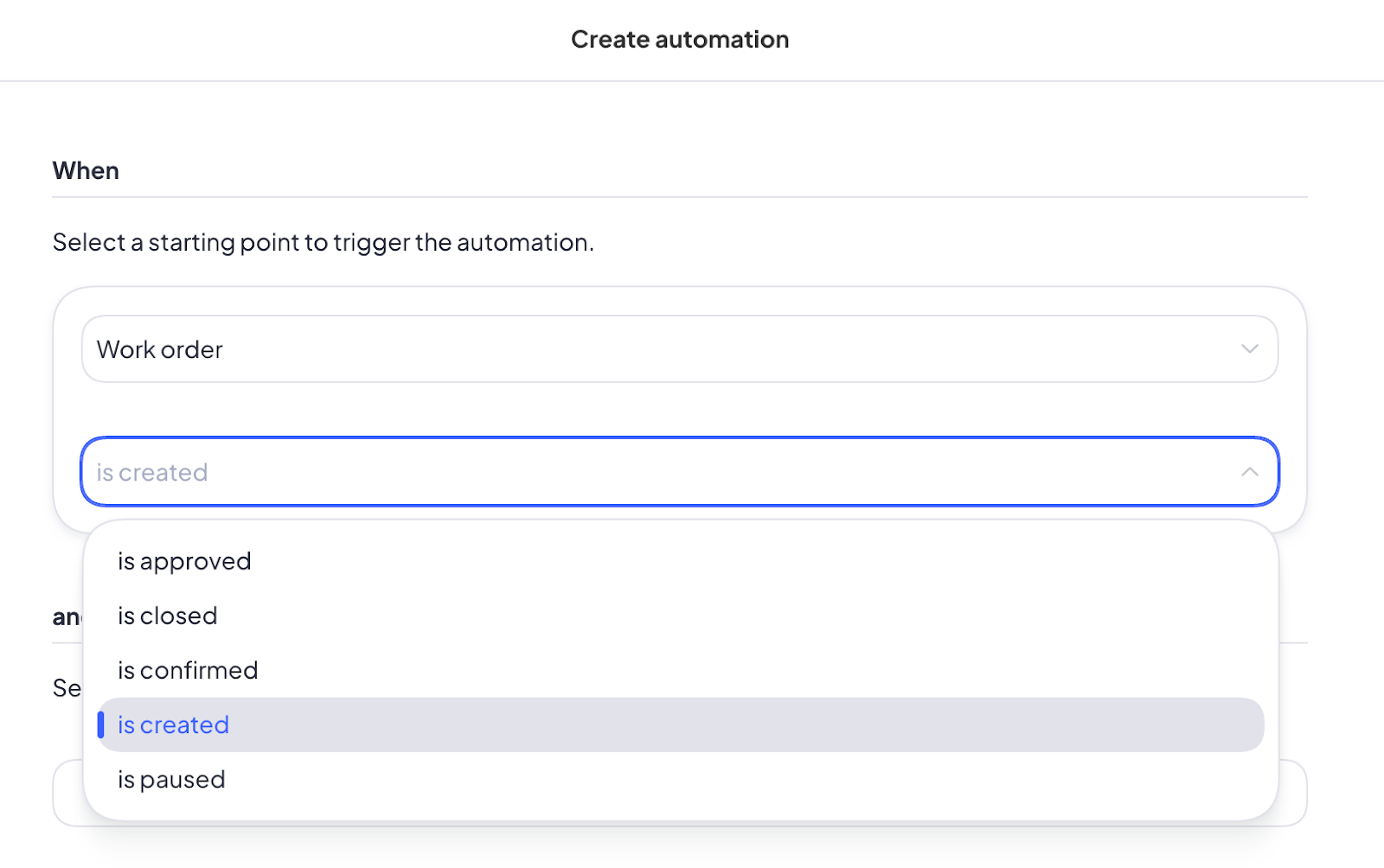
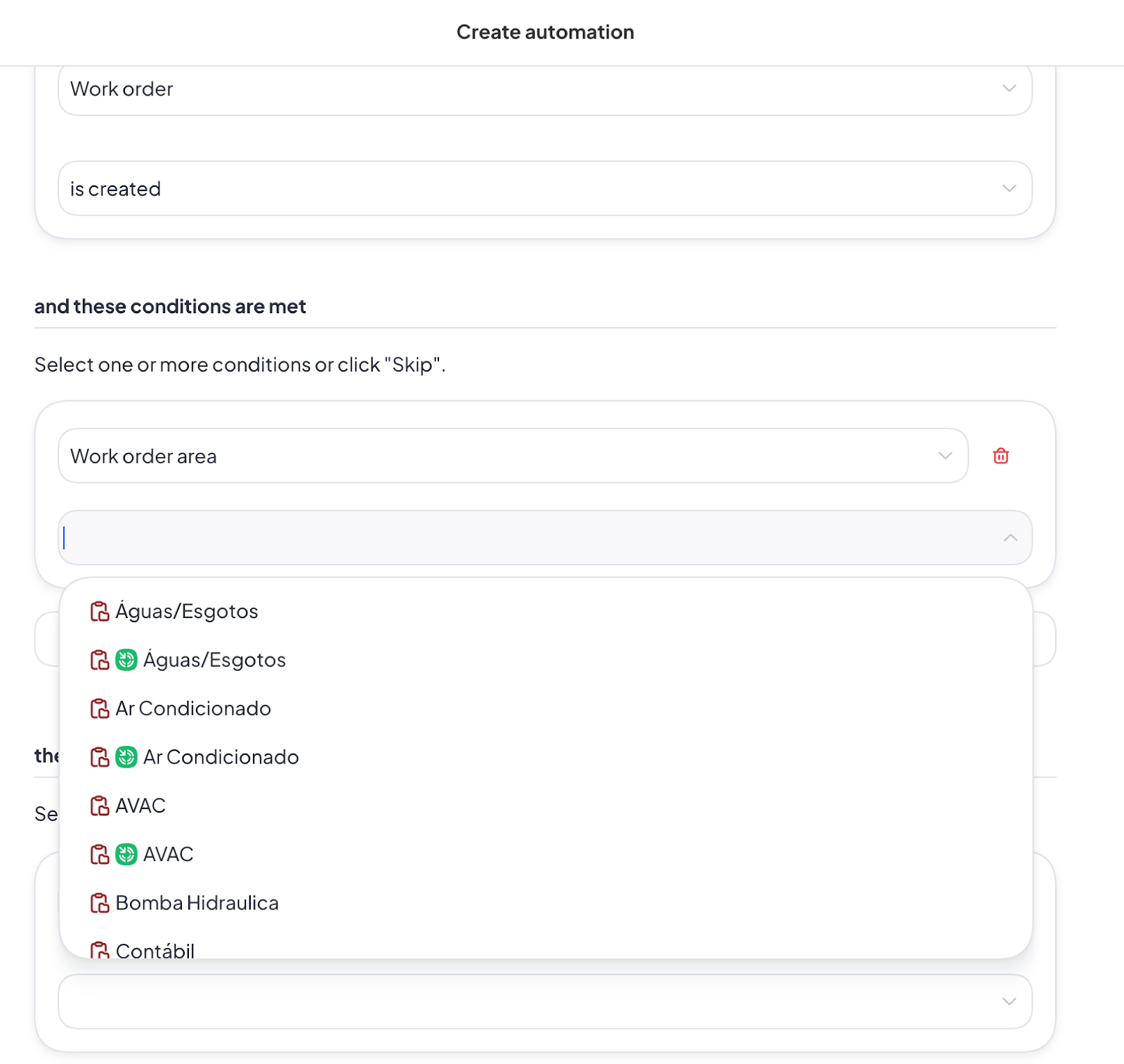
4. For the first condition, set as Work Order and any of the other executions (i.e. is created)
5. If applicable, set a new condition for Work Order Area and pick the one (or multiple) that fit the automation you’re trying to create
6. As another condition, if applicable, pick Client and the one you’d like to create this automation for
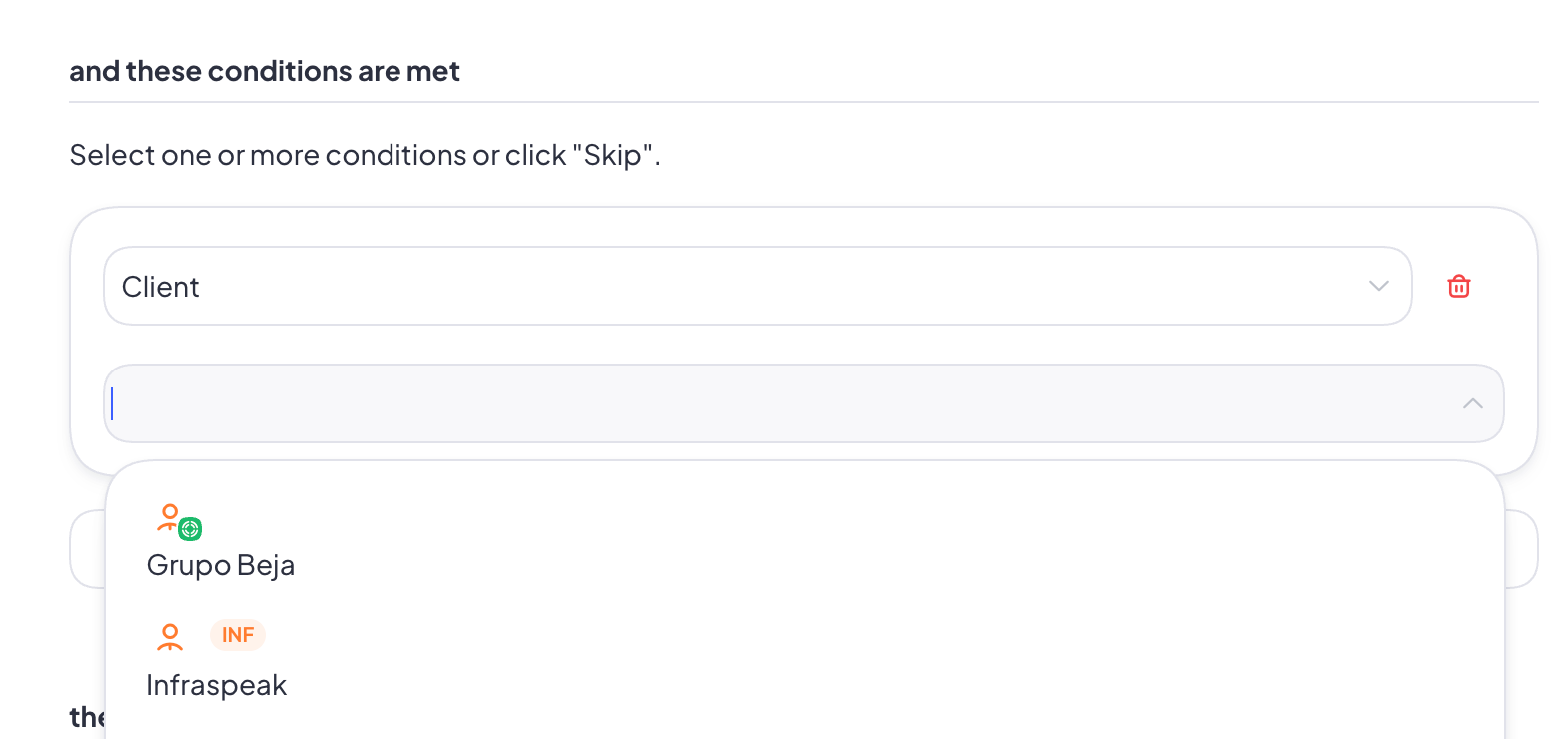
Note: in case you’d like to replicate this workflow for multiple clients, you can select other ones from the drop-down menu
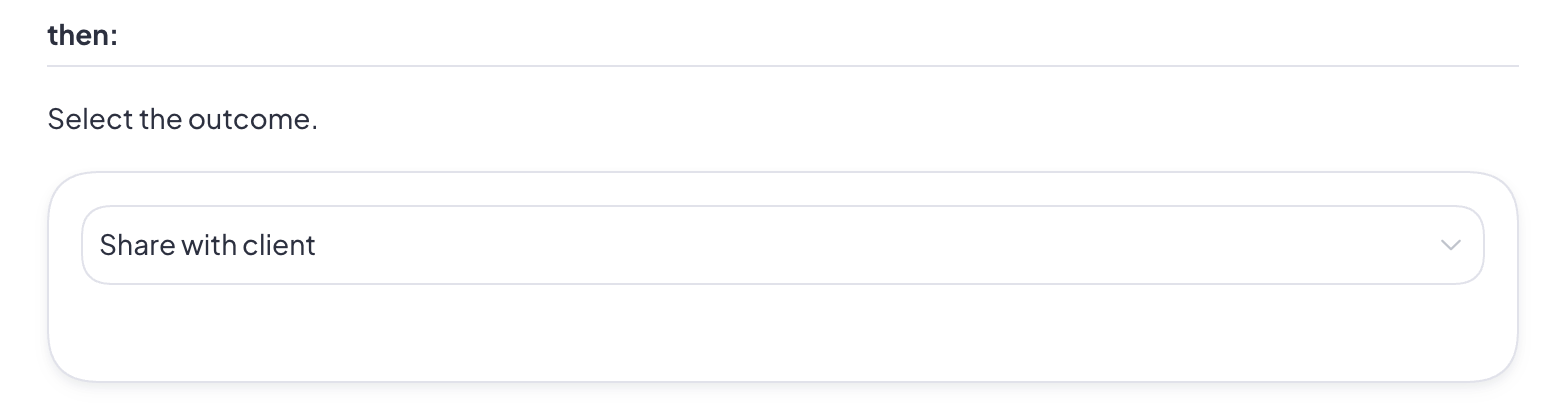
7. As for the outcome, make sure to choose Share with client from the drop-down menu
8. If you plan on adding more automations, make sure to give this one a name in the last field so that it gets easier for you to find it. Then Save!