This article will show you how to enable and use the Gear AI Dashboard.
1. How to Enable the Gear AI Dashboard
This add-on is generally available on request. To activate it, speak to your Customer Success Manager or Account Executive.
You can also show interest by filling in the form. After that, our team will get in touch with you.
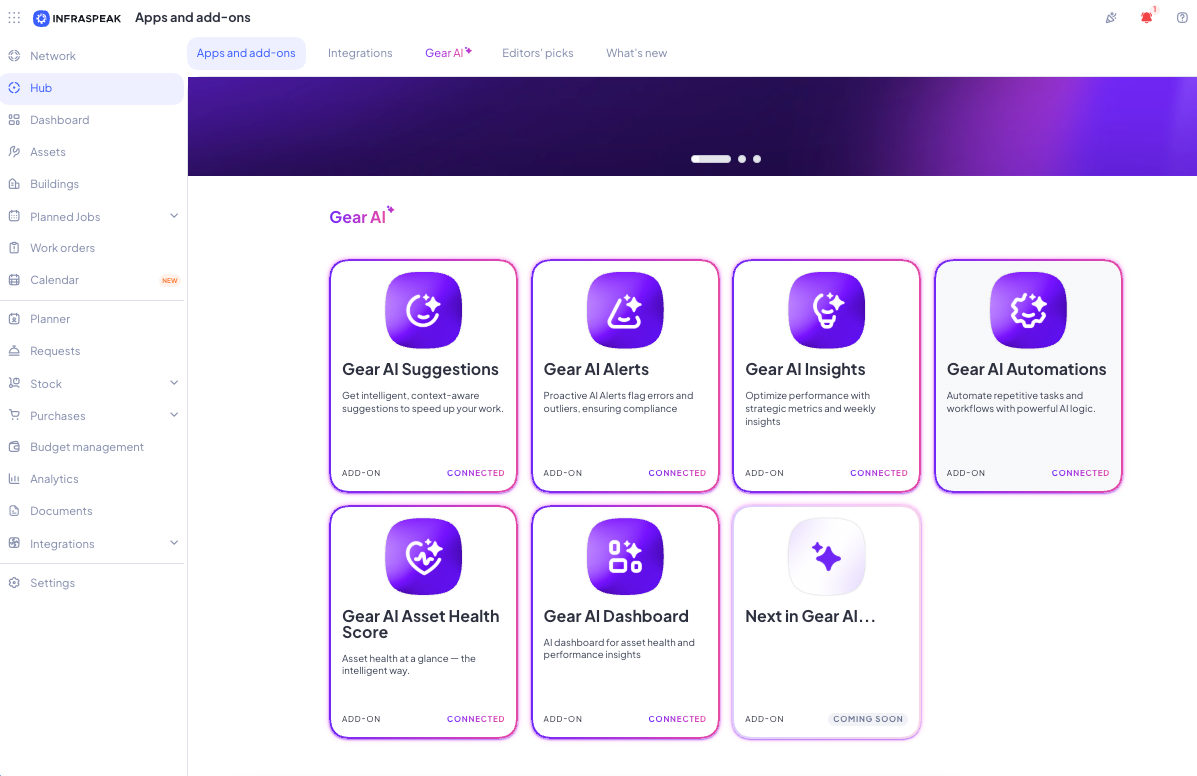
1.1 Activation Steps
When available, the Gear AI Dashboard add-on is enabled by default. Still, an administrator can disable or enable it at any time.
Requirement: This add-on depends on the Dashboard app being enabled.
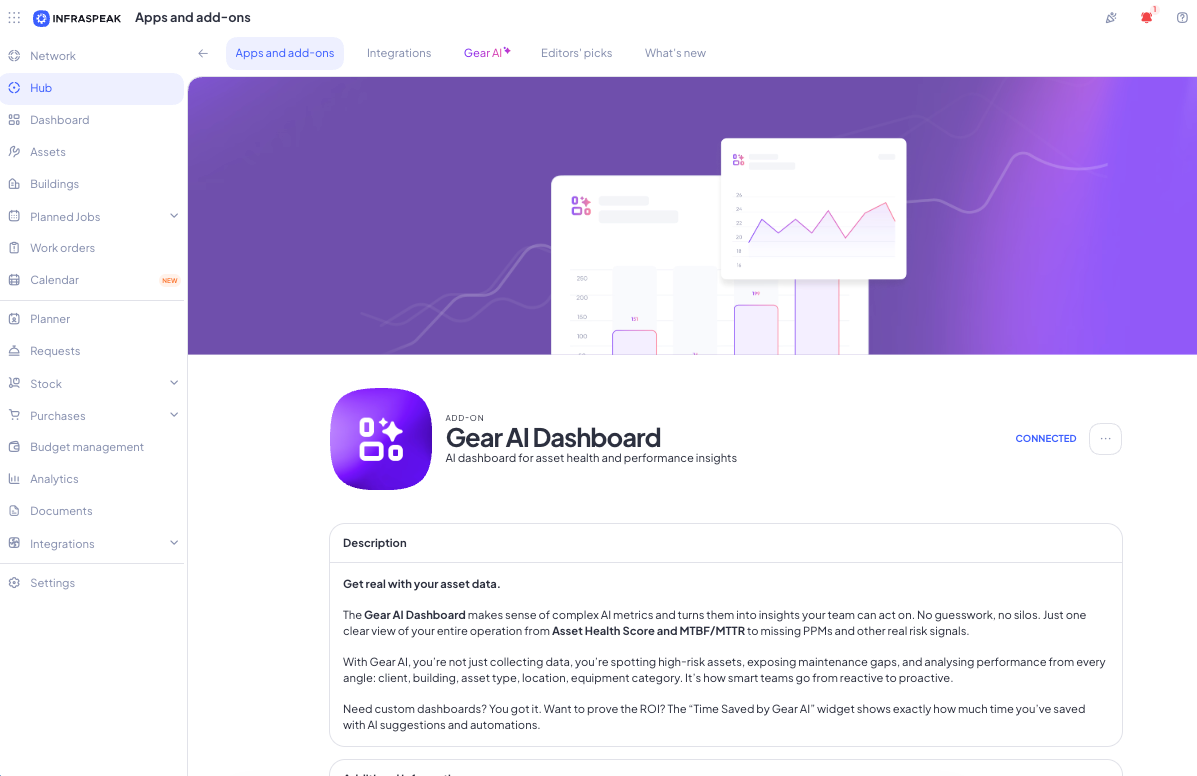
2. How to use the Gear AI Dashboard
You can find the Gear AI Dashboard in the Dashboard app.
2.1 Create a Gear AI Dashboard
You can create a Gear AI Dashboard from the list of dashboards, in the new dashboard section.
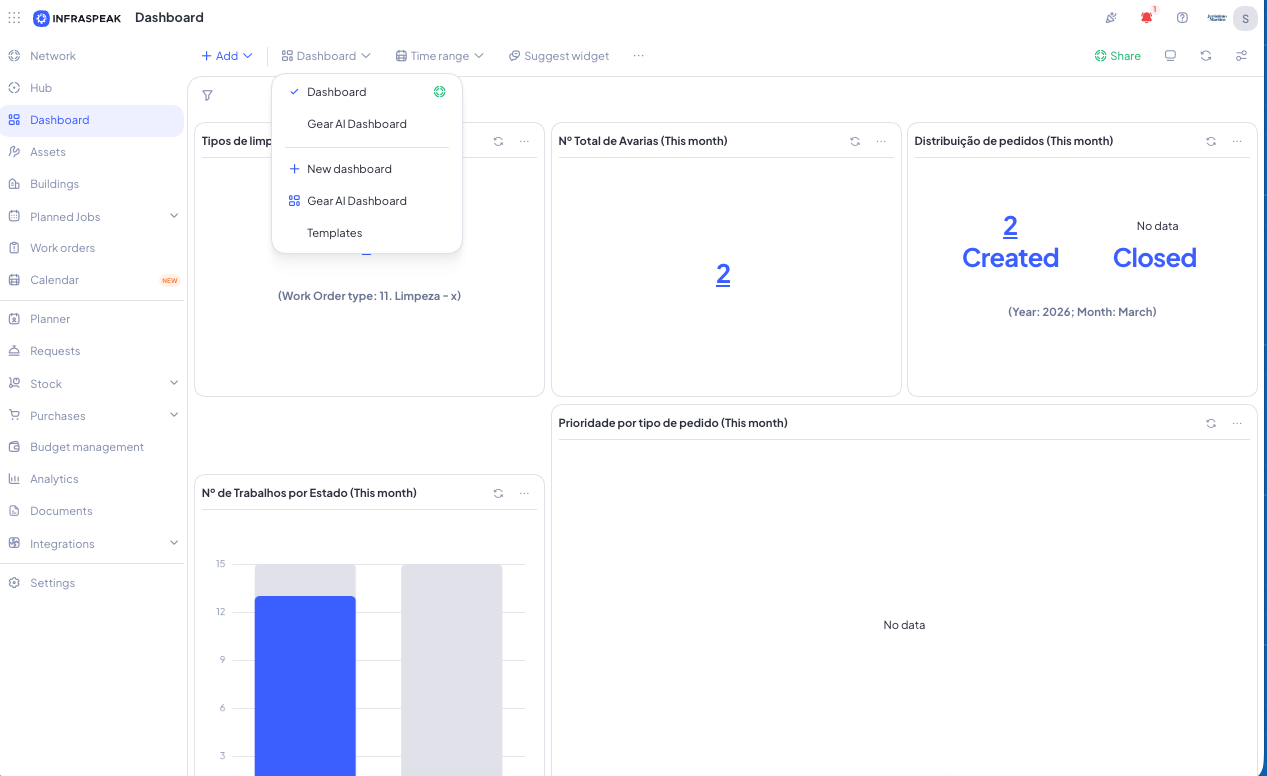
You can click the Gear AI Dashboard option or select it from the template library.
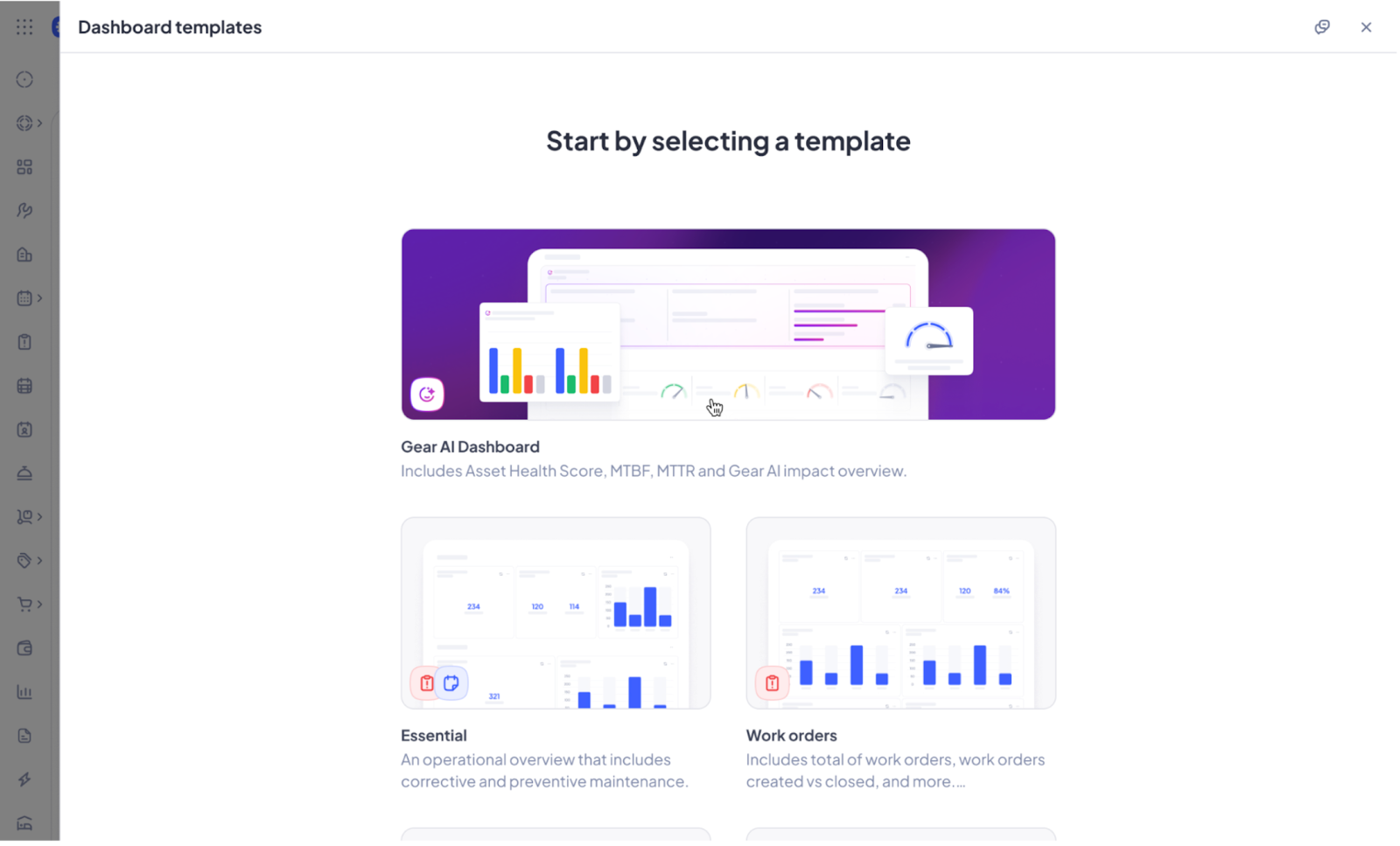
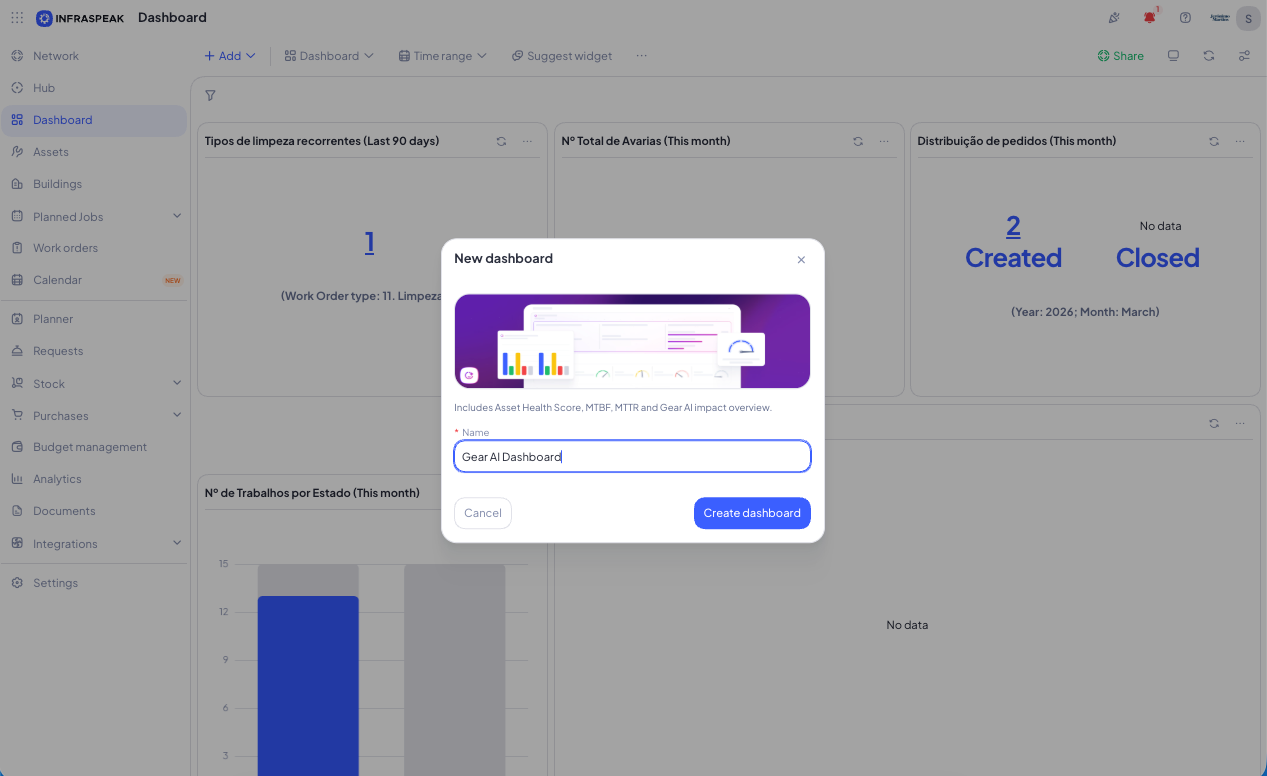
Then, you just need to give the new dashboard a name.
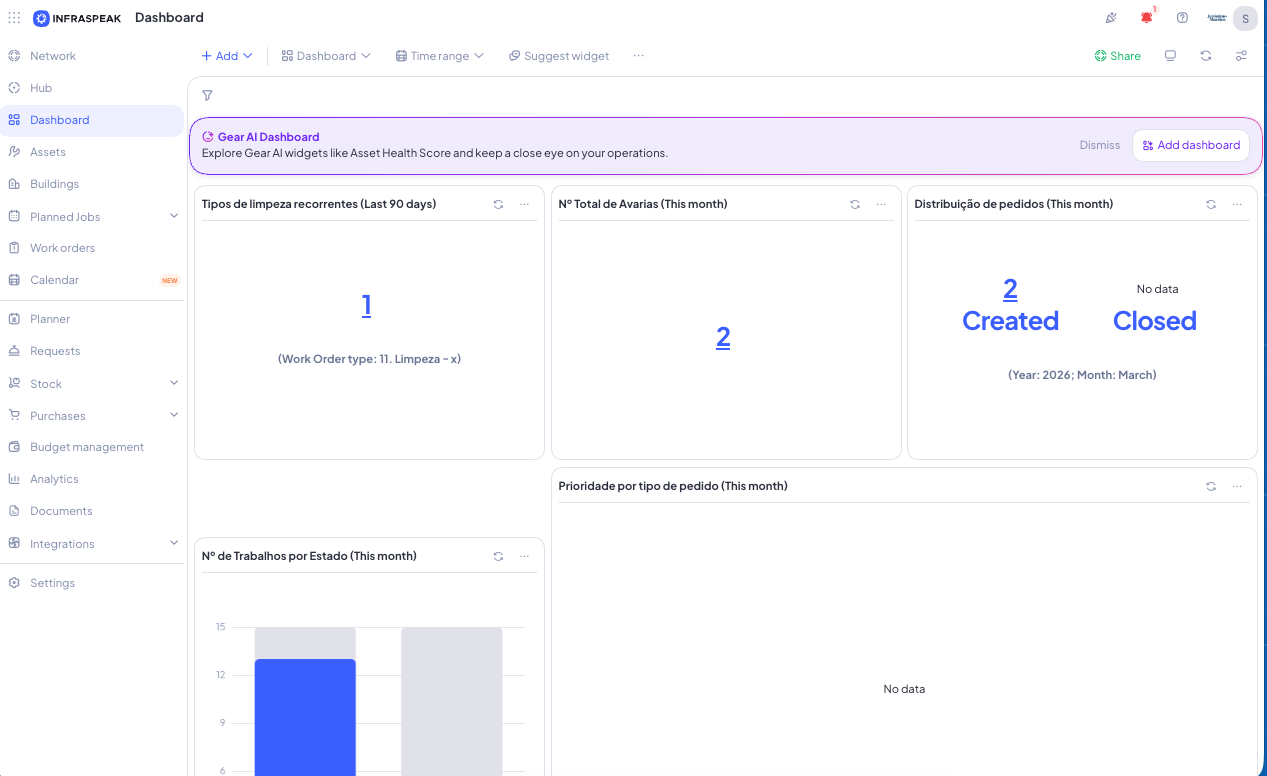
You can also create the Gear AI Dashboard directly from the disclaimer at the top of the Dashboard app.
2.2 Gear AI dashboard structure
The Gear AI Dashboard is a predefined template with the following widgets.
Gear AI Impact overview
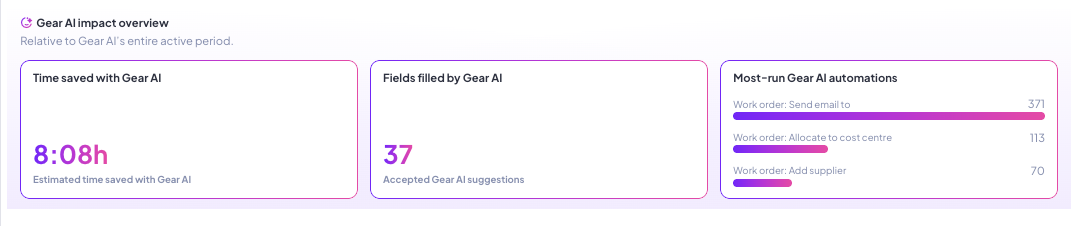
This section includes three widgets:
- Time saved by Gear — the total estimated time saved through Gear automations and suggestions
- Fields filled by Gear AI — how many times users accepted a suggestion from Gear Suggestions
- Most run Gear Automations — the most frequently executed Gear AI automations
Note: These widgets show all available data and can’t be filtered.
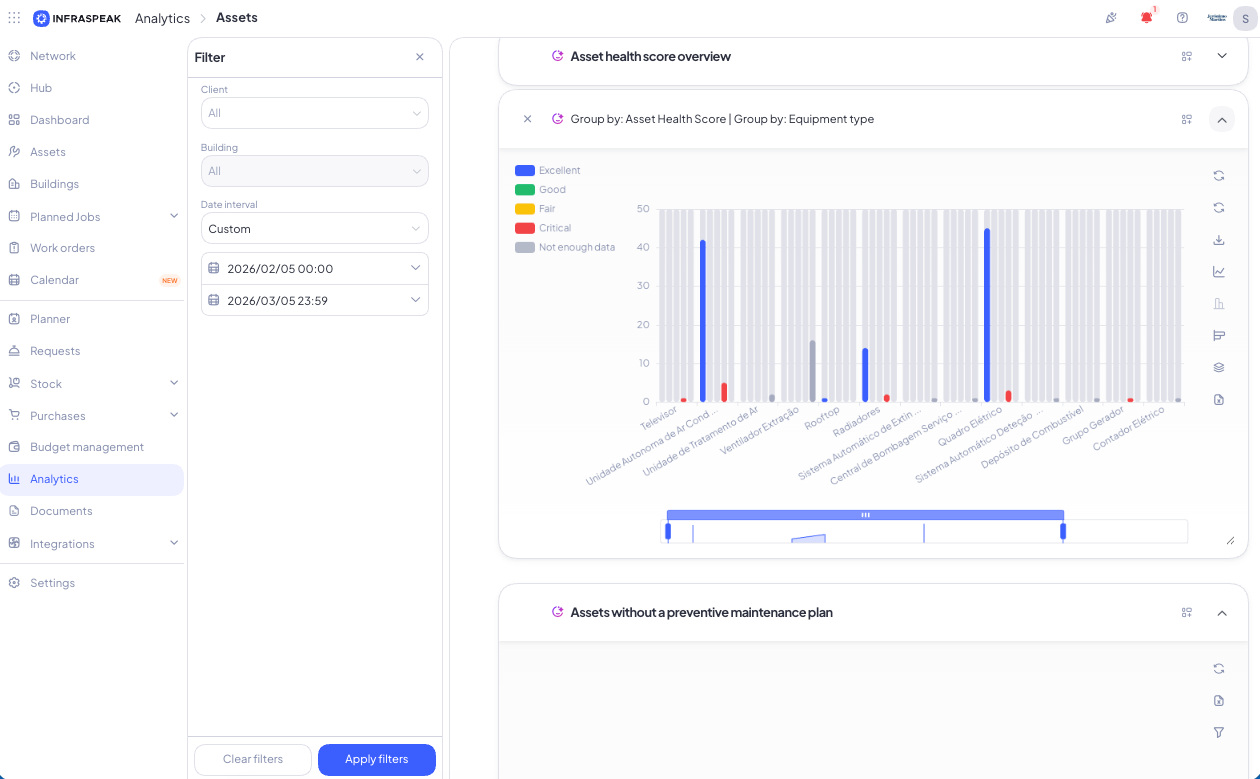
Asset Health Score
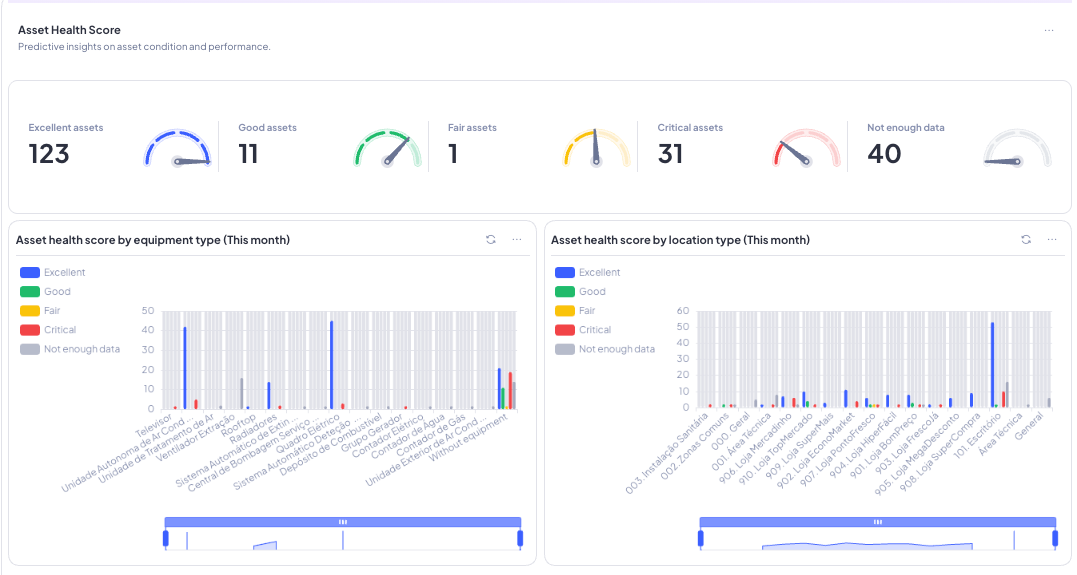
This section gives you predictive insights into asset condition and includes three widgets:
- Total assets and the percentage of assets in each health score
- Asset health score by equipment type
- Asset health score by location type
This section — and the following ones — lets you analyse data and explore related fields.
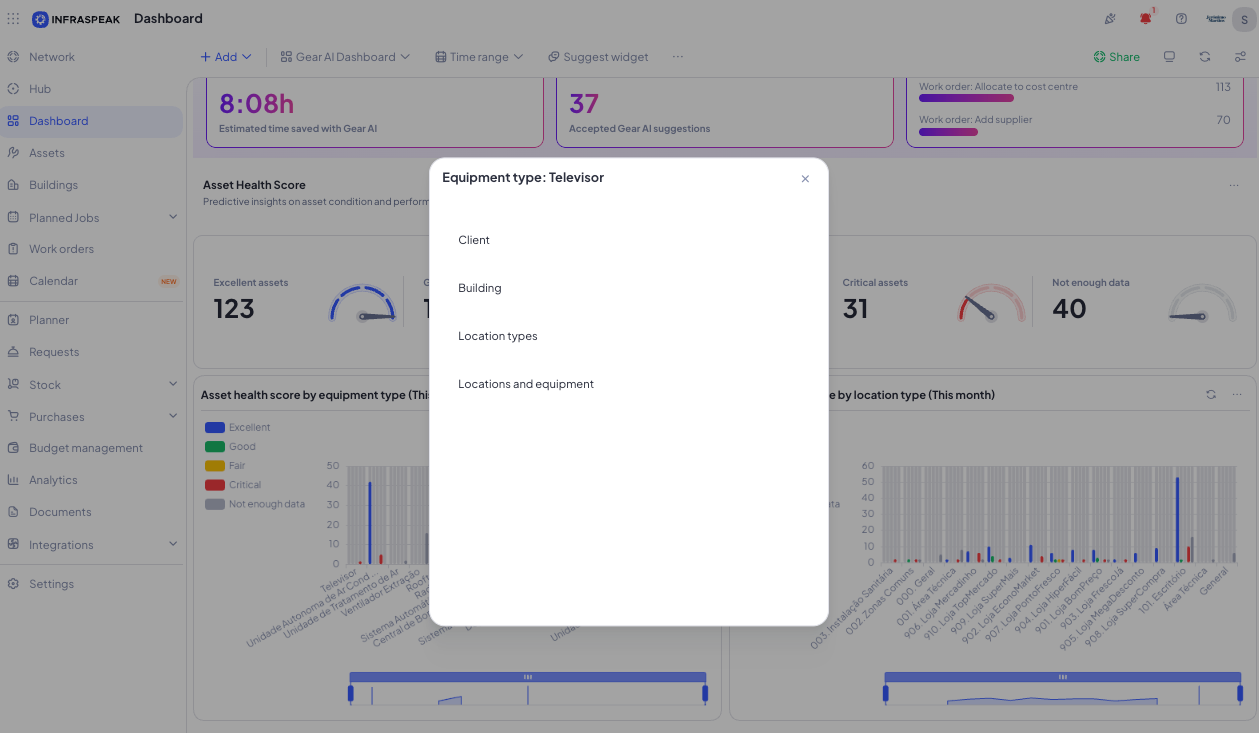
Assets without PMP
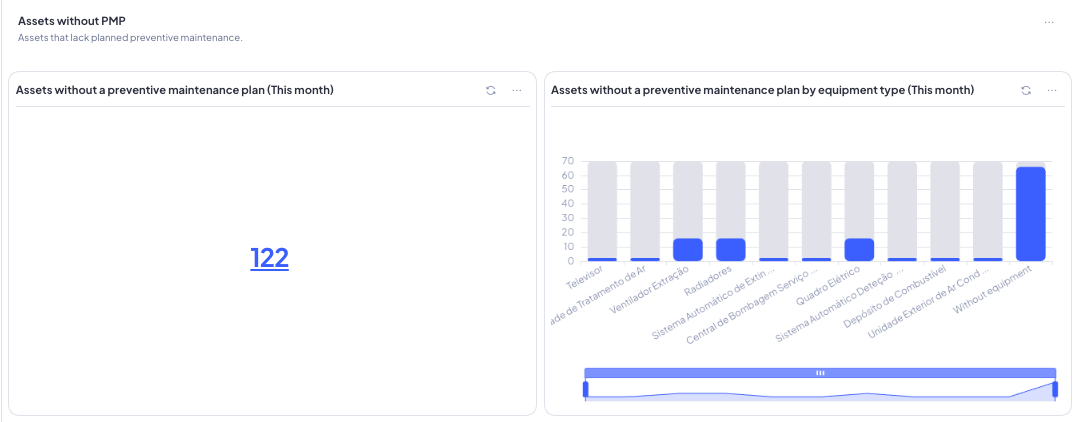
This section gives you insights into assets without a preventive maintenance plan and includes two widgets:
- Total assets without a PMP
- Total assets without a PMP by equipment type
Assets maintenance performance
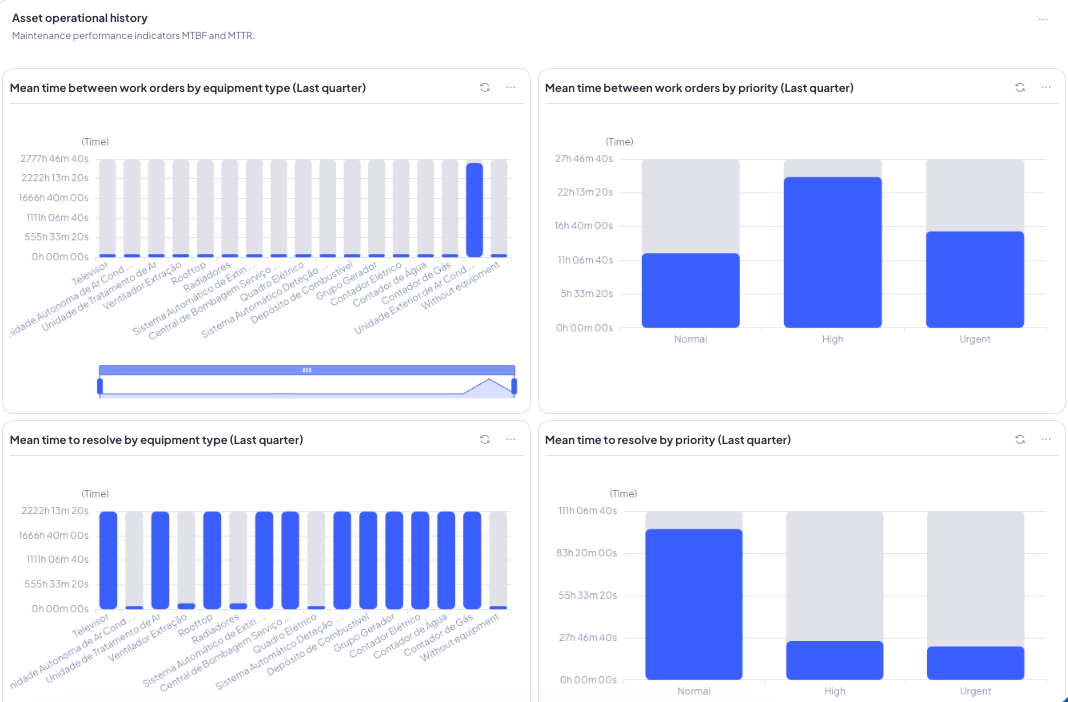
This section gives you insights into asset maintenance performance — MTTR (Mean Time To Resolve) and MTBF (Mean Time Between Failures) — and includes four widgets:
- MTBF and MTTR by equipment type
- MTBF and MTTR by priority
You can remove any widget from the dashboard by selecting the right option in the widget menu.
2.3 Add Gear AI widgets to a custom dashboard
You can add a Gear AI widget to a custom dashboard by selecting it from the list of available widgets.
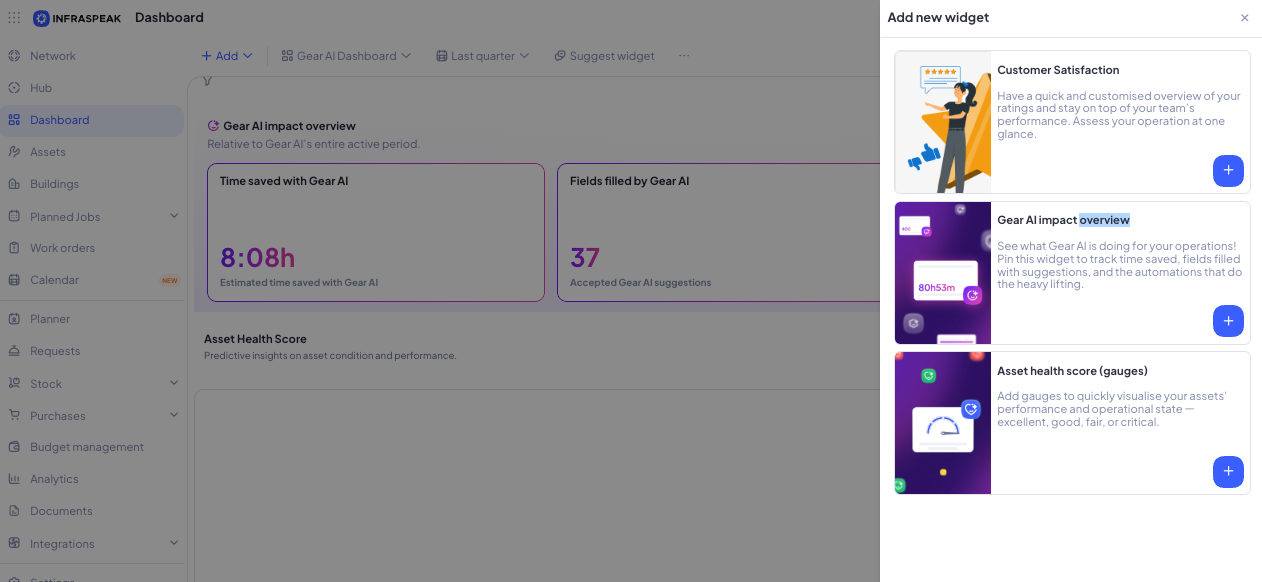
You can also add a widget through the Add to dashboard option in the widgets available in the Asset section of the Analytics app.