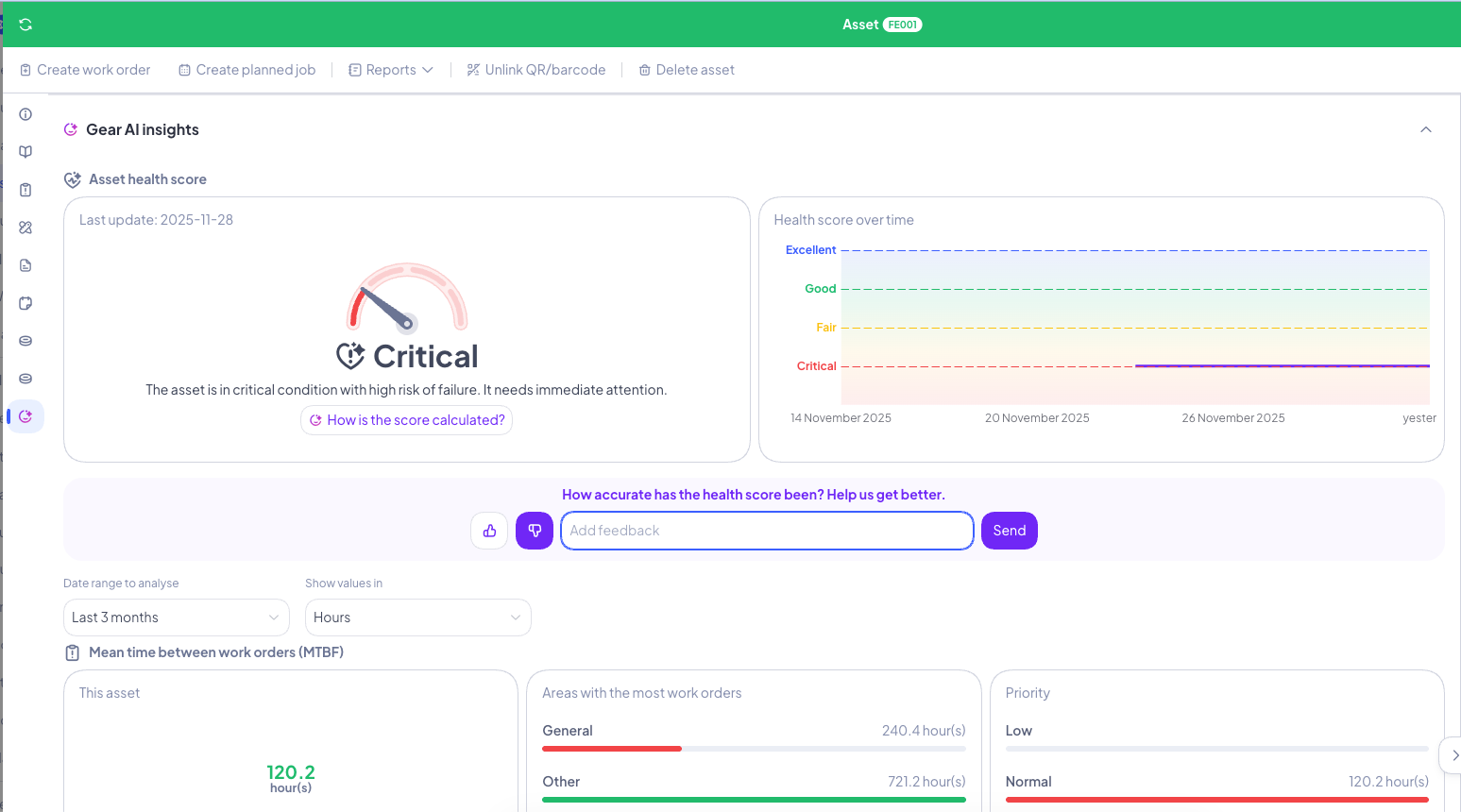
The Asset Health Score is your real-time window into how each asset is performing and what may need attention next. Always visible in the asset detail screen, this dynamic score brings together insights from work orders, asset specifications, tasks, and measurements, to help you understand current conditions and anticipate potential issues.
1. How to Enable the Asset Health Score
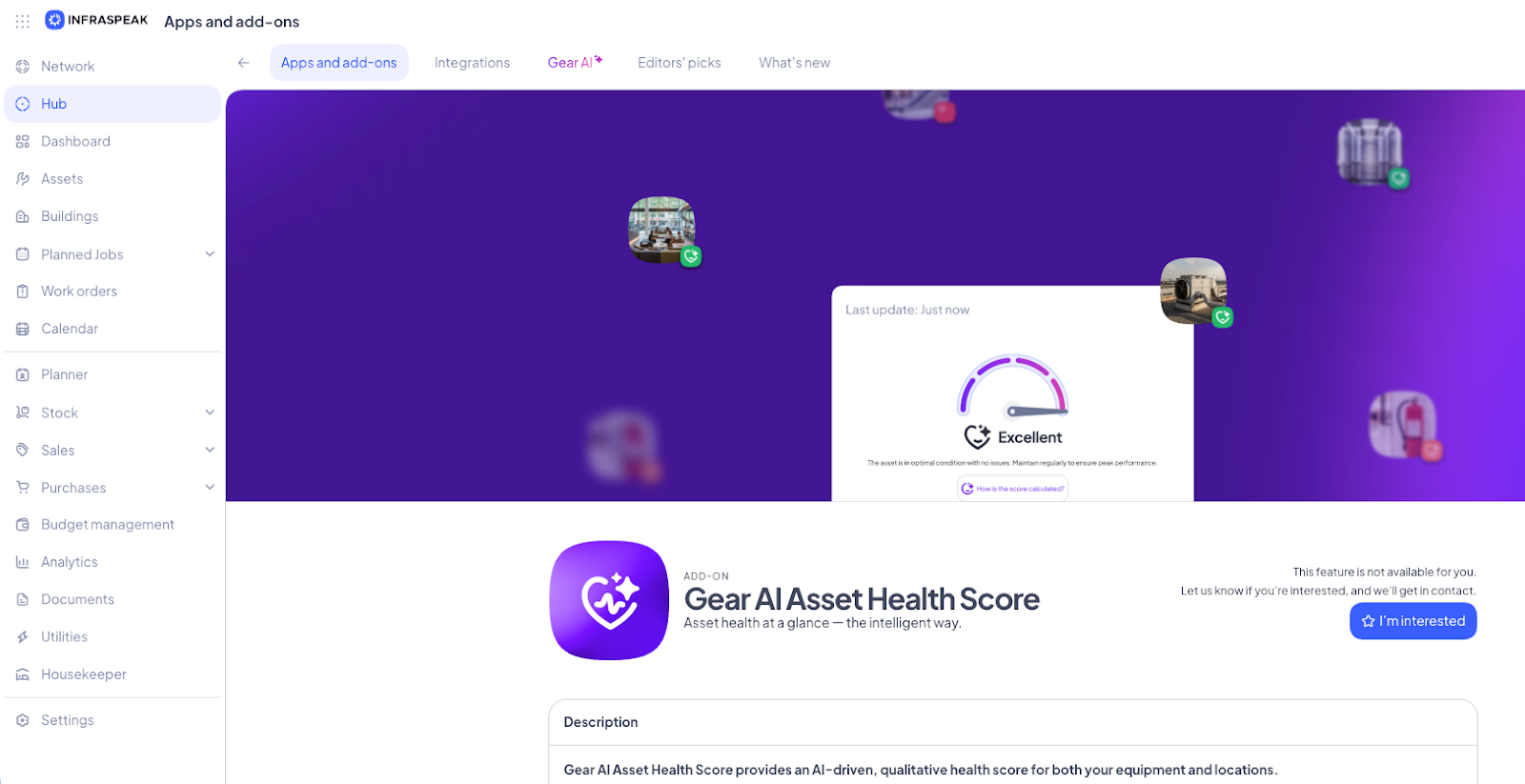
The Asset Health Score is available as an add-on — just ask your Customer Success Manager or Account Executive to switch it on.
Want us to reach out instead? Click on the button “I’m interested”, fill out the form, and we’ll be in touch soon.

1.1 Activation Steps
If the add-on’s already active, just connect it to get your Asset Health Score up and running.
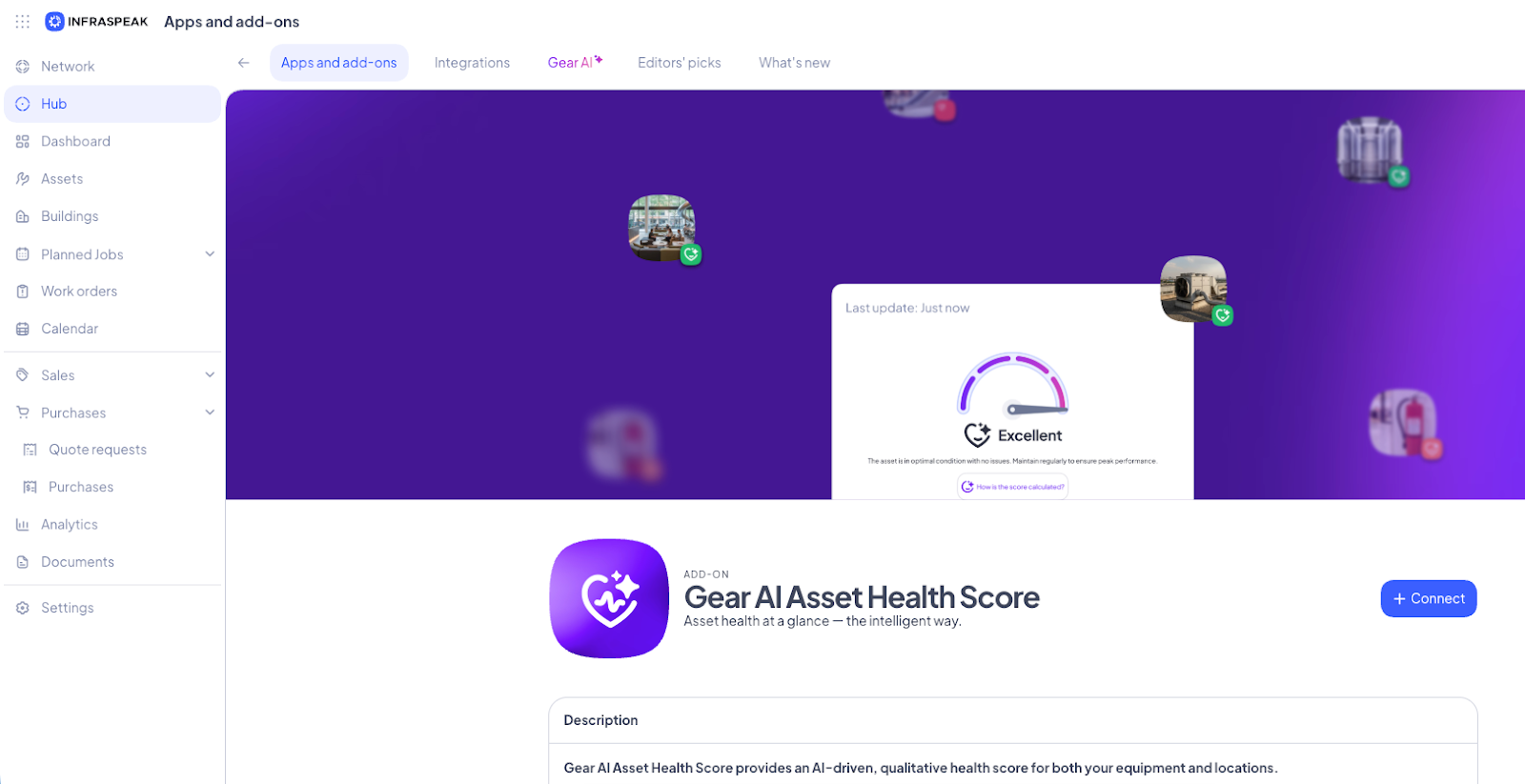
Once activated, Gear AI will scan all your historical data. After 24 hours, you’ll start seeing the first predictions show up in your asset list.
2. How to use the Asset Health Score
2.1 Asset Health Score in the assets list
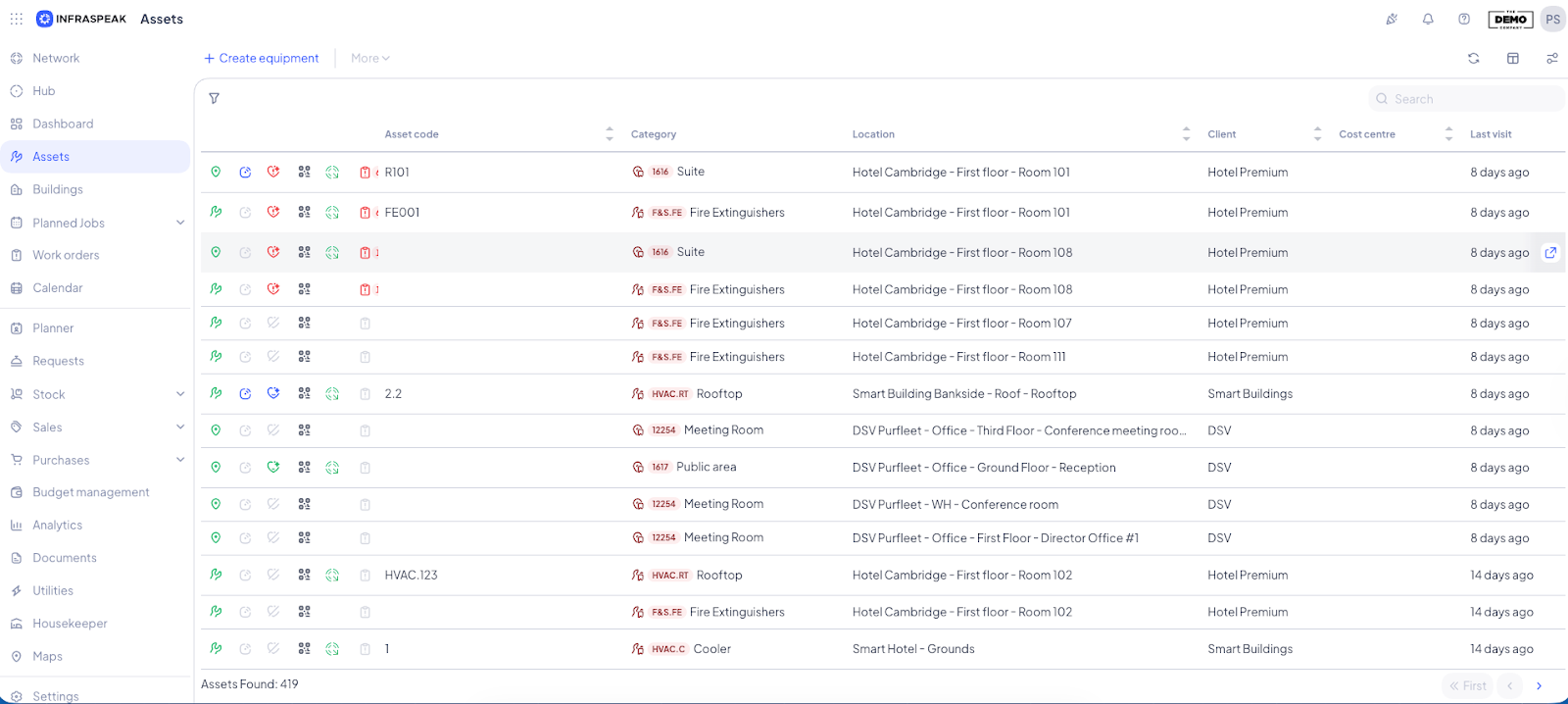
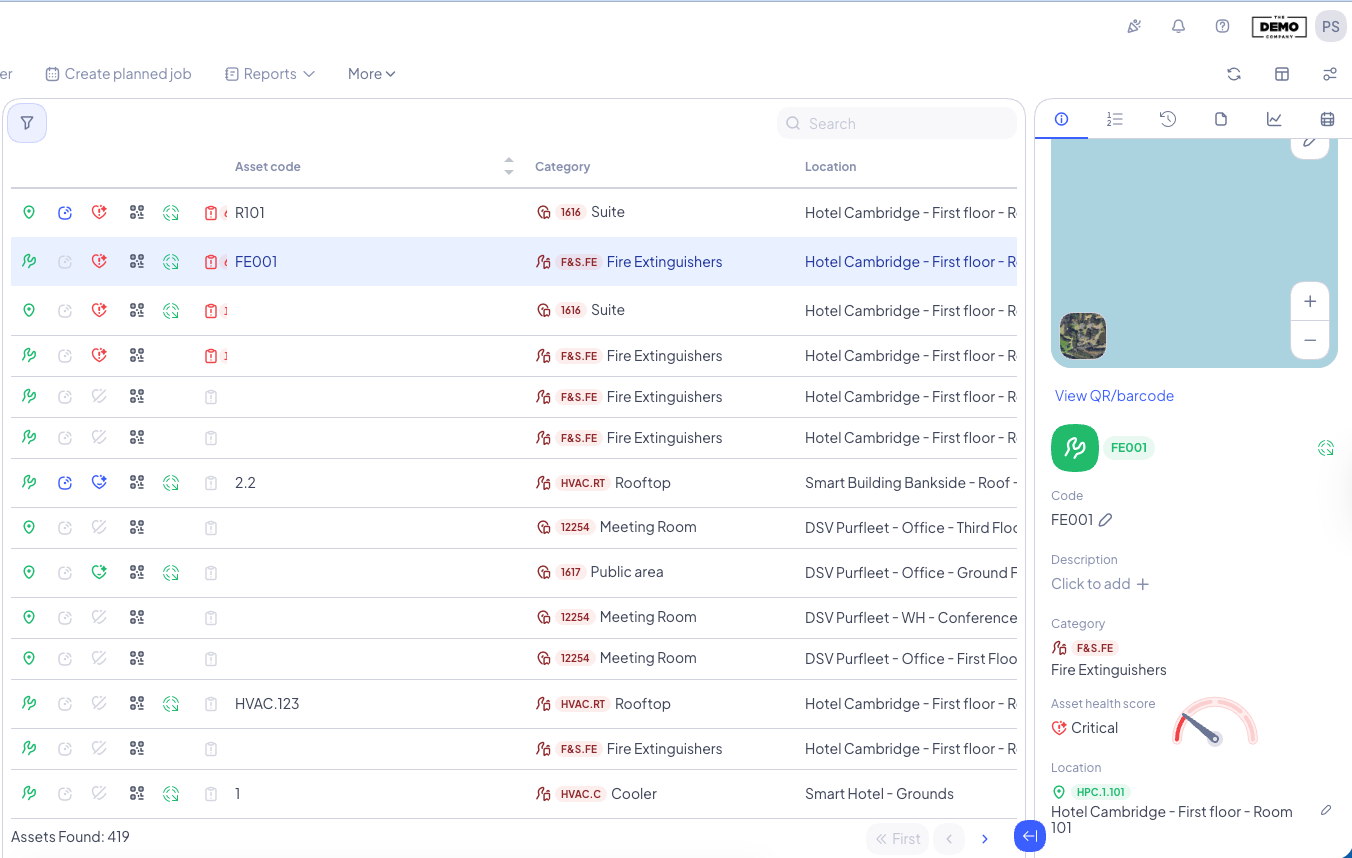
You’ll find the Asset Health Score icon in the third position of the first column in your asset list. Each icon shows a different status:



⚠️ Important notes:
Scores are updated daily and shown in real time whenever you open the asset list.
The score shows how likely it is that an asset will run into trouble.
Gear AI learns from past corrective maintenance — the more history you’ve got for similar assets, the better the predictions.
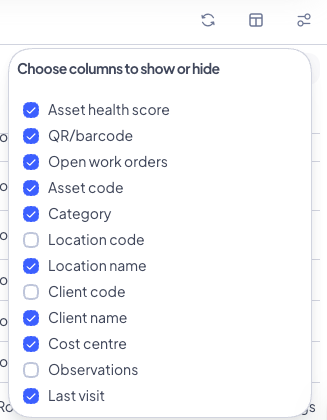
Tip:Not seeing the Asset Health Score?
Make sure the column is set to visible in your list settings.
2.2 Asset Health Score in the sidebar
Click on any asset to open its details — you’ll see the health score right there in the sidebar.
2.3 Filter by Asset Health Score in the assets list
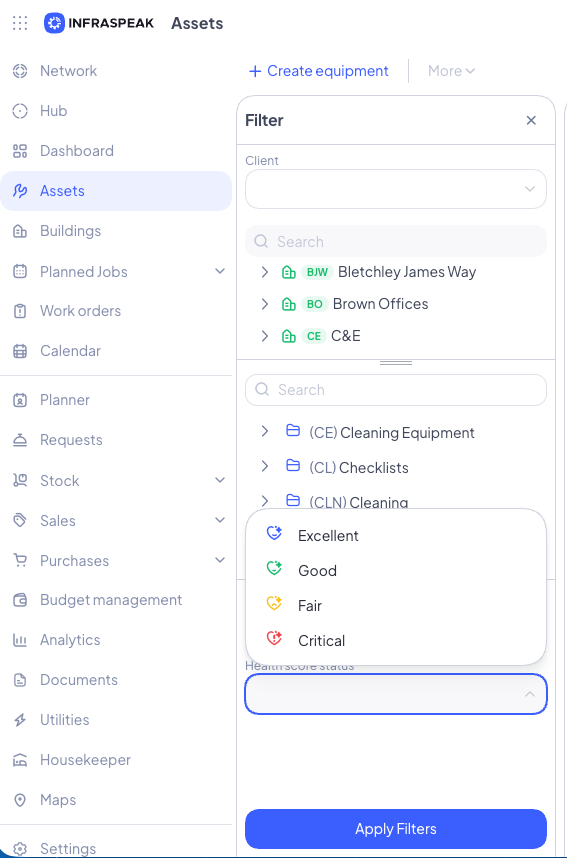
You can also search for assets in the filters pane by health score.
Tip:
Seeing different scores in the filter vs. the list?
That’s normal. Filters use the latest calculated score, but the list updates in real time — so things might shift as it loads.
Try running the search again and you’ll probably get slightly different results.
2.4 Asset Health Score in the asset detail
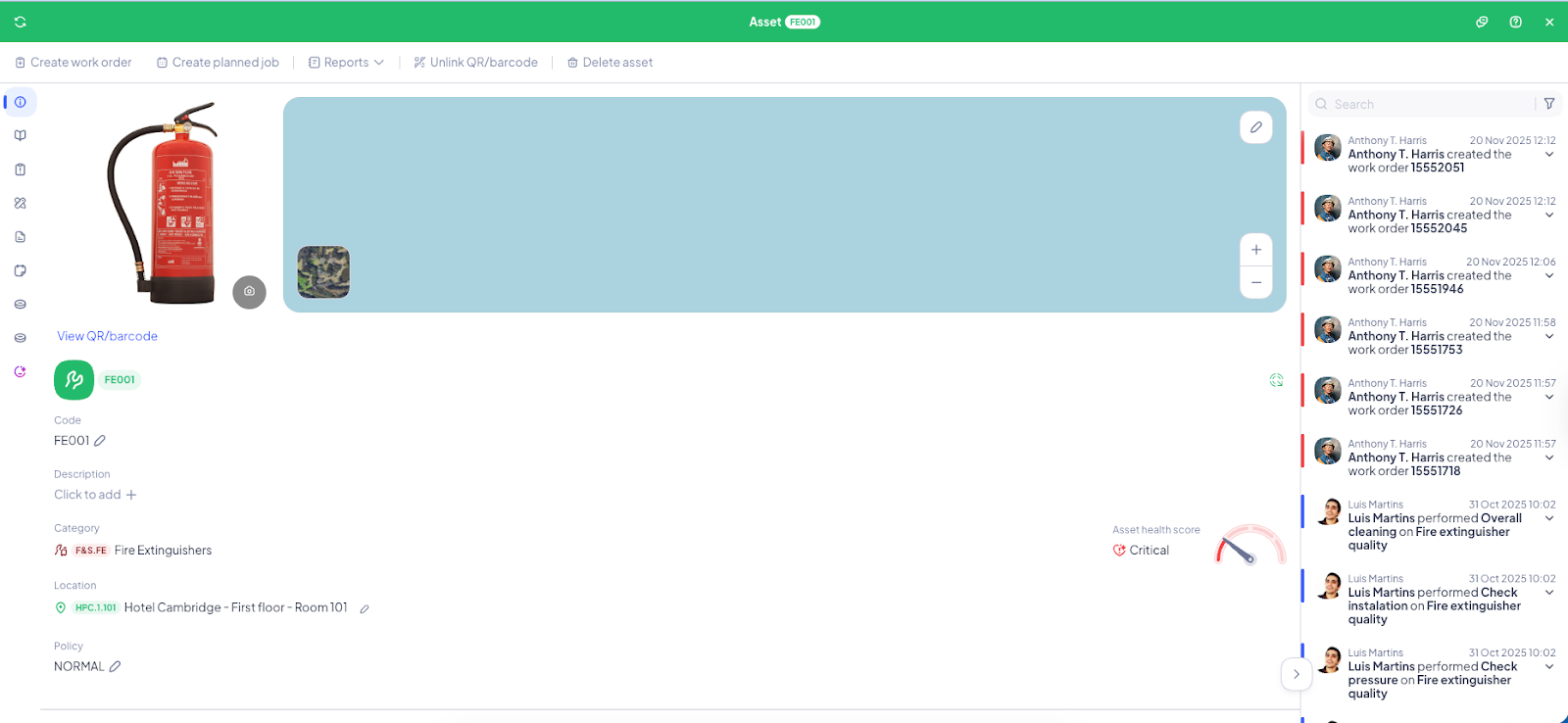
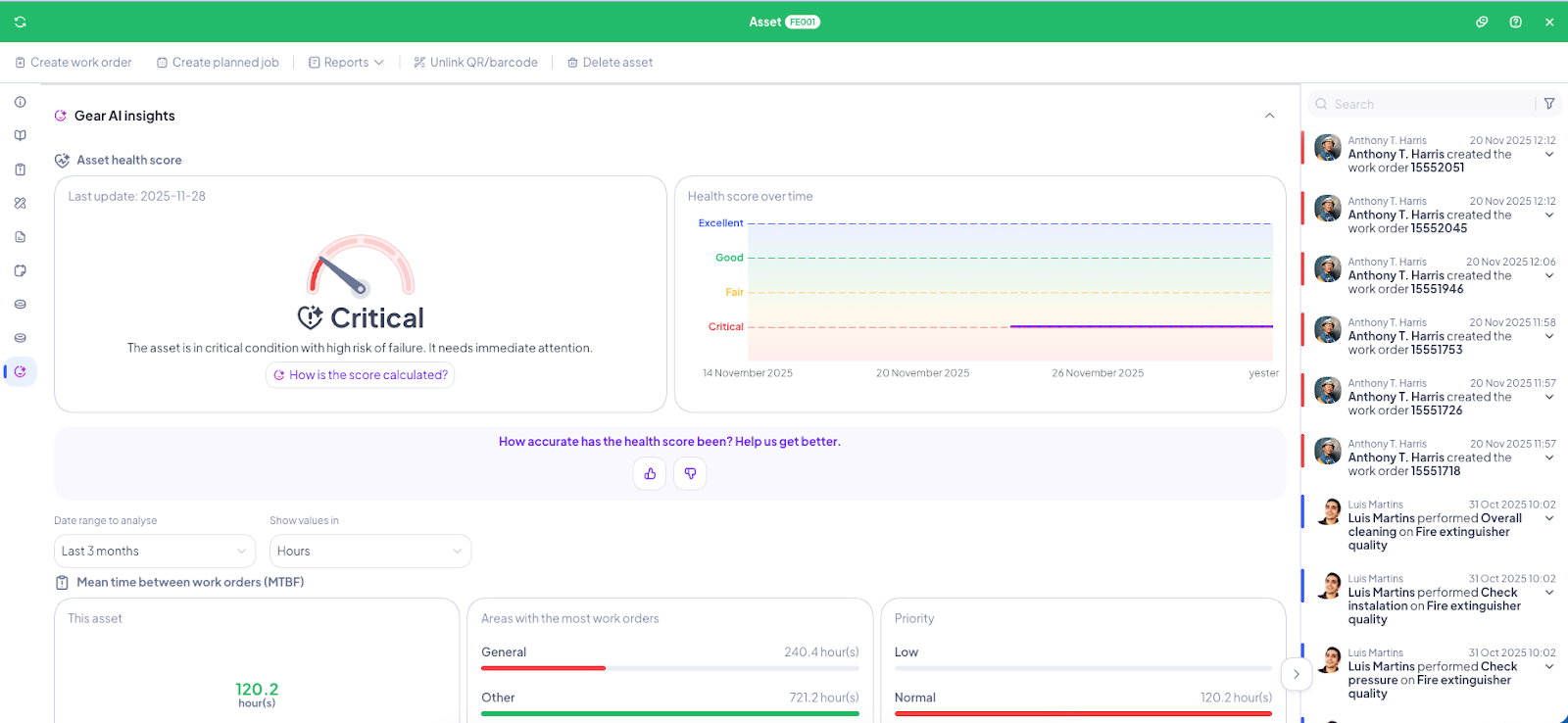
You’ll find the Asset Health Score widget at the top right corner of the asset detail screen — always visible, always up to date.
Tip:
Click the widget to jump straight to the Gear AI Insights section.
There, you’ll see the real-time health score on the left — and a timeline view on the right to track how it’s changed over time.
2.5 How the Asset Health Score is calculated
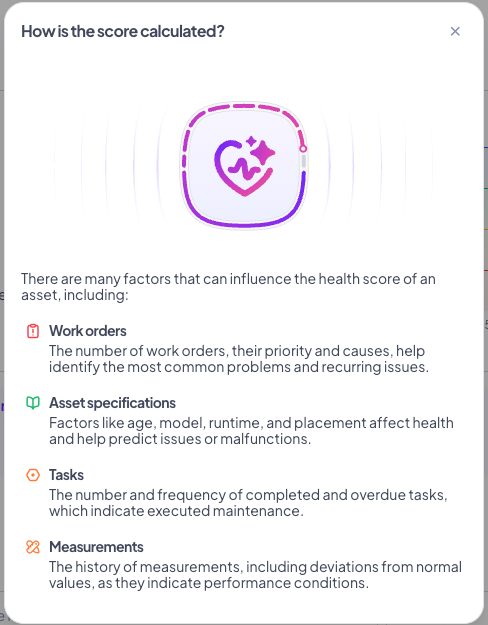
Click “How is the score calculated?” in the left widget to see what drives the Asset Health Score. Here's what’s behind the number:
Work orders
Gear AI learns from past issues. It looks at the number of work orders, their priority and causes to spot patterns and recurring problems.
To make the first prediction, at least two work orders must be completed in the same category — and at least one must involve the specific equipment or location.Asset specifications
Age, model, runtime, placement, and other characteristics all affect the score — and help predict breakdowns before they happen.Tasks
Gear AI considers how often tasks get done (or missed). Completed and overdue tasks — both corrective and preventive — impact the score.Measurements
The score also reflects how the asset is performing. Deviations from normal values — including those from IoT sensors — are factored in to make predictions more accurate.
2.6 Leave feedback on the Asset Health Score
Just below the health score widgets, you’ll find an option to leave feedback.
Think the score’s spot on — or way off? Let us know. Your input helps us fine-tune the AI and make predictions even smarter.